A kanban card used to show its title and one extra field. That was enough to know what a card was, but rarely enough to know what to do about it. You still had to open the record to see who owned it, how urgent it was, or when it was due.
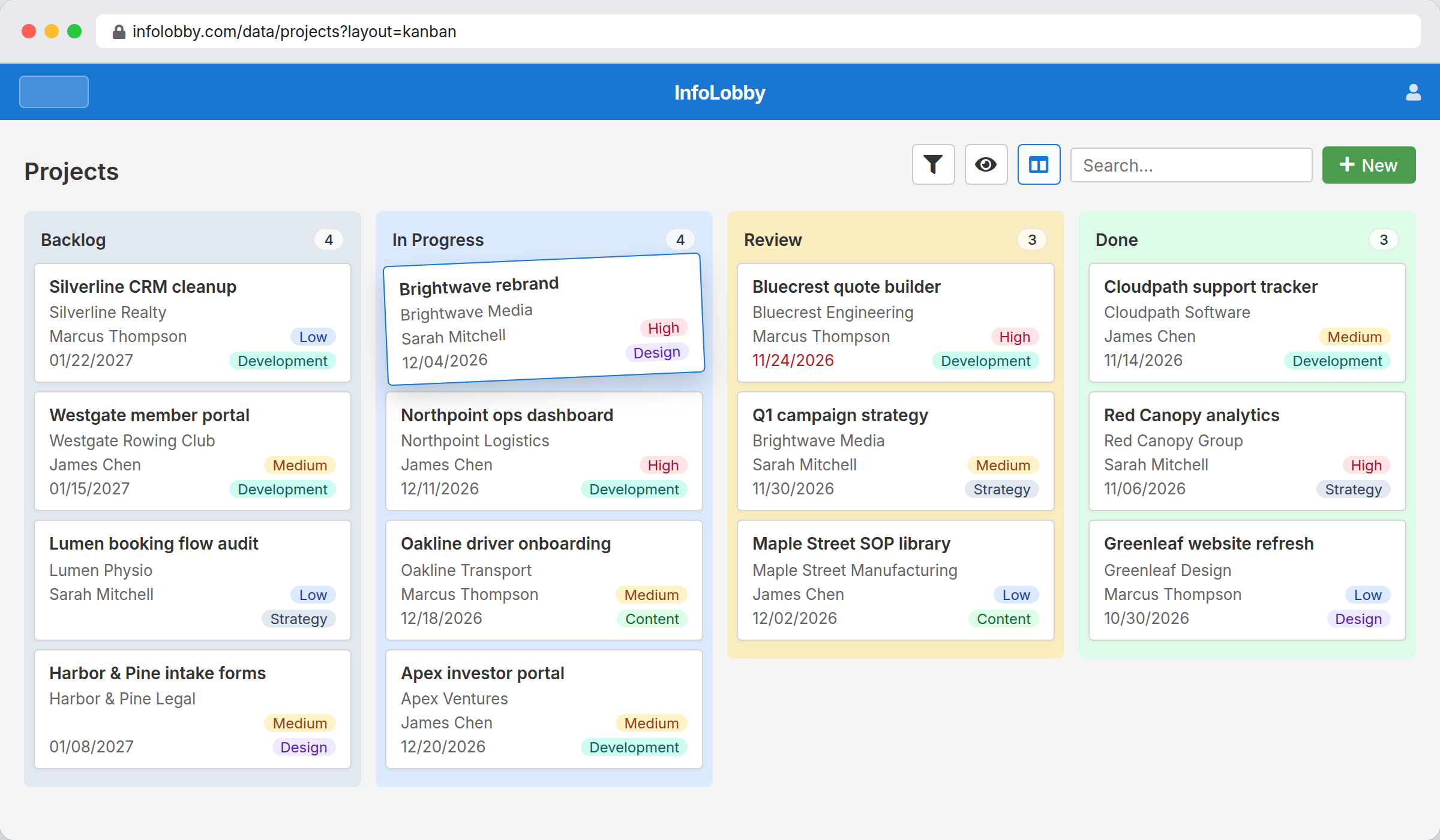
Cards can now carry up to five lines under the title. Each line shows one field on the left and, if you like, a second field on the right.
Setting it up
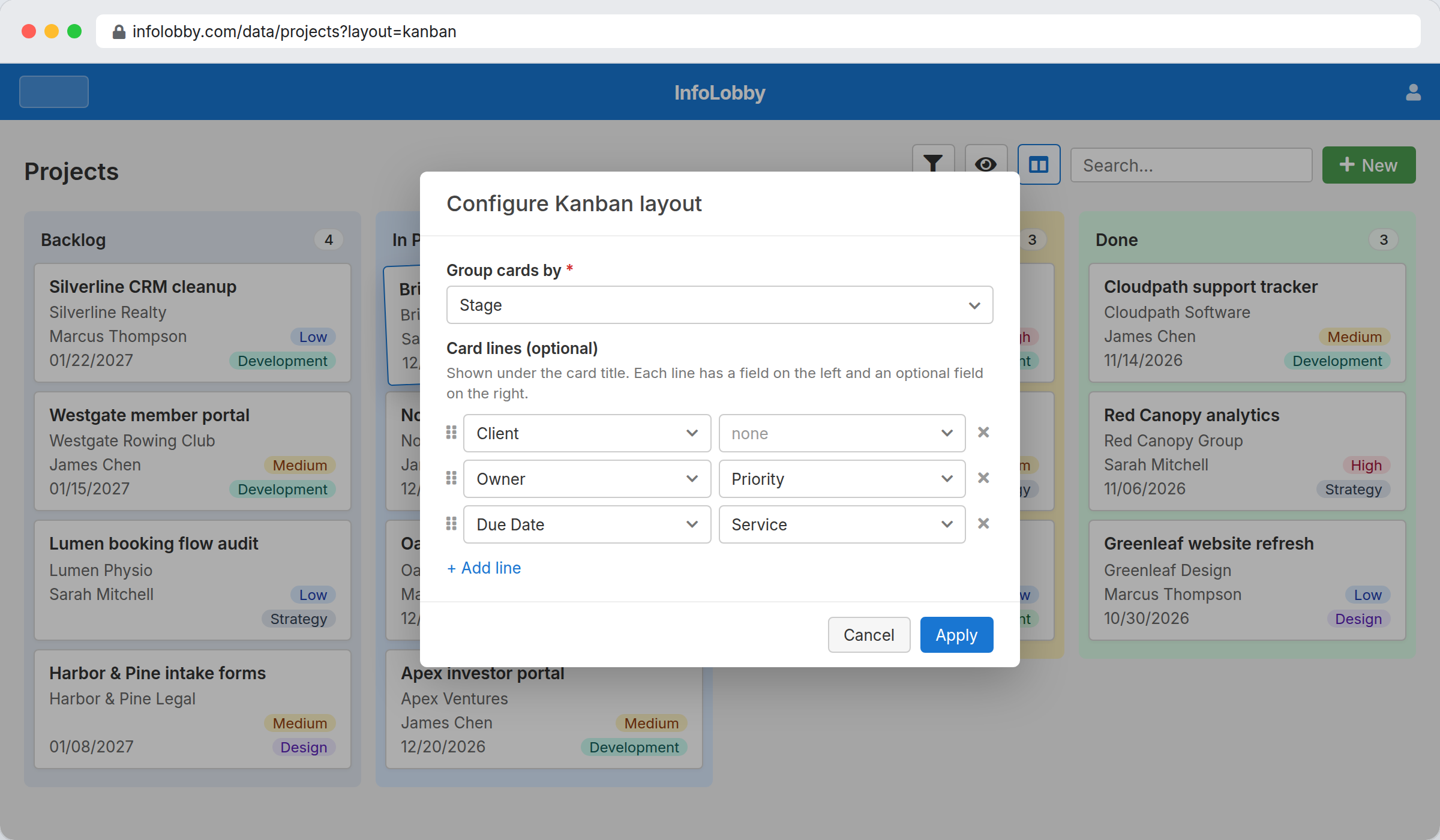
Open the layout picker on a kanban view and choose Layout Options. Under Card lines, pick a field for the left side of each line and, optionally, one for the right. Add a line with + Add line, drag the handles to change the order, and click Apply.
A few details worth knowing:
- Any field works. Text, people, dates, select pills, link-to-record fields and calculations all render the way they do in the table.
- Empty lines stay out of the way. If both fields on a line are empty for a record, that line is skipped on that card, so sparse records don't get gappy cards.
- Right-aligned values line up. Pills and numbers on the right side form a neat column down the board, which makes priorities easy to scan.
- Saved with the view. Card lines are part of the view's layout, so a support board and a sales board on the same table can each show what matters to them.
- Embeds too. Public embeds of a kanban view show the same card lines.
Kanban views you already have keep working as they are: an existing secondary line simply becomes the first card line.
For API users
Kanban view configs now use a cardLines list in place of secondaryField. Sending secondaryField still works and is converted for you. See the Views API docs for the details.