TL;DR
- InfoLobby runs a hosted MCP server at
https://infolobby.com/mcp. Add it to ChatGPT or Claude, sign in, pick which workspaces to share, and the assistant can read and update your records. No API key to paste, no server to host. - The assistant acts as you. It can only reach data you can already reach, and it cannot change table structure, manage members or touch billing.
- In a cleaning company's quote-to-job system, ChatGPT summarised the week's jobs, cross-checked four related tables for accepted quotations with no work scheduled, and updated a job only after showing the change and getting approval.
- For your own agents (on a server, in Telegram, in a CLI), use the REST API with a scoped API key and the InfoLobby agent skill instead.
- Both routes hit the same data. A change ChatGPT made through MCP showed up immediately for an agent reading through the API.
Most businesses already have the information they need to answer important operational questions. The problem is getting that information out of their systems in a useful way.
You might want to know which jobs are overdue, which customers have outstanding invoices, or which quotations have been accepted but haven't been scheduled.
Usually, answering these questions means opening the relevant tables, filtering records, checking relationships and putting the information together manually.
What if you could simply ask ChatGPT?
InfoLobby provides a remote Model Context Protocol (MCP) server that allows AI assistants such as ChatGPT and Claude to connect directly to your InfoLobby workspaces.
Once connected, an assistant can discover your tables, read records, follow relationships between them and perform supported actions, including creating and updating records, subject to your permissions.
In this walkthrough, I'll connect ChatGPT to an InfoLobby workspace, verify that it can access the tables, and then use it to answer questions about a real operational workflow.
1. Connecting ChatGPT to InfoLobby
InfoLobby provides a hosted MCP server at:
https://infolobby.com/mcp
You don't need to host your own server, write API integration code or manually configure authentication tokens.
The connection uses OAuth, allowing you to authorize ChatGPT to access selected InfoLobby workspaces.
Step 1: Add InfoLobby as a custom MCP server
In ChatGPT, open Settings → Plugins.
Click Add in the top-right corner and select Add custom MCP server.
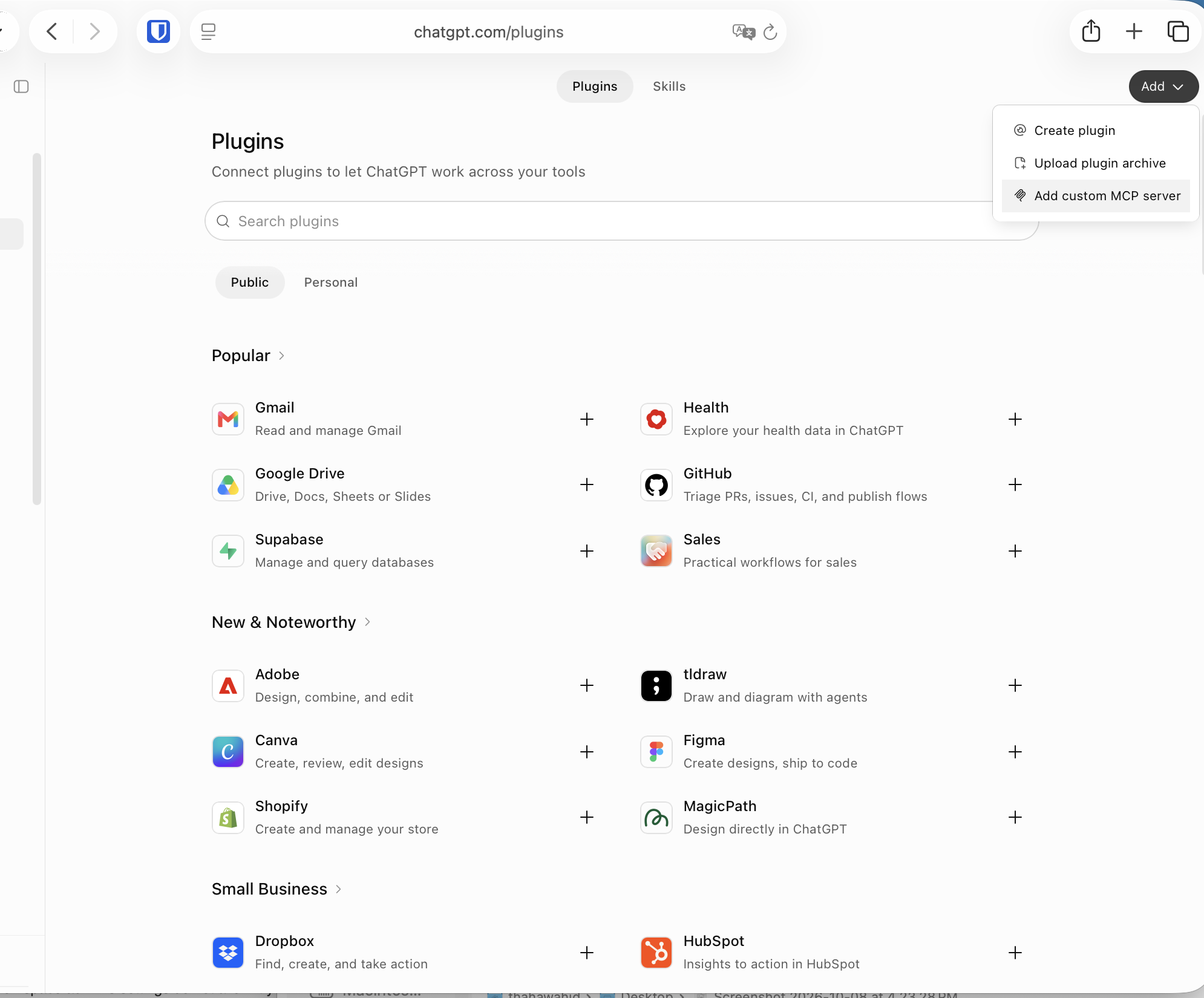
Enter the following details:
- Name: InfoLobby
- Server URL:
https://infolobby.com/mcp - Authentication: OAuth
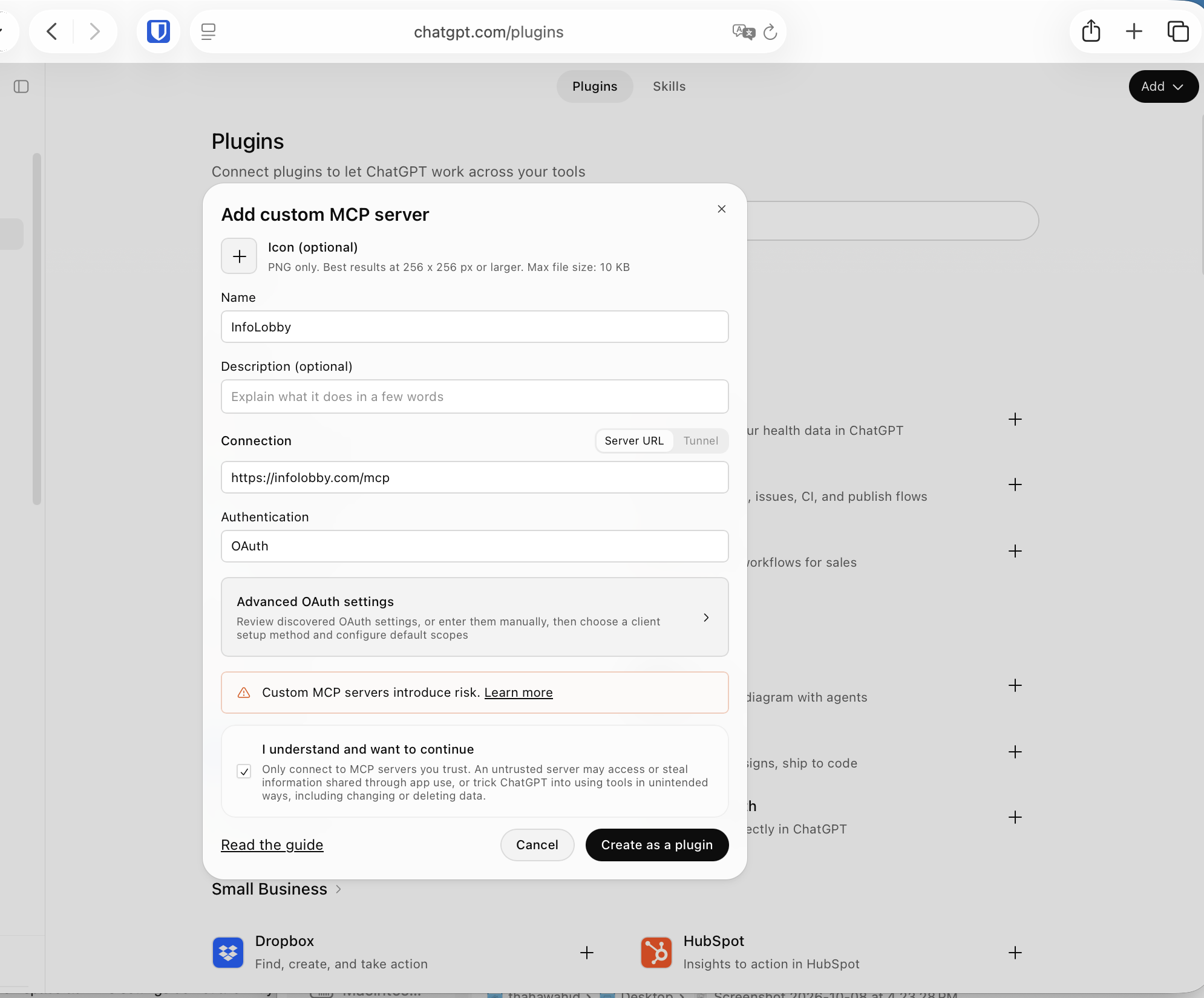
Review the security notice and click Create as a plugin.
Step 2: Authorize the connection
Once the plugin is created, ChatGPT will prompt you to connect your InfoLobby account.
Click Continue to InfoLobby.
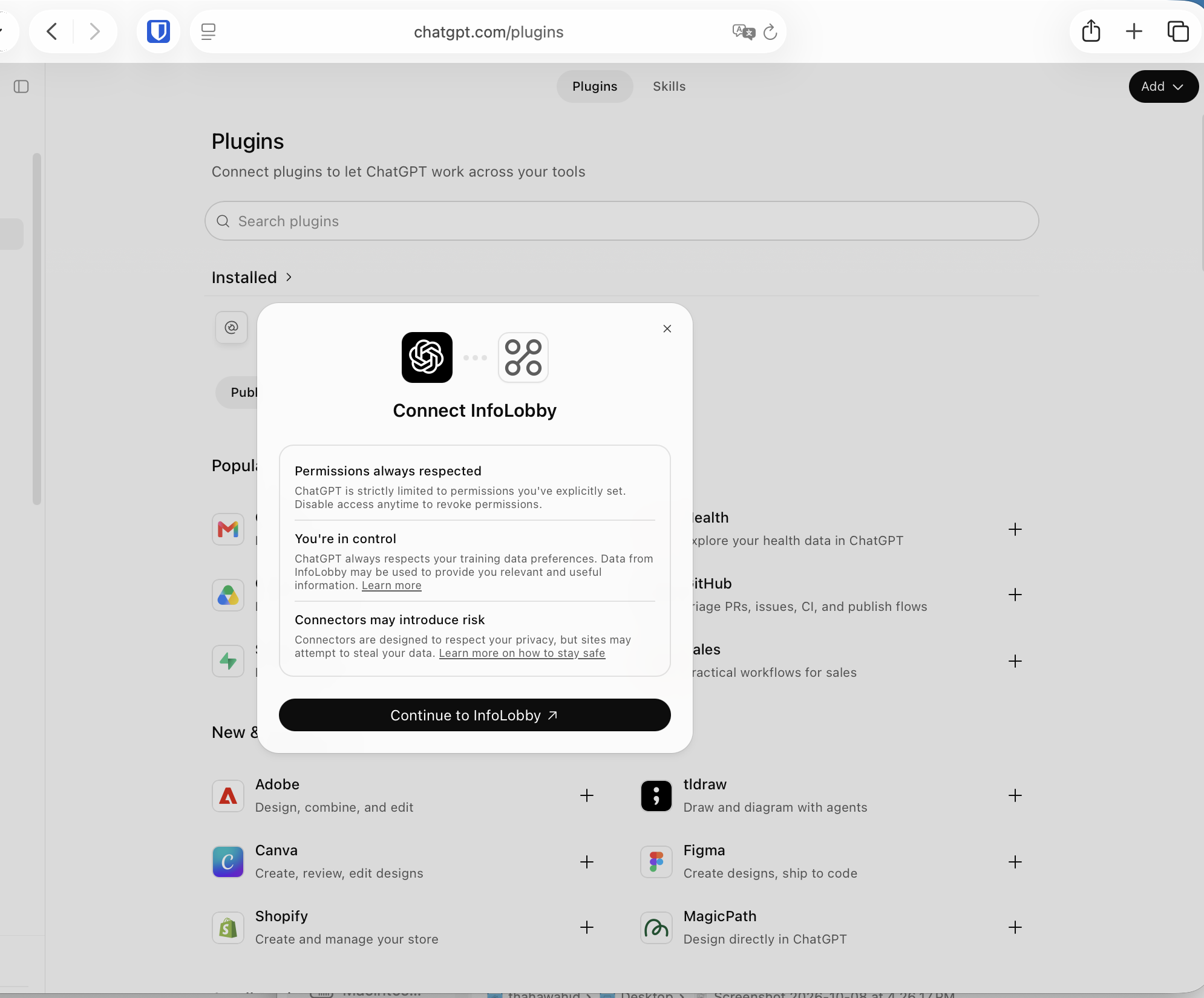
You'll be redirected to InfoLobby's authorization page.
Here, you can review the permissions being requested and select which workspaces ChatGPT can access.
The connection supports operations such as:
- Viewing workspaces, tables and saved views
- Reading records, comments and attachments
- Creating, updating and deleting records
- Posting comments and managing attachments
Importantly, ChatGPT operates within your existing InfoLobby permissions.
It cannot access records you aren't authorized to access, and the connection does not grant permission to modify table structures, manage workspace members or change billing settings.
Select the workspaces you want to share and click Authorize.
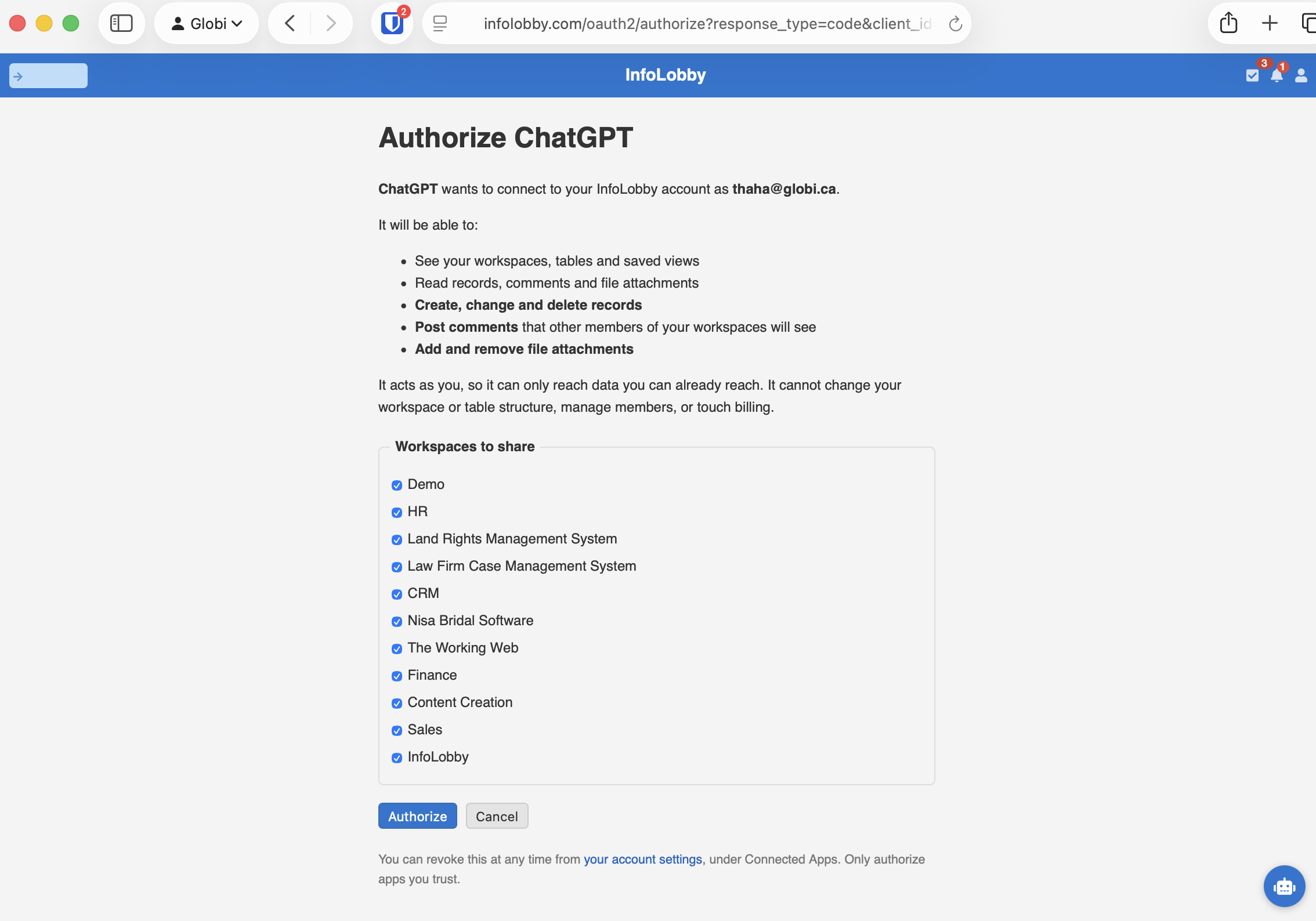
You can also revoke the connection later from your InfoLobby account settings.
Step 3: Verify the connection
Now return to ChatGPT and start a conversation with the InfoLobby plugin selected.
For the first test, I asked:
@InfoLobby Which tables do you have access to?
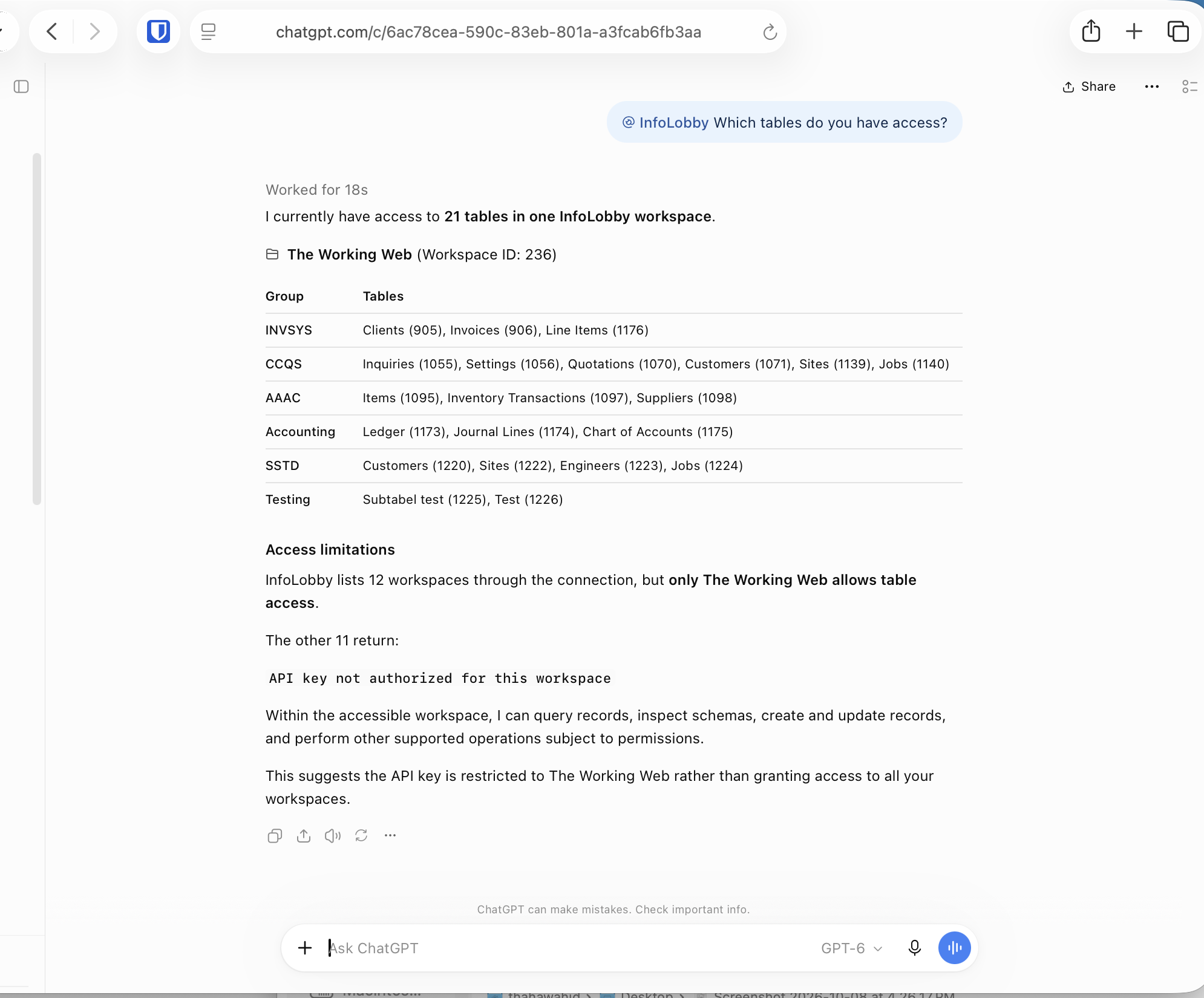
ChatGPT connected to my InfoLobby account and identified 21 accessible tables in a workspace called The Working Web.
It grouped the tables by their respective systems, including:
- Commercial Cleaning Quote System (CCQS)
- Inventory Management
- Accounting
- Customer Invoicing
- Service Job Management
It also reported that other workspaces were not accessible through the connection.
This is a useful first check. It confirms that ChatGPT can discover the workspace structure and identify the tables available to it.
But listing tables is only the beginning.
The more interesting question is whether ChatGPT can work with the records inside those tables and understand how they relate to one another.
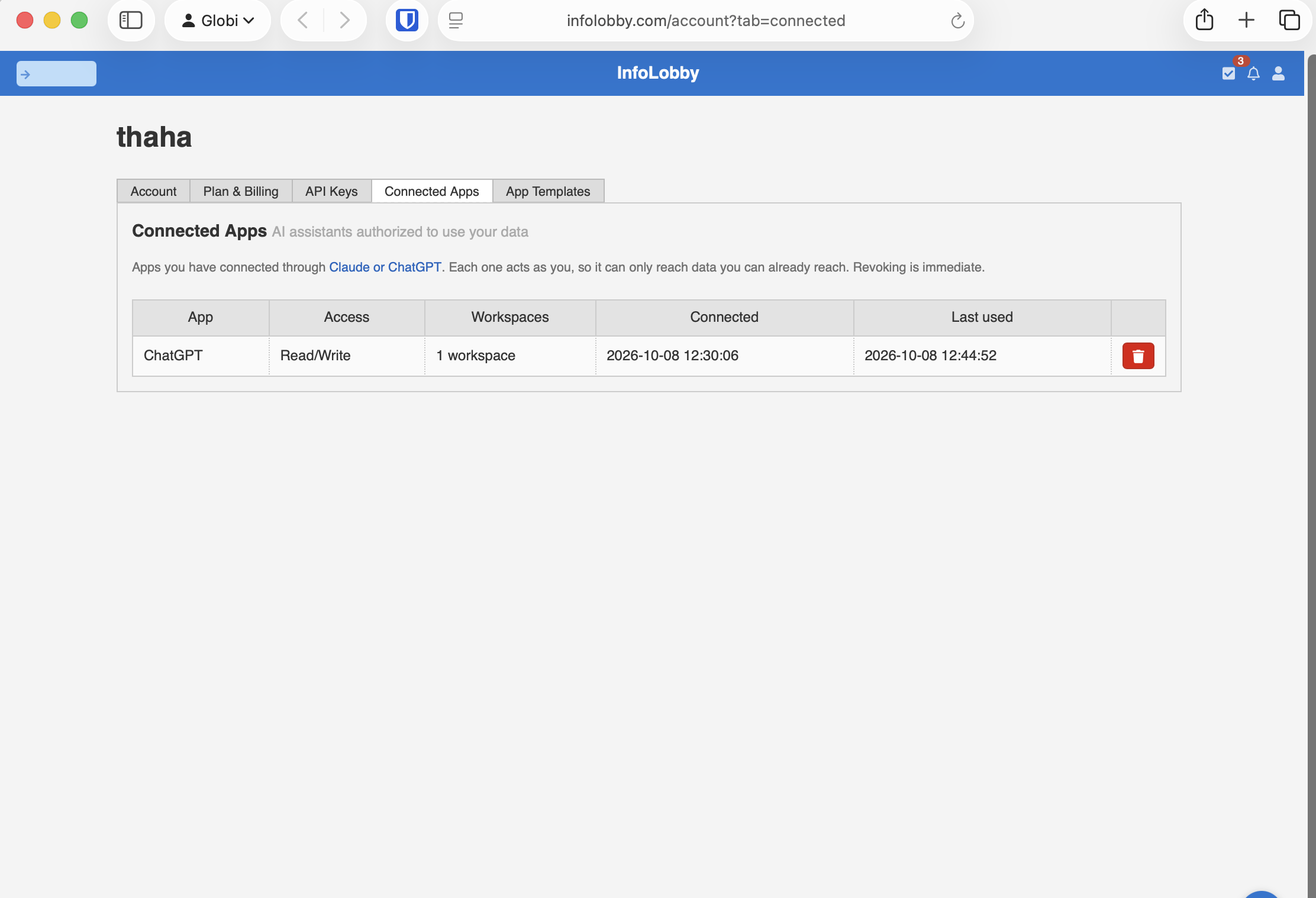
You can review or revoke ChatGPT's access anytime under Account Settings → Connected Apps.
2. Connecting Claude to InfoLobby
You can also connect Claude to InfoLobby using the same MCP server.
The process is similar:
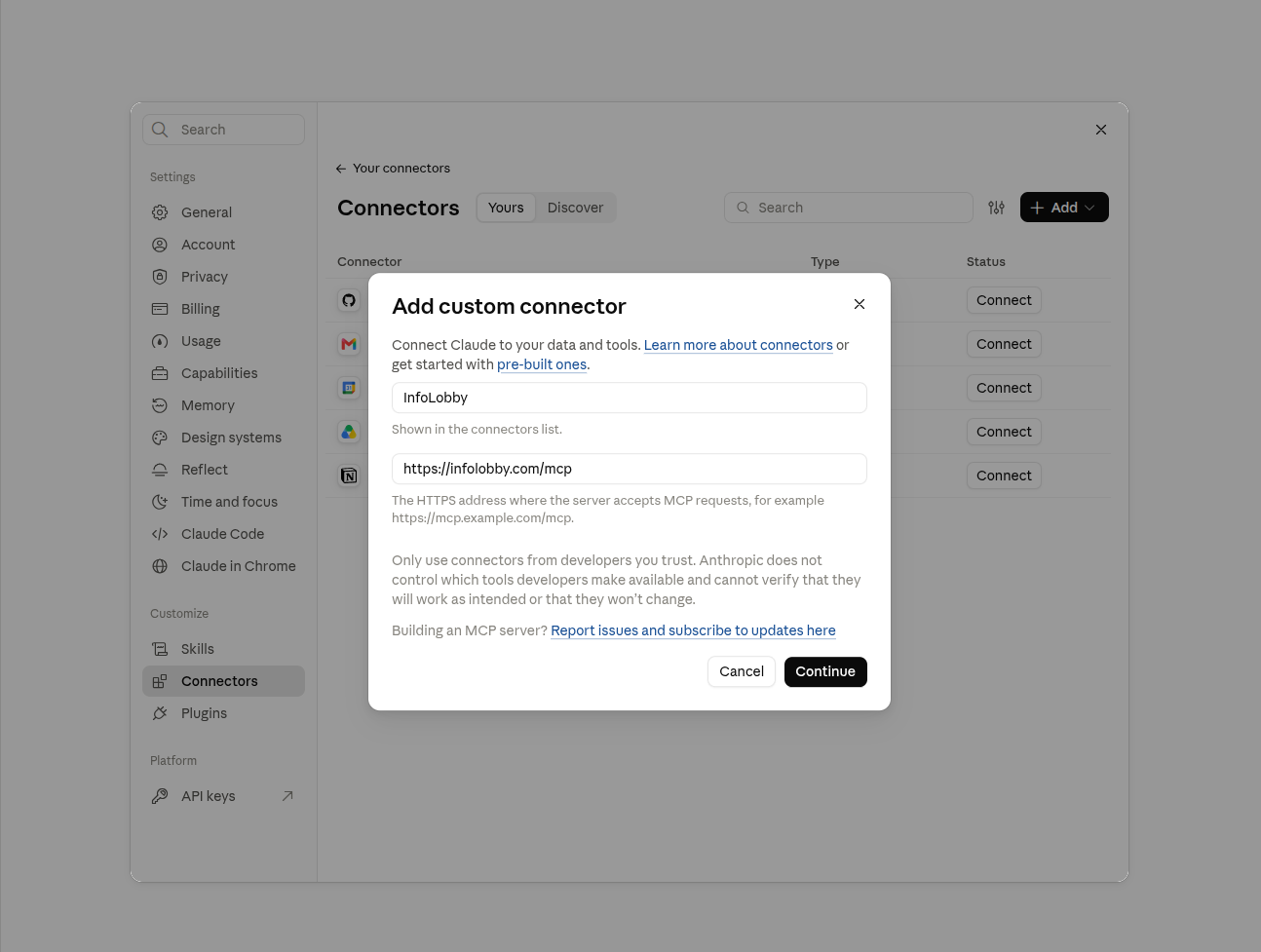
- Open Claude → Settings → Connectors.
- Click + Add and select Custom Connector.
- Give it a name, such as InfoLobby.
- Enter the MCP URL:
https://infolobby.com/mcp. - Click Continue.
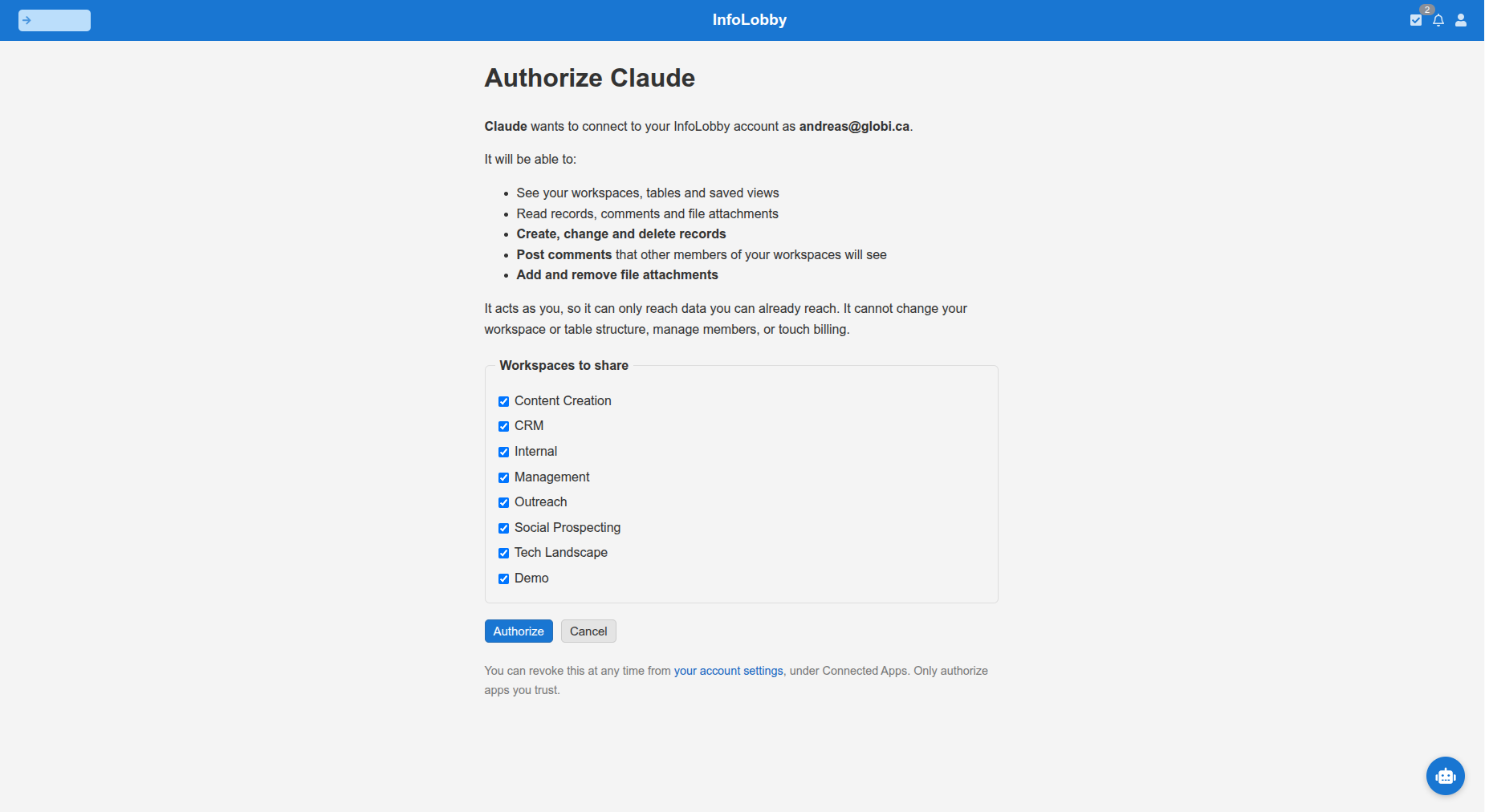
- Sign in to InfoLobby, select the workspaces you want to share, and click Authorize.
That's it. Claude can now access your authorized InfoLobby workspaces.
To verify the connection, open a conversation with the connector enabled and ask:
"Which InfoLobby tables do you have access to?"
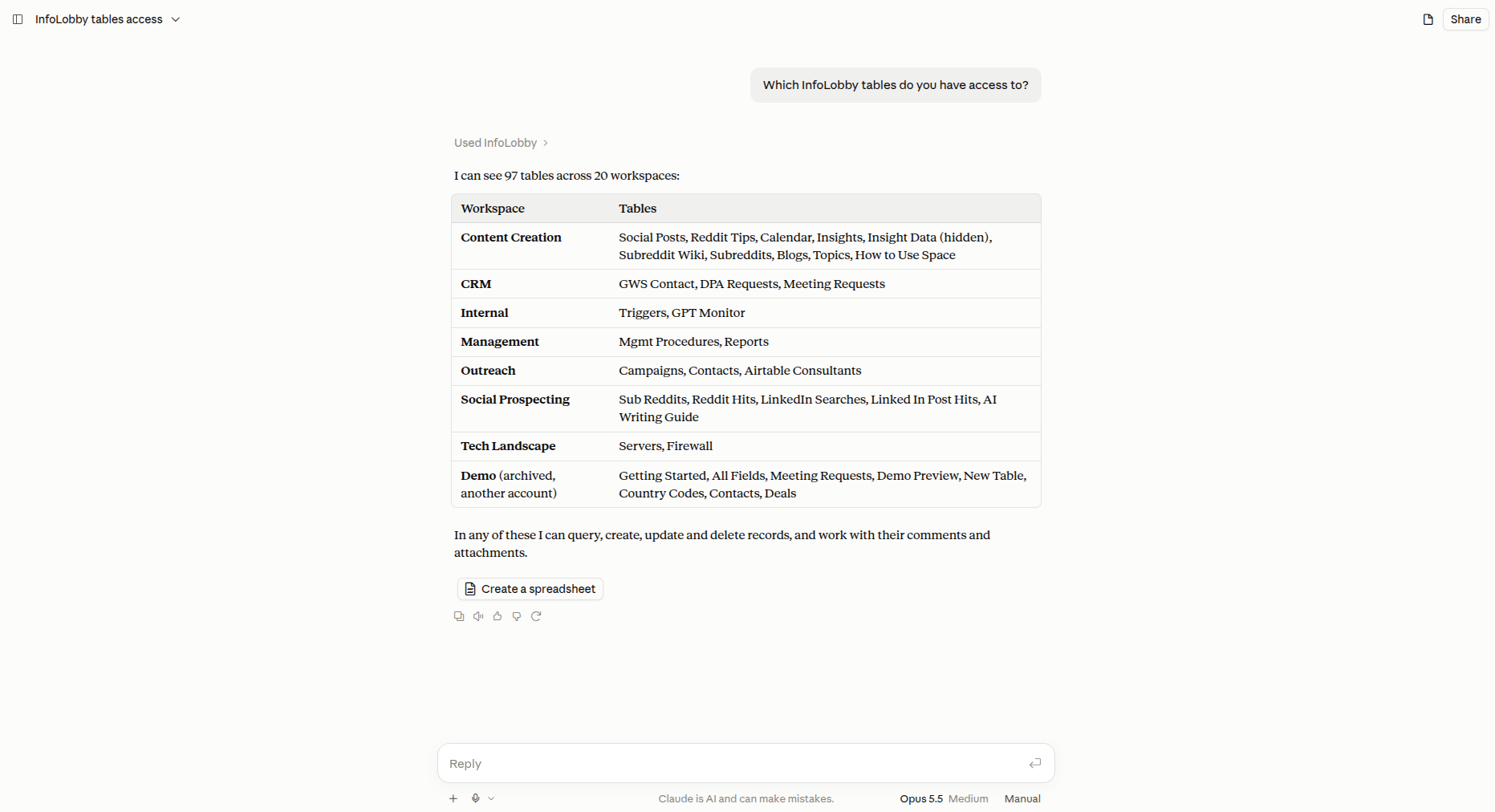
The full setup for both assistants, including plan restrictions, is on the Connect Claude or ChatGPT page.
Now that both ChatGPT and Claude are connected, let's see what they can actually do with the data.
3. Working with real business data
For this demonstration, I'm using a Commercial Cleaning Quote System (CCQS) built in InfoLobby. It is the same kind of system as the one in our post on row-level permissions for a cleaning company.
The system manages a cleaning company's operations, from customer inquiries and quotations through to site management and scheduled cleaning jobs.
Inquiry → Quotation → Site → Job → Completion
Rather than building a separate dashboard or exporting records to a spreadsheet, I'll ask ChatGPT to retrieve information, analyze relationships between tables and make changes directly in InfoLobby.
Test 1: Find this week's cleaning jobs
I started with a simple operational question:
Show me all cleaning jobs scheduled this week. Include the customer, site, assigned cleaner and current status. Group them by status.
ChatGPT retrieved the jobs and presented a summary for 5 to 11 October 2026.
It found:
- 5 cleaning jobs, all marked Scheduled.
- 11 hours of scheduled cleaning work.
- 3 jobs assigned to Thaha and 2 to Maria.
It also produced a table showing each job's date, customer, site, assigned cleaner and scheduled time, followed by a workload breakdown for each cleaner.
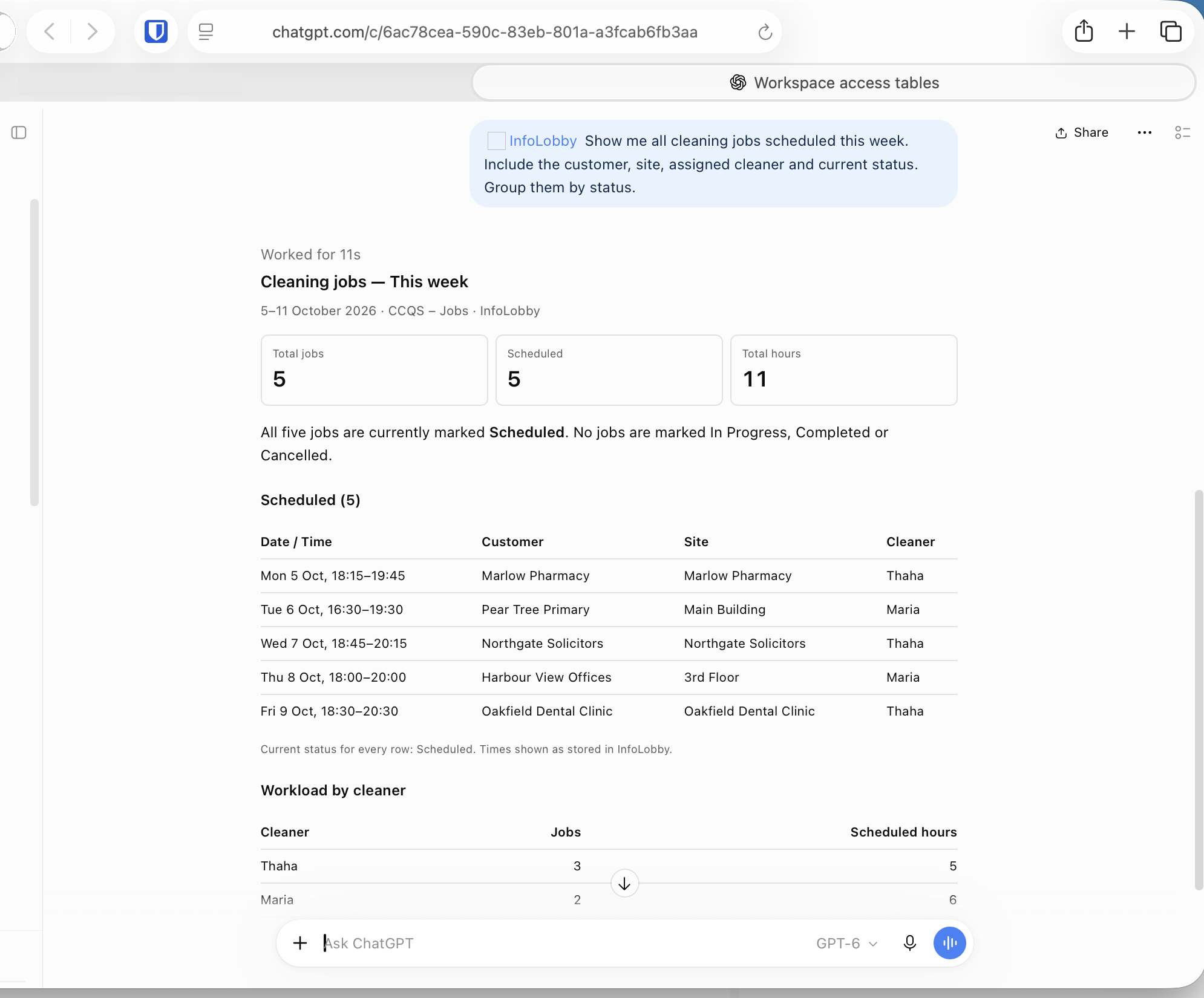
This is information that already exists in InfoLobby. The difference is that I didn't have to navigate to the Jobs table, apply date filters or manually calculate the workload.
I simply asked the question and received a structured answer.
Test 2: Analyze data across related tables
Next, I wanted to test something more involved.
A cleaning company might have accepted a customer's quotation but forgotten to schedule the actual work.
Finding these gaps means checking multiple tables and understanding how the records relate to one another.
I asked:
Check the CCQS Quotations, Customers, Sites and Jobs tables. Find accepted quotations that have no corresponding cleaning job scheduled. Show the customer, quotation reference and quoted amount. Explain how you determined which quotations were missing jobs. Do not modify anything.
ChatGPT examined the four tables and returned its findings.
It identified two accepted quotations:
| Customer | Quotation | Monthly amount | Matching jobs |
|---|---|---|---|
| Luxe Hair Studio | #24 | £579.45 | 3 |
| Pear Tree Primary | #23 | £6,727.41 | 3 |
Both quotations had corresponding cleaning jobs, so neither was missing jobs entirely.
However, ChatGPT also pointed out something interesting.
All six matching jobs were dated in September, and neither customer had future cleaning jobs scheduled as of 8 October.
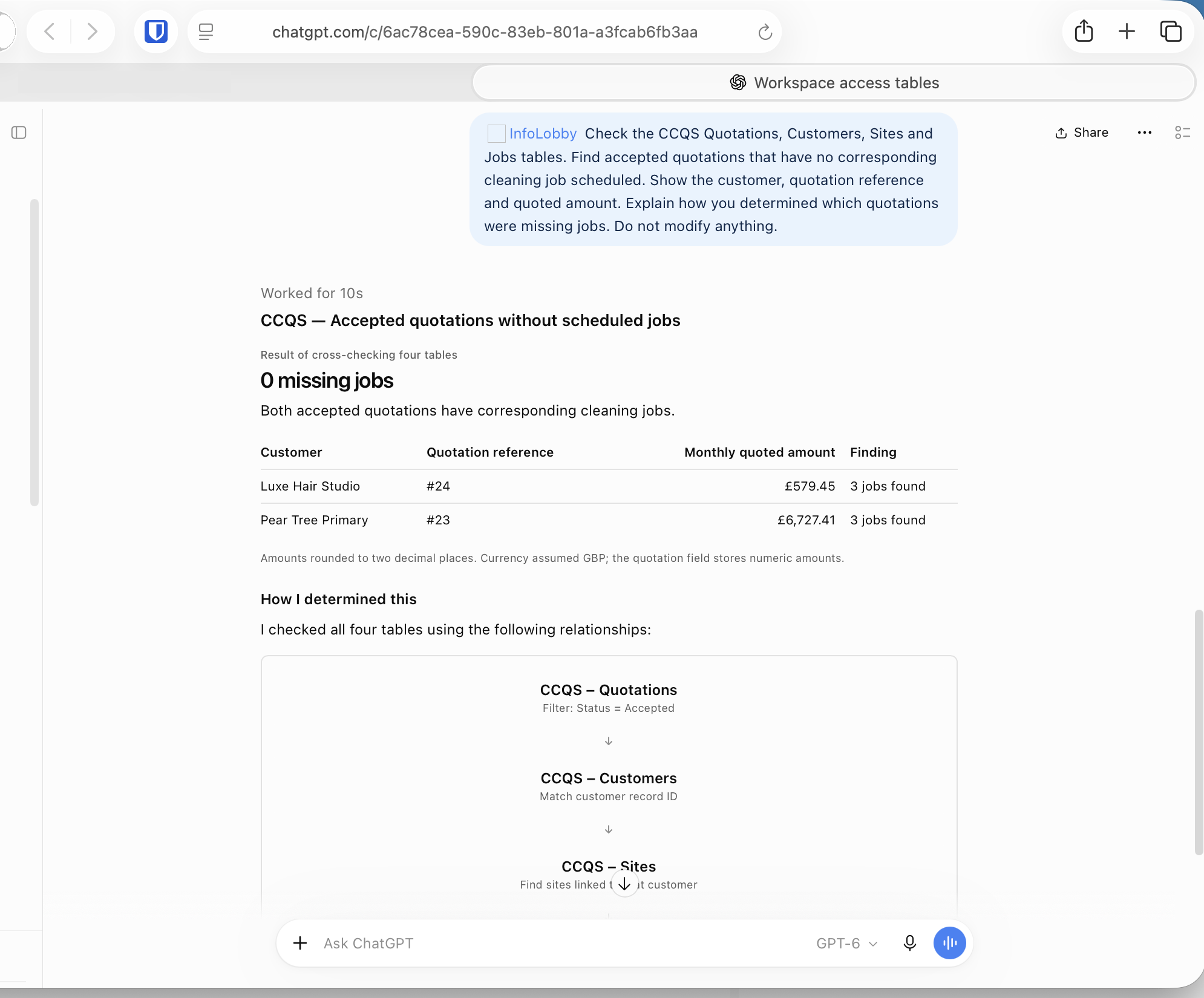
That distinction matters.
The original question was whether accepted quotations had resulted in scheduled jobs. ChatGPT found that they had, but also identified a potentially useful follow-up issue: there was no upcoming work scheduled for either customer.
This is where connecting an AI assistant to operational data becomes more useful than a simple record search.
It can combine information across related tables, explain how it reached a conclusion and highlight something worth investigating.
Of course, an absence of future jobs doesn't automatically mean something is wrong. The cleaning arrangement might have ended or future visits might not yet have been entered.
But it gives the person managing operations a specific issue to investigate.
Test 3: Update a job directly from ChatGPT
Reading and analyzing data is useful, but the connection also supports writing changes back to InfoLobby.
For the final test, I selected an existing cleaning job:
Maria - Harbour View Offices - 3rd Floor
The job was marked Scheduled and had an existing completion note.
I asked ChatGPT:
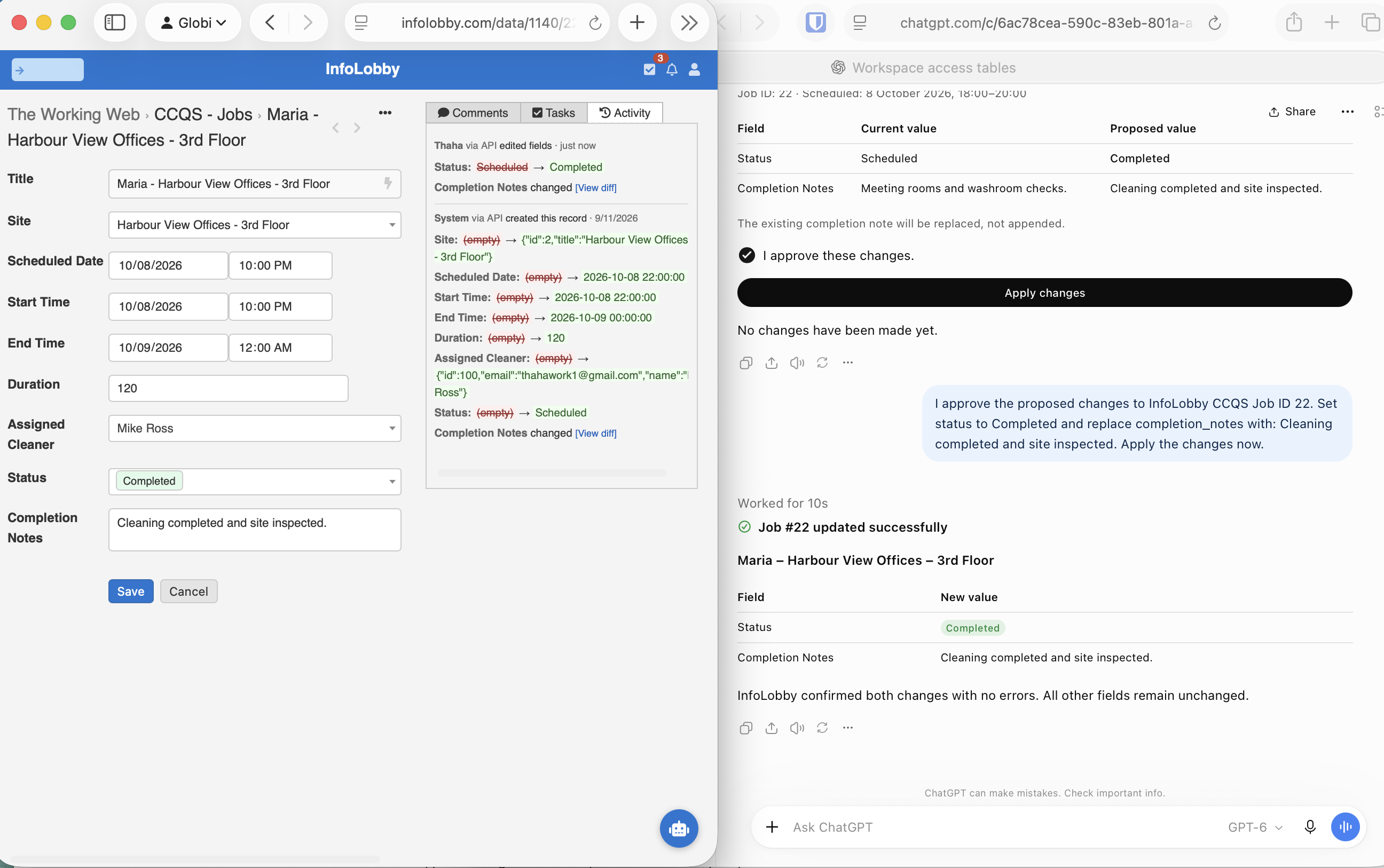
Change the status of job Maria - Harbour View Offices - 3rd Floor to Completed and add the completion note "Cleaning completed and site inspected." Show me the changes before applying them.
Rather than immediately updating the record, ChatGPT presented the proposed changes.
| Field | Existing value | Proposed value |
|---|---|---|
| Status | Scheduled | Completed |
| Completion Notes | Meeting rooms and washroom checks. | Cleaning completed and site inspected. |
It also made clear that the existing completion note would be replaced, not appended.
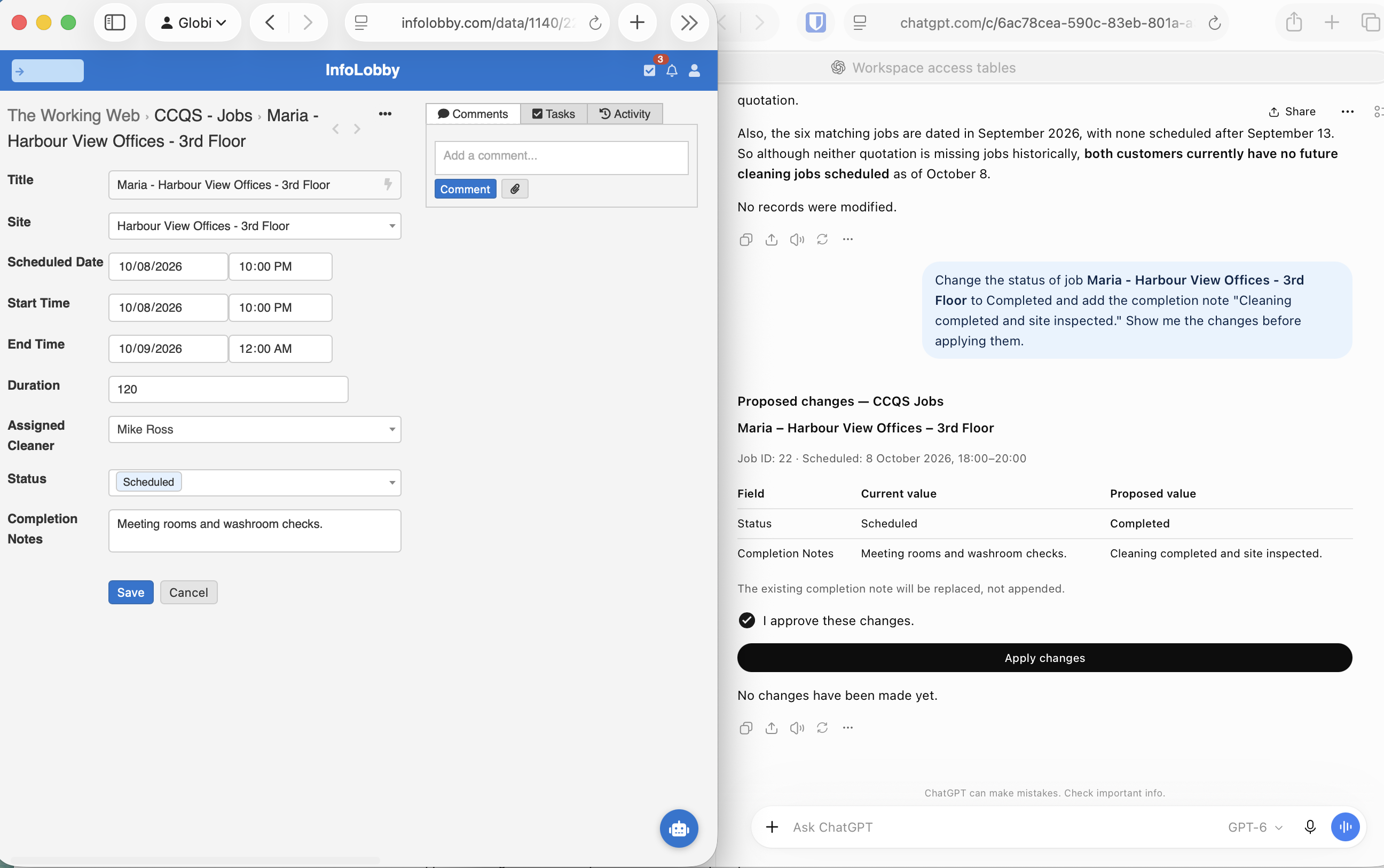
After reviewing the changes, I explicitly approved the update.
ChatGPT then submitted the changes through the InfoLobby connection and confirmed that Job #22 had been updated successfully.
I opened the same record in InfoLobby to verify the result.
The status was now Completed, and the completion notes contained the new text. The record's activity history also showed the changes made through the API.
No separate automation or custom integration script was needed for this operation.
The assistant used the existing MCP connection to find the record, prepare the update and apply it after approval.
4. Connecting AI agents through the InfoLobby API
ChatGPT and Claude can connect directly to InfoLobby through MCP. But what if you're using your own AI agent, running locally or on a server?
InfoLobby also provides a REST API that agents can use to access and manage business data.
For this example, I'm using Hermes, an AI agent running on my own server and connected to Telegram. I've configured it with a skill that allows it to interact with InfoLobby through the API.
Step 1: Create an API key
In InfoLobby, go to Account Settings → API Keys and click Create API Key.
You can configure which workspaces the key can access and whether it has read-only or read/write permissions.
Each key can be managed independently, so you can give different agents access to different workspaces.
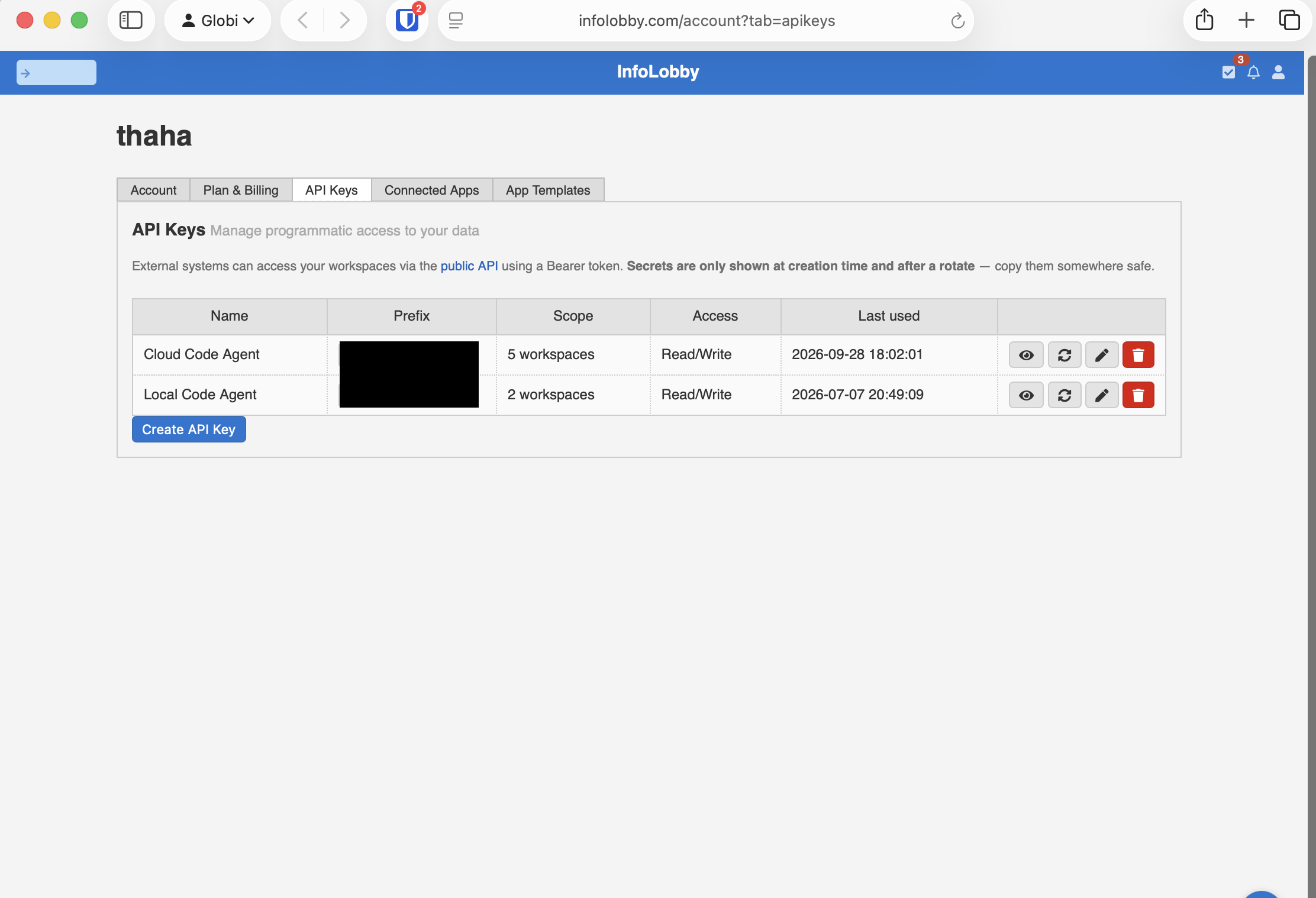
Unlike the MCP connection demonstrated earlier, this approach uses an API key rather than an OAuth authorization flow. The public API help page covers key creation and scoping in more detail.
Step 2: Give your agent access
Your agent needs instructions for interacting with the InfoLobby API, along with the API key.
In my case, Hermes uses a skill containing the instructions it needs to make API requests and work with InfoLobby records. You don't need to write one: the InfoLobby agent skill is public and installs into Claude Code, Cursor, Gemini CLI and other agents that support the Agent Skills standard.
The agent can then retrieve and update records without requiring me to open InfoLobby or write individual API requests.
Step 3: Ask the agent through Telegram
To test this, I sent Hermes a message through Telegram:
Give me a list of today's jobs for Maria.
The agent queried InfoLobby and returned the cleaning job scheduled for 8 October:
Harbour View Offices - 3rd Floor
- Time: 18:00 to 20:00
- Status: Completed
- Notes: Cleaning completed and site inspected.
It also confirmed that this was Maria's only job that day.
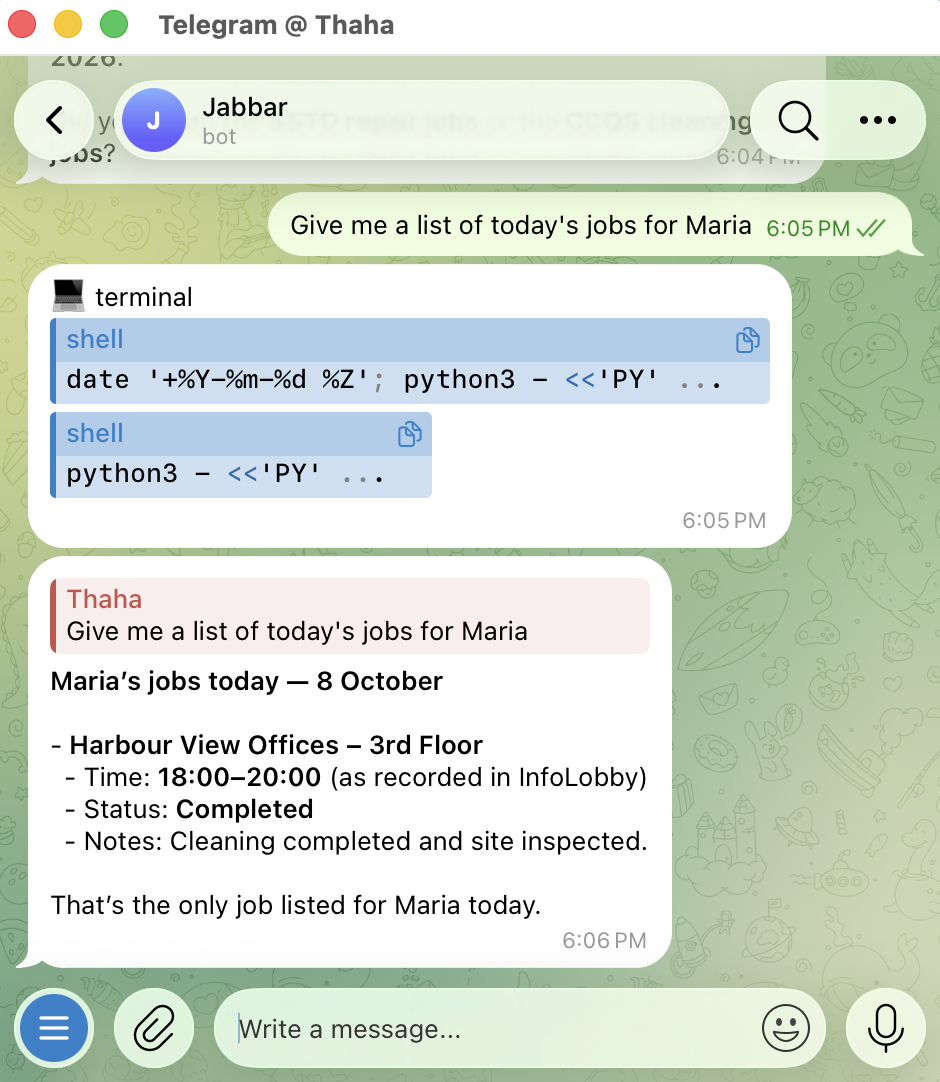
What's particularly useful here is that this was the same job I had updated earlier through ChatGPT.
ChatGPT changed the record using MCP. Hermes subsequently retrieved the updated information using the API.
Both assistants were working with the same underlying InfoLobby data, even though they were connected through different methods.
MCP or API: Which should you use?
MCP is the simplest approach for connecting hosted assistants such as ChatGPT and Claude. InfoLobby handles the connection and OAuth authentication.
API with an agent skill is the better fit when you're running your own agents, building custom integrations or connecting through channels such as Telegram.
The choice is less about preference than about where the agent runs. Hosted assistants execute skills inside a sandbox that often has no outbound network access, so a skill that calls an API cannot reach it. MCP exists to get around that. A local agent has no such restriction, and there the skill is also cheaper: an MCP server's tool definitions sit in the model's context on every turn, used or not, while a skill costs a short description until it is actually needed.
Both approaches allow AI assistants to work with your existing InfoLobby data, subject to their configured permissions.
What this demonstration proves
Across the examples, we've seen AI assistants perform three practical operations:
- Retrieve: Get a useful summary of operational records without manually filtering tables.
- Analyze: Combine information from related tables to identify gaps and answer more complex questions.
- Act: Update records through a conversation, with changes reviewed before submission in our example.
We also demonstrated that different AI assistants can work with the same underlying data. ChatGPT updated a cleaning job through MCP, and Hermes subsequently retrieved the updated record through the API.
The important part is that InfoLobby remains the system of record. Your tables, relationships, permissions and existing workflows stay in place.
For businesses already managing their operations in InfoLobby, this means AI can become another way to access and manage operational data without rebuilding their systems or moving information into a separate platform.
The ChatGPT and Claude menu paths and screenshots in this post were captured on 8 October 2026. Both products rename their settings screens from time to time, so if a label has moved, check the Connect Claude or ChatGPT page.
FAQ
Can I connect Claude or ChatGPT to InfoLobby?
Yes. Add https://infolobby.com/mcp as a custom MCP server or connector in either assistant, sign in to InfoLobby, choose which workspaces to share and click Authorize. Availability of custom connectors depends on your ChatGPT or Claude plan.
Can the assistant see data I don't have access to?
No. The connection acts as the user who authorized it, so it can only reach records that user can already reach. It also cannot change workspace or table structure, manage members or touch billing.
How do I revoke an assistant's access?
Open Account Settings in InfoLobby and go to the Connected Apps tab. Deleting the connection takes effect immediately.
Should I use MCP or the API for my own agent?
If the agent runs on your own machine or server and can make network calls, use an API key with the InfoLobby agent skill. Use MCP for hosted assistants like ChatGPT and Claude on the web.