An automation has a shape. It runs some steps, branches on a condition, loops over a list, stops early. That shape was always there, and until now the editor showed you a list instead: a column of collapsed rows you had to hold in your head to see what actually happened when the flow ran.
InfoLobby has drawn that shape as a diagram for a while, on a Flow tab you could look at but not touch. You can build in it now, and it is where the editor opens.
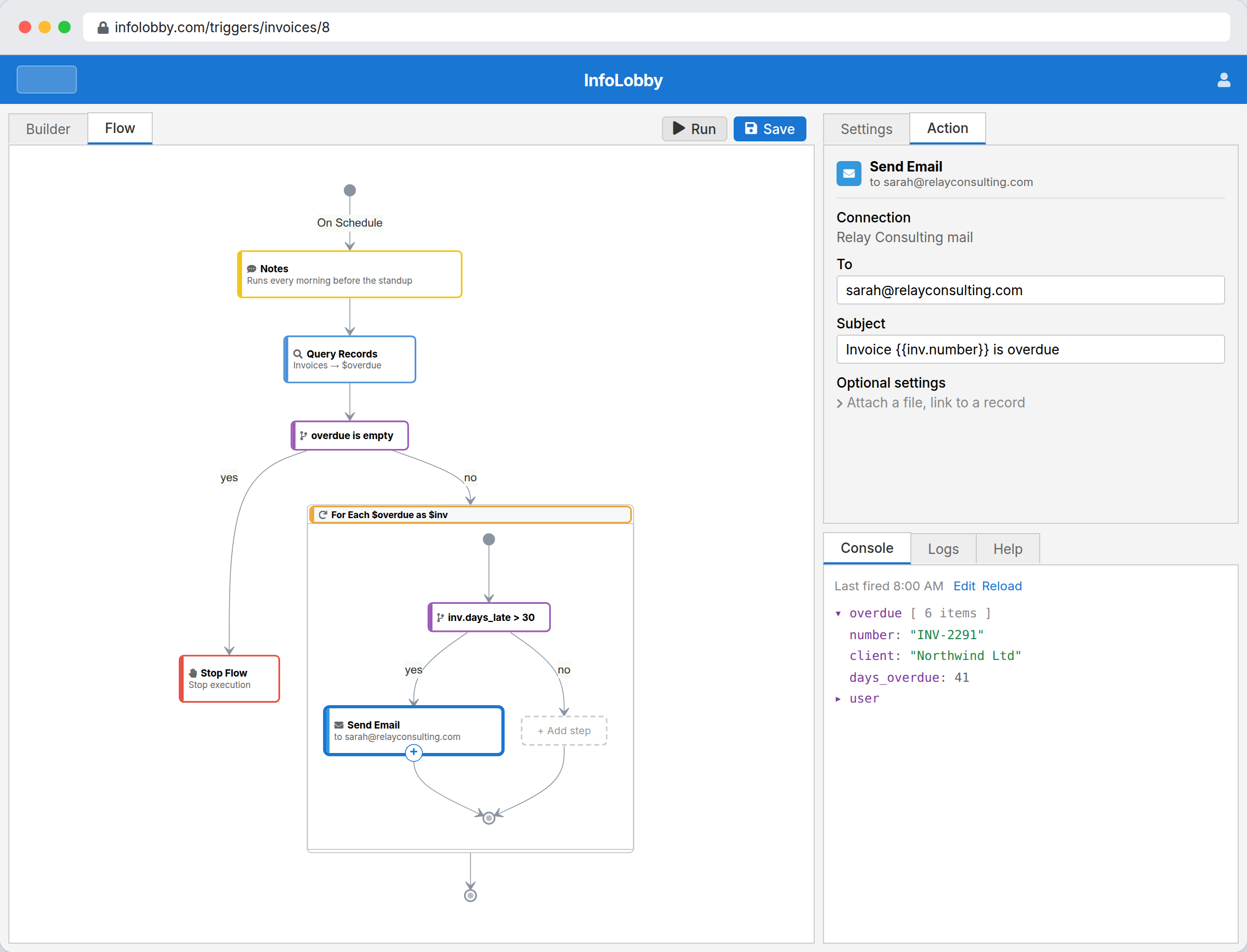
What you get
Each step is a card, coloured by what it does and labelled with its own settings, so a Send Email card shows who it is going to. Arrows show the order. A condition splits into its yes and no paths, a loop is a frame around the steps that repeat, and a Stop step is drawn ending the flow.
Every step is on the canvas, including the plumbing: Set Variable, Log Message, Notes. A step you cannot see is a step you cannot fix.
Click a card to change it. Its settings open in the Action panel on the right, headed by the step's name and icon so you know which one you have. Everything you type is kept as you go, and the card updates to match. On a phone the settings open full screen instead.
Hover a card and click the + to add a step below it. Pick the type and its settings are already open, ready to fill in. An empty branch of a condition, or an empty loop, shows a dashed + Add step placeholder marking the gap.
Drag a card by the grip to move it. A line shows where it lands: near the top of another card it goes above, near the bottom below, and dropped on a condition or a loop it becomes the first step inside. Moves that would not work show in red and are refused, so you cannot drop a loop inside itself or drag a Skip to Next Loop Item out of the loop it belongs to.
Select several at once with Ctrl-click (Cmd-click on a Mac), or hold Shift and drag a box across the canvas. Then move them together, or press Delete to remove the lot.
Copy steps between automations
Select one or more steps, press Ctrl+C, then Ctrl+V.
Paste into a different automation and they land there. That is the quickest way to reuse a block you have already built and got right: the three steps that format an address, the condition that decides whether something is overdue. The copies are new steps, so editing one leaves the original alone.
The list is still there
Builder shows the same automation as the column of rows it always was, and the two are views of one thing. Edit in either and the other keeps up. Double-click a card and you land on that step in the list.
Some work reads better as a list, particularly a long flow with no branching, and the list is what you get on a phone where a diagram would be too cramped to use.
Try it
Open any automation, or make a new one: it opens on the canvas, showing a single Add first step card to get you going.
More detail on the Automations help page.