TL;DR
- Most vendor and client portals are a second database. You sync to it, it drifts, and the vendor ends up looking at yesterday's status.
- An InfoLobby Portal reads and writes the tables your team already works in, so there is nothing to sync and nothing to go stale.
- Scoping is one setting per screen: "Only rows where Vendor is the signed-in visitor". It applies to the list and is re-checked every time a record is opened.
- Vendors submit invoices with a PDF, see status changes the moment finance makes them, and ask questions in comments on the invoice itself.
- It is not a payments system. The portal tracks invoices; your finance team still pays them.
A vendor completes a job and sends an invoice by email.
Someone in your finance team downloads the attachment, records the invoice in a spreadsheet or database, and forwards it for approval.
A few days later, the vendor emails again.
Has my invoice been approved? When can I expect payment?
Someone checks the system, finds the invoice, and replies with an update.
Multiply that by dozens of vendors and you have a lot of administrative work that exists purely because vendors cannot see the information your team already has.
One solution is to give vendors access to a portal where they can submit invoices, track their status, and communicate with your team.
But that introduces another question: Where does the portal get its data?
If the portal uses a separate database, you need a way to keep it synchronised with your internal system. That introduces additional integrations, maintenance, and opportunities for data to become outdated.
InfoLobby Portals take a different approach.
A portal connects directly to the tables your team already uses. Vendors can interact with their own records, while your internal team continues working in the same database.
Let's build a simple vendor invoice portal to demonstrate how this works.
The vendor management system
For this example, we built a small Vendor Management System in InfoLobby.
It contains two tables:
- Vendors: Stores vendor information, contact details, banking details, and approval status.
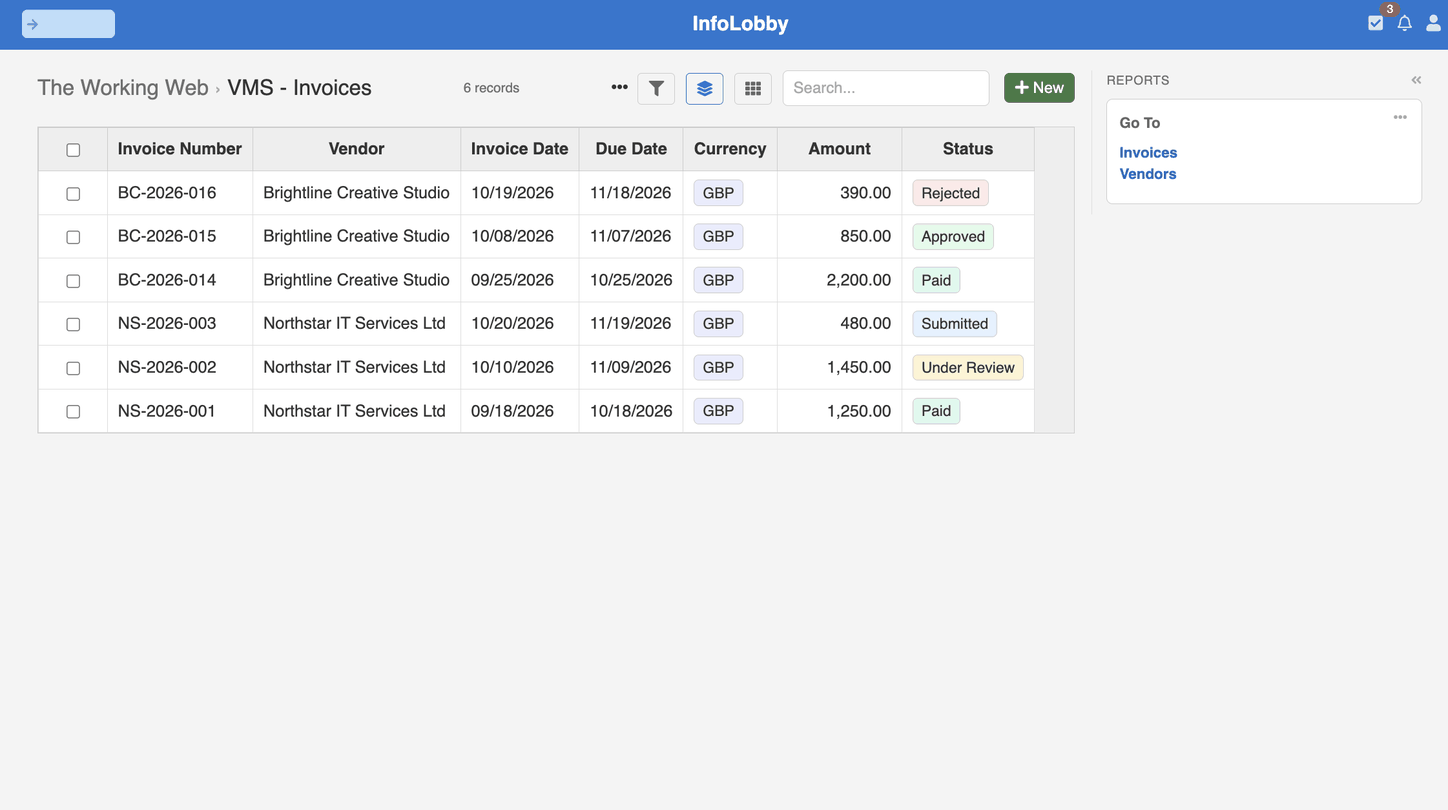
- Invoices: Stores invoices submitted by vendors, including invoice numbers, dates, amounts, attachments, and payment statuses.
Each invoice is linked to a vendor through a lookup field.
The internal finance team can access and manage these records directly in InfoLobby.
For the demonstration, we have two approved vendors: Northstar IT Services Ltd and Brightline Creative Studio.
Both have submitted invoices with different payment statuses.
The objective is to give each vendor access to their own invoices without exposing the records belonging to other vendors.
Creating the vendor portal
InfoLobby includes a built-in portal builder that allows you to create external-facing interfaces over your existing tables.
You can configure the portal's sign-in process, create screens, select which fields visitors can see, and define what they are allowed to do.
For our vendor portal, we need these screens:
- Sign in: Vendors authenticate using their credentials.
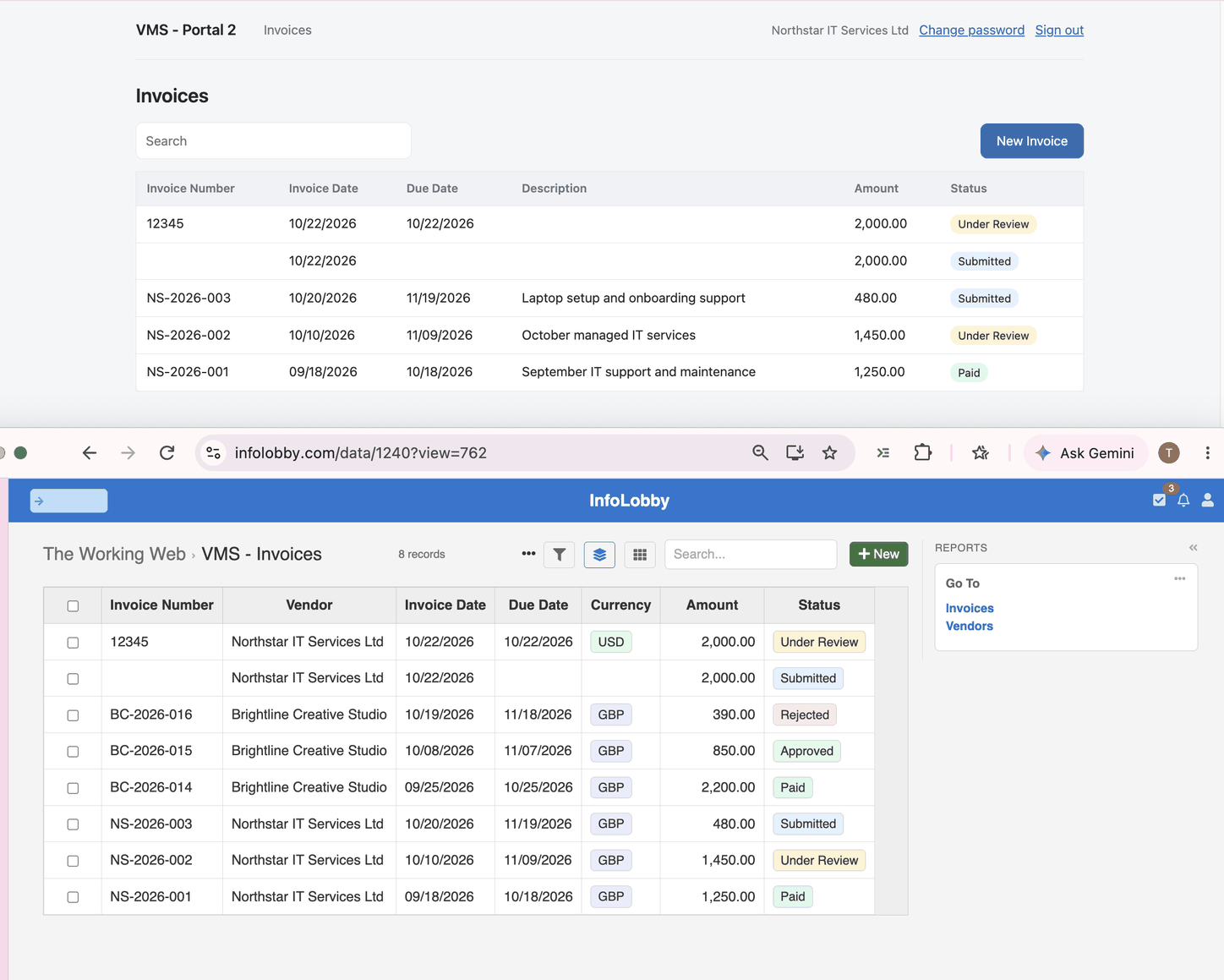
- Invoices: Displays invoices belonging to the signed-in vendor.
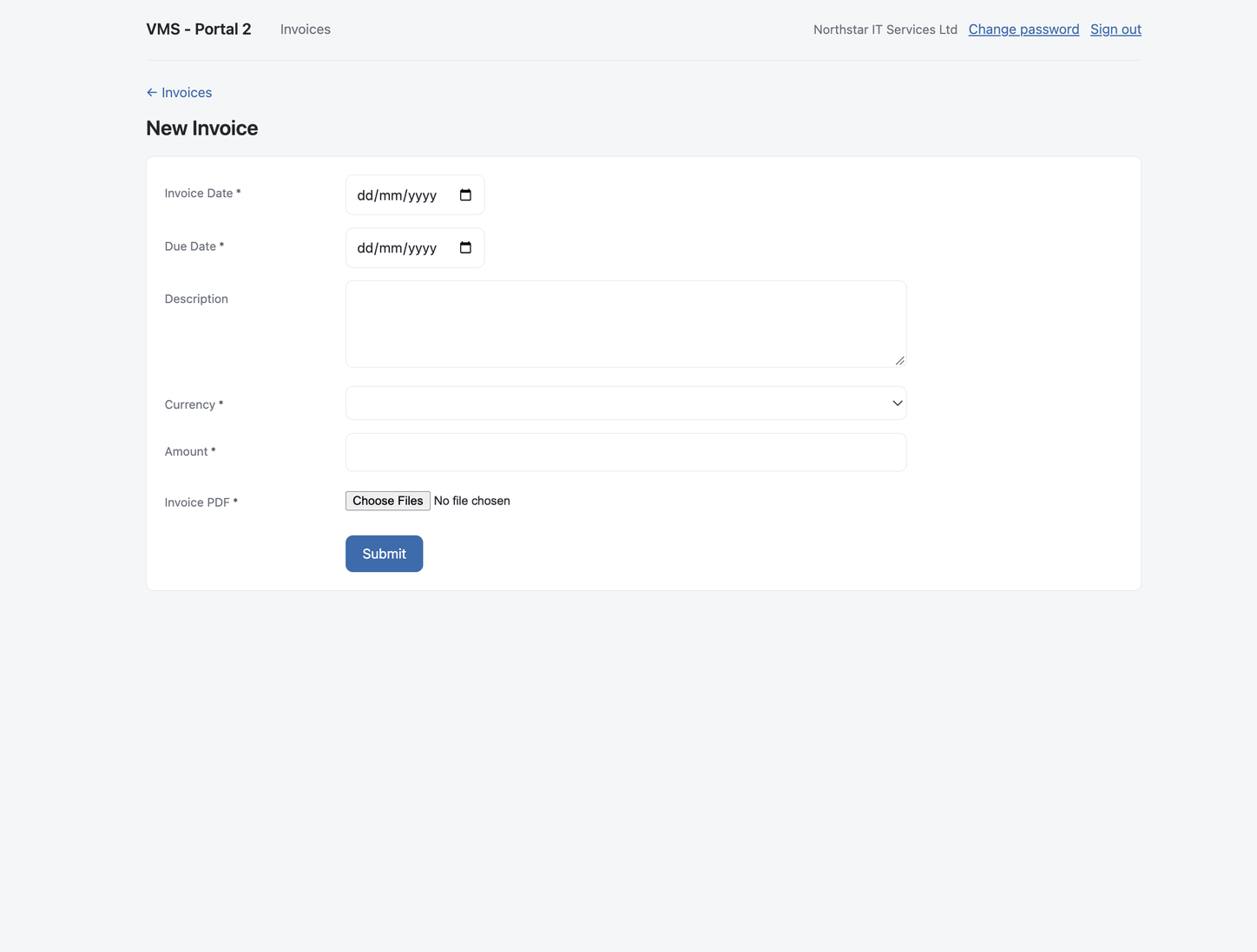
- New Invoice: A form for submitting invoices and uploading supporting documents.
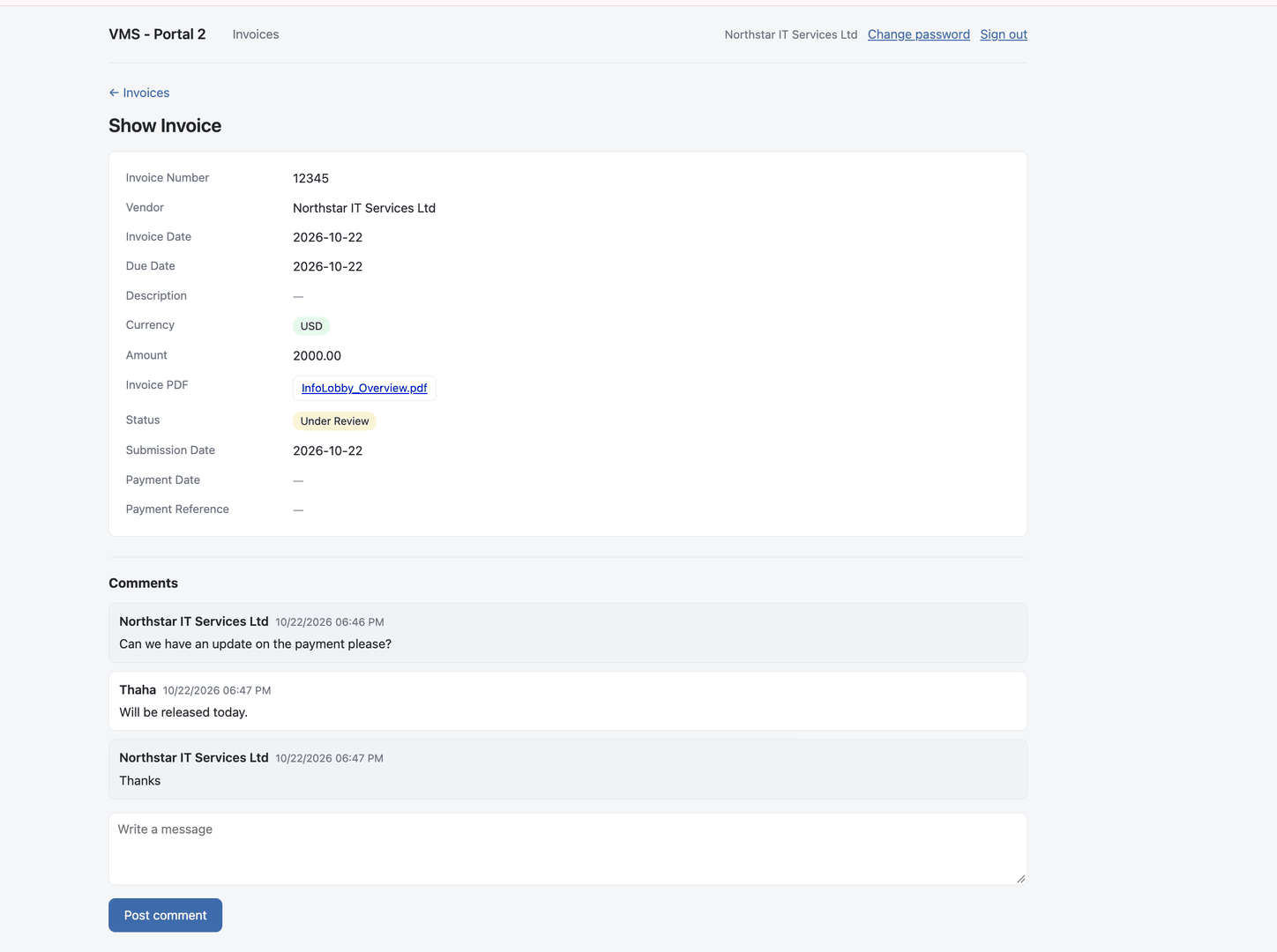
- Show Invoice: A single invoice, with its comments.
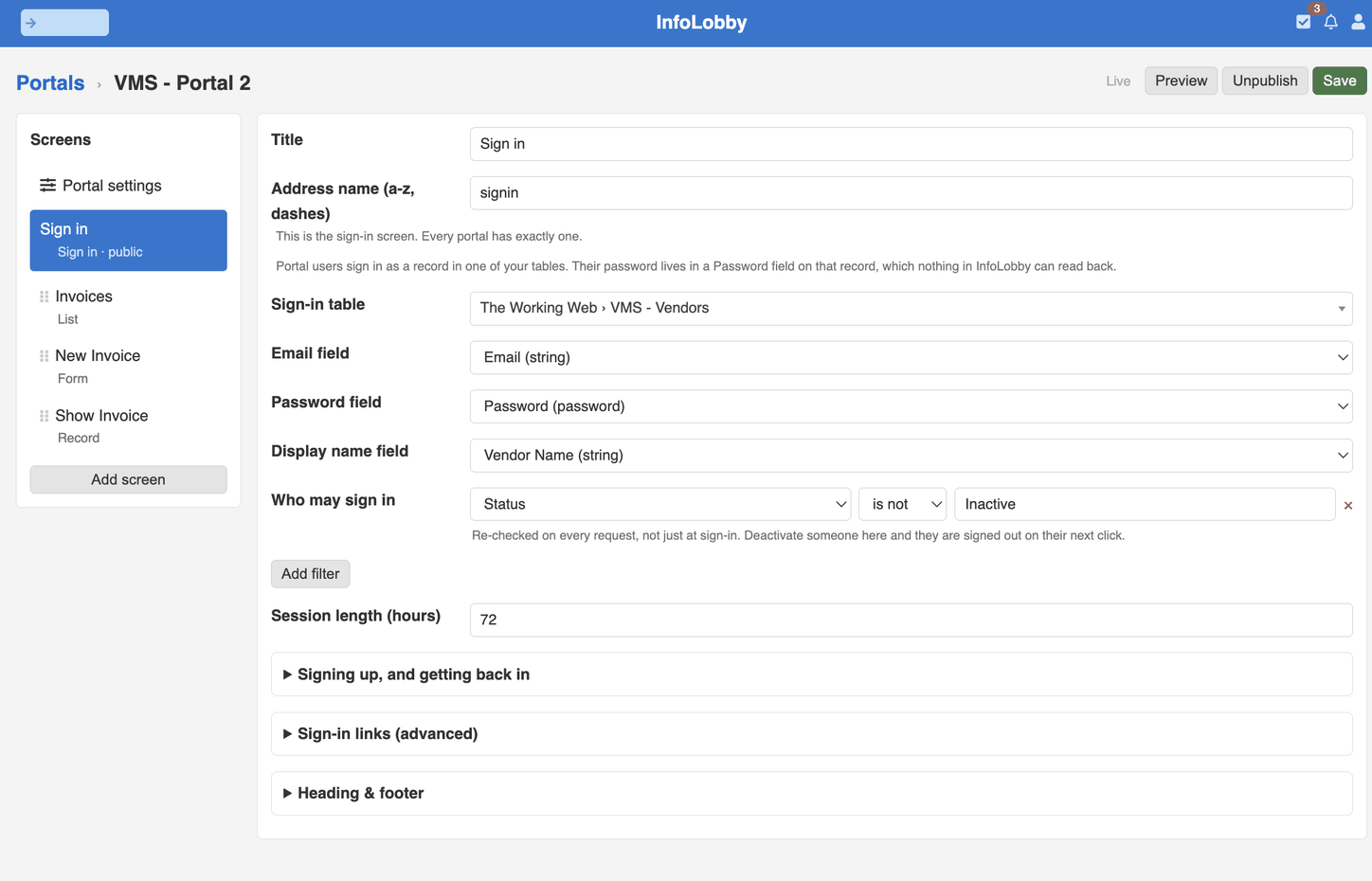
The portal uses the existing Vendors table to identify the person signing in. Each vendor signs in as their own row in that table, with an email field and a password field, and a filter decides who may sign in at all. Here, any vendor whose status is Inactive is refused, and that check runs on every request, not just at sign-in.
Once authenticated, the vendor can access the screens and records permitted by the portal configuration.
We don't need to create another invoice database or build an integration between the portal and the internal system.
Showing vendors only their own invoices
This is arguably the most important part of the setup.
We don't want Northstar IT Services to see invoices submitted by Brightline Creative Studio.
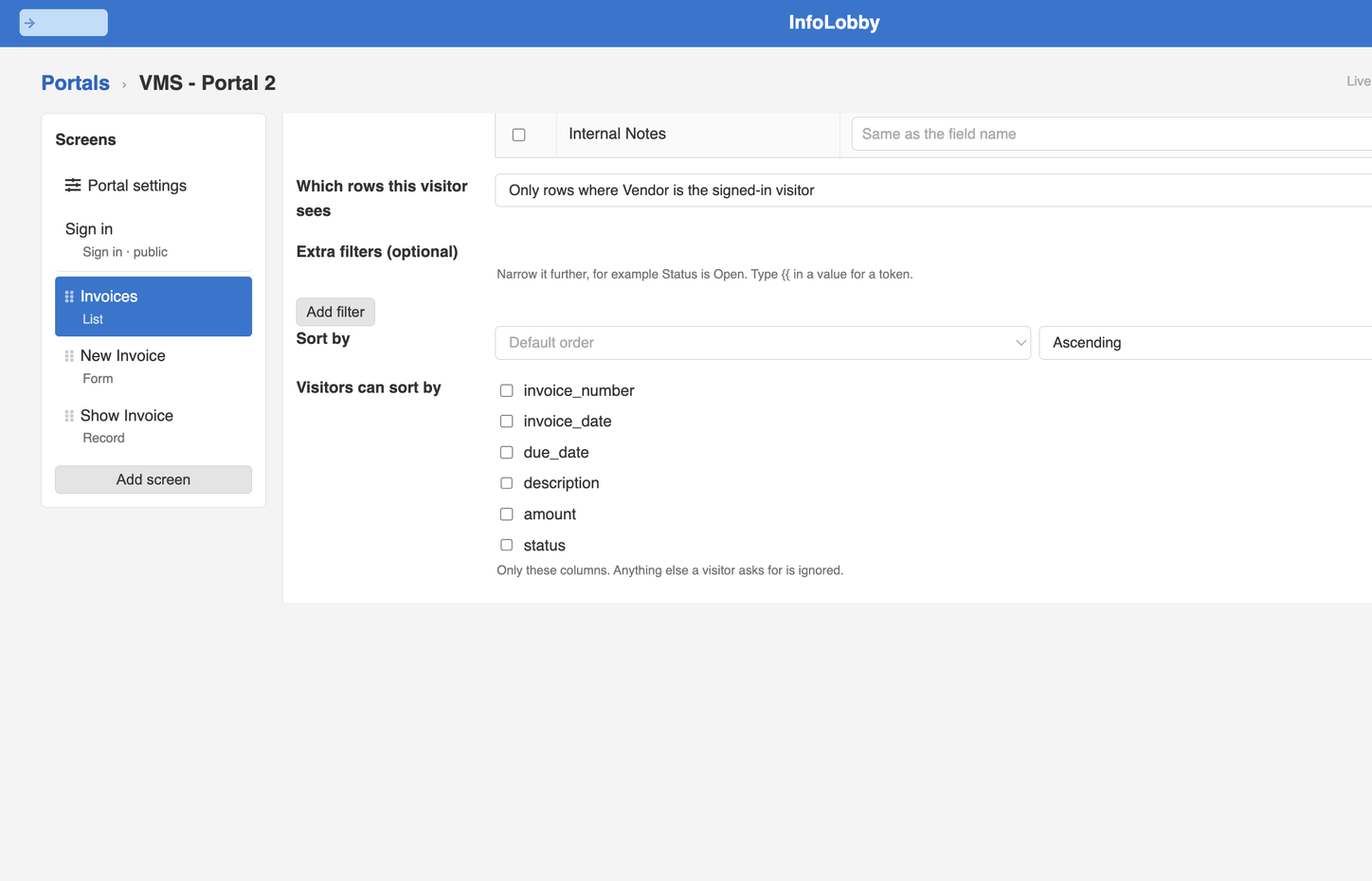
In the portal builder, we connect the Invoices screen to our existing Invoices table.
Then, under Which rows this visitor sees, we select:
Only rows where Vendor is the signed-in visitor.
Since each invoice has a Vendor lookup field, InfoLobby can use that relationship to determine which records belong to the authenticated vendor.
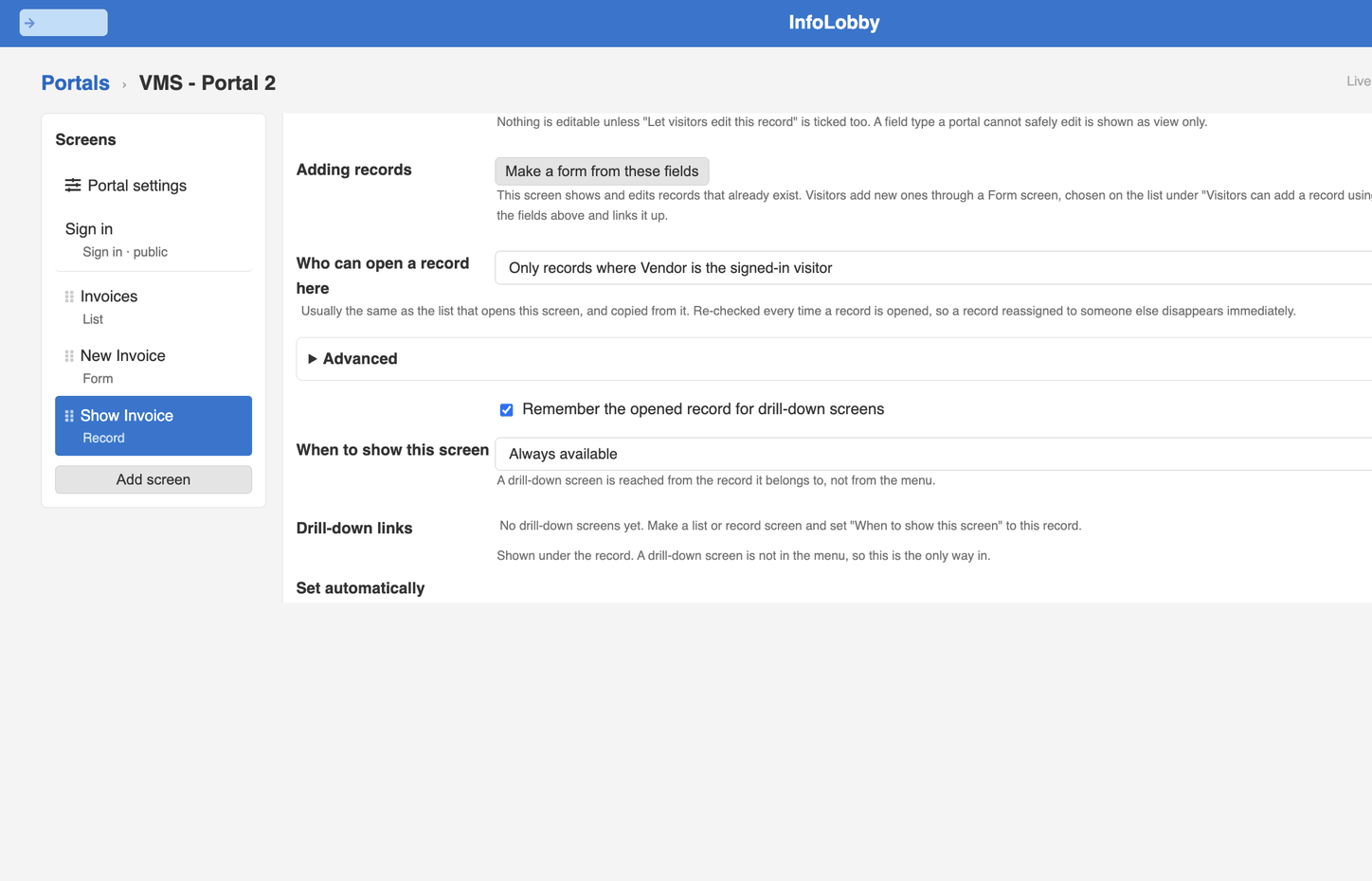
We also configure the individual invoice record screen using the equivalent restriction:
Only records where Vendor is the signed-in visitor.
This matters because restricting a list is not the same as restricting access to the underlying records. A vendor who edits the address bar to open someone else's invoice gets nothing back, because the rule is checked again every time a record is opened.
The portal configuration controls both which records appear in the list and which individual records a visitor is allowed to open.
We can also decide which fields are visible and whether vendors are allowed to edit them.
For example, vendors should be able to view an invoice's payment status, but they should not be able to mark their own invoices as Paid.
Internal notes are excluded entirely.
If you have read our post on row-level permissions, this is the same idea applied to people outside your team, who never get an InfoLobby account at all.
What the vendor sees
Let's sign in as Northstar IT Services Ltd.
Instead of seeing the full InfoLobby workspace, the vendor sees a simple interface containing their invoices.
Each invoice displays information such as:
- Invoice number
- Invoice date and due date
- Description
- Amount
- Payment status
Northstar can see invoices that are Submitted, Under Review, or Paid.
But Brightline Creative Studio's invoices do not appear in Northstar's list.
Both vendors use the same underlying Invoices table. The difference is which records the portal allows each authenticated vendor to access.
Submitting an invoice
Next, let's submit a new invoice.
The vendor clicks New Invoice and completes a form.
For our example, the form asks for the invoice date, due date, description, currency, amount, and an invoice PDF.
The vendor doesn't need to select their own company from a list. The portal already knows who is signed in and associates the submitted invoice with that vendor.
When the vendor submits the form, InfoLobby creates a record directly in the existing Invoices table.
There is no intermediate spreadsheet, external form service, or separate portal database.
Now let's switch to the internal InfoLobby workspace.
The new invoice appears in the same table as the other invoices, with its vendor relationship, amount, attachment, and submission status.
The finance team can open the record, inspect the uploaded PDF, and begin reviewing it.
In our example, the invoice starts with a status of Submitted.
The finance team changes it to Under Review.
When we return to the vendor portal, the invoice shows its updated status.
This is the main advantage of working directly with live tables.
There is no synchronisation process waiting to copy the updated status into another system. Both interfaces read the same record.
Communicating on the invoice itself
Status updates are useful, but vendors sometimes need more information.
Perhaps a payment is delayed, an attachment is missing, or the finance team needs clarification about an amount.
Rather than starting another email thread, both parties can use comments on the invoice record.
In our example, Northstar asks:
Can we have an update on the payment please?
The finance team responds:
Will be released today.
The vendor can see the response and reply directly in the portal.
The comments belong to the same invoice record used by the internal team.
This keeps the conversation connected to the transaction rather than scattered across individual email inboxes.
One database, different levels of access
The vendor portal and the internal workspace serve different purposes.
The finance team needs access to invoices across all vendors. It needs to review submissions, manage approval statuses, and record payment information.
Vendors need a much narrower experience.
They should be able to submit invoices, see their own records, check payment progress, and ask questions.
They don't need access to the underlying database structure, other vendors' invoices, or internal administrative fields.
InfoLobby allows us to configure these different experiences over the same tables.
The portal's record-scoping rules control which records a vendor can access, while field and action settings control what they can see or change.
For this demonstration, we've configured access around the Vendor lookup field, rather than maintaining separate tables for each vendor.
What the portal doesn't do
It's important to distinguish invoice management from payment processing.
Our portal allows vendors to submit invoices and track their status. It does not process bank transfers or execute payments.
The finance team handles payments separately and updates the invoice record when payment has been made.
Likewise, this example is not a full accounting system. It demonstrates how external users can participate in an existing business workflow without being given access to the internal workspace.
Portals are available from the Team plan up, and InfoLobby meters portal create, read, update, and delete operations per plan. Check expected portal activity against the pricing page when choosing a plan.
Give external users access without creating another system
A vendor portal doesn't have to be a separate application that needs constant synchronisation with your internal database.
In this example, we started with two ordinary InfoLobby tables and created a vendor-facing interface over them.
Vendors can sign in, submit invoices with attachments, track payment statuses, and communicate with the finance team.
Staff continue working with the same records inside InfoLobby.
The portal controls what each vendor can access, without requiring us to duplicate the data or maintain a second system.
And while we've demonstrated this using vendor invoices, the same approach can be used for customer service requests, project updates, document submissions, and other workflows where external users need controlled access to information your business already manages. The client portal use case covers when a portal is the right fit and when inviting someone into a workspace is better, and the Portals help pages walk through every setting.
One set of records. Different interfaces for the people who need them.