Decide Who Sees What, One Workspace at a Time
Add someone to a workspace and give them one of three roles. They see that workspace and nothing else.
Access is a decision you make once per person, per workspace, and can change in a click.
Permission systems fail in one of two ways
Either they are too coarse to trust, so everybody ends up an admin and you hope for the best, or they are so detailed that keeping them current is a job nobody has. Six months in, half the team is over-privileged and nobody wants to be the one who tightens it and breaks something.
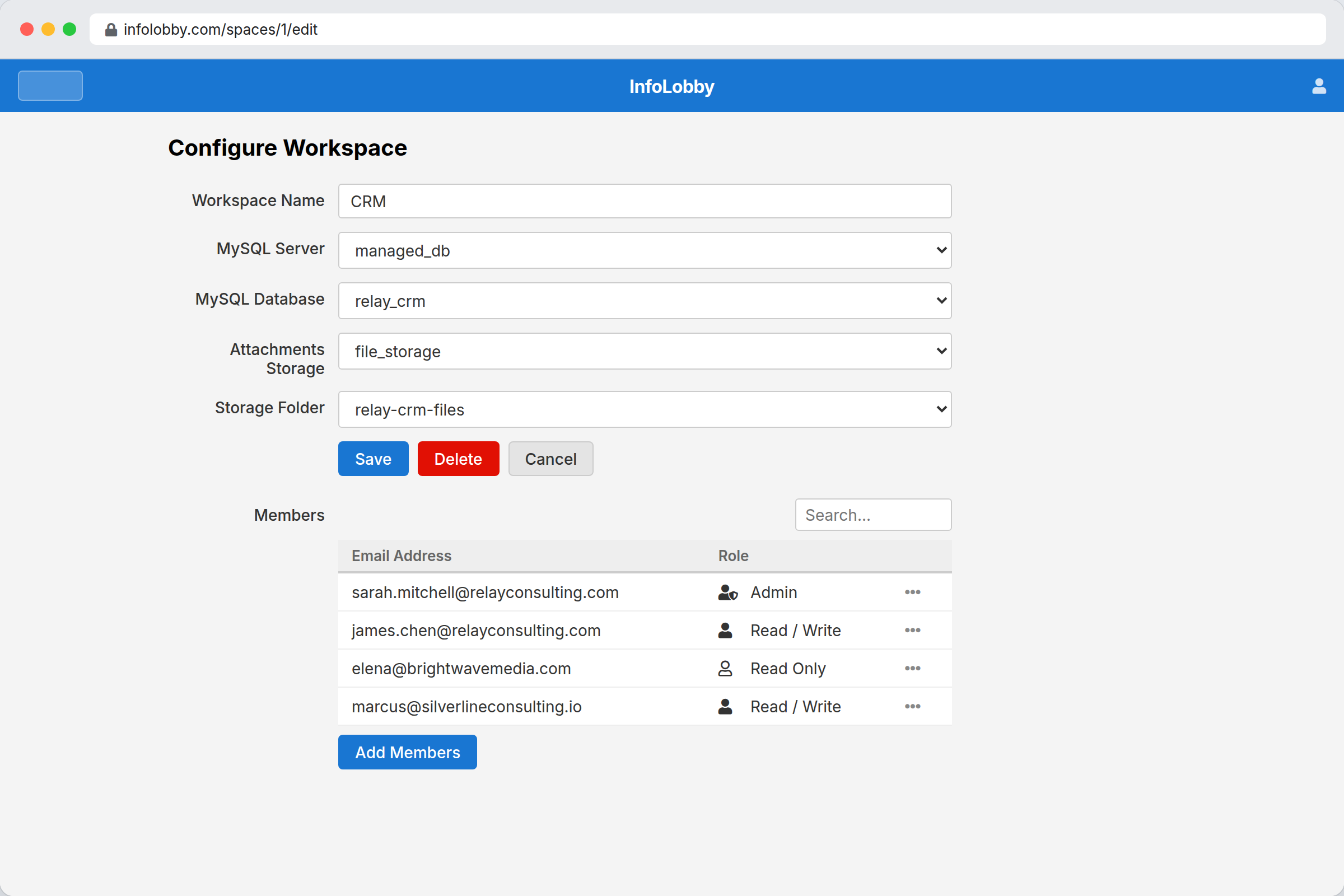
InfoLobby scopes access by workspace. A person is added to the workspaces they need and holds one of three roles in each: Admin, Read / Write, or Read Only. A workspace they were never added to does not exist as far as they are concerned. From there you tighten where it matters, with a record lock on tables where people should only see their own rows, and Admin Only on the handful of fields that should not move.
The workspace is the boundary, so draw it where the trust changes.
Roles apply to a whole workspace rather than to individual tables, which keeps the model small enough to stay accurate. When one group should see less than another, the answer is a separate workspace, not a permission matrix nobody will maintain.
- Split by workspace wherever the audience changes
- Use a record lock when people should only see their own rows
- Use Admin Only on the fields that decide money or status
Where you can draw the line
- Invite by email address, with or without an existing InfoLobby account
- Set each person's role per workspace, and change it whenever you like
- Lock a table to the owner named on each record, for reading or for writing
- Mark a field Admin Only so only workspace admins can change it
- Block a write outright with a validation rule, such as freezing a record at a status
- Scope an API key to chosen workspaces, make it read-only, and restrict it by IP
- Choose which workspaces an AI assistant can reach, and revoke it in one click
Setting access up
- Put work that different audiences should see into different workspaces.
- Add each person to the workspaces they need and pick Admin, Read / Write, or Read Only.
- Tighten from there where it matters: a record lock on tables people should only see their own rows in, and Admin Only on the fields that should not move.
Where it fits
Use it for
- Teams with contractors, clients, or departments who should see different things
- Anywhere the cost of a per-seat tool has been quietly limiting who gets access
- Tables where each person should only work their own records
Reach for something else when
- Single sign-on, SAML, or directory sync, none of which are supported
- Custom roles. There are three, and they cannot be edited
- Hiding individual fields from people. Admin Only blocks editing, not reading
Questions people ask
How much does an extra user cost?
Nothing. Every plan includes unlimited users, and there is no seat count anywhere in the billing. The only people counted separately are portal visitors, who are external clients signing in to a portal rather than members of your team.
Can I give someone access to one table but not another?
Not within a workspace. A role applies to the whole workspace, so the way to separate access is to put the two sets of tables in different workspaces. Keeping the model that small is what stops it drifting out of date.
Can I stop people seeing each other's records?
Yes. A record lock points at a user field on the table. In read mode a non-admin only sees the records naming them, and in write mode everyone sees everything but can only change their own. Workspace admins are exempt, as are automations.
What happens when I remove someone?
Their access to that workspace ends on their next request, and their notifications and follows for it are cleared. Everything they created stays: records, comments, attachments and history are untouched.
Do API keys and AI assistants get the same permissions?
An account API key acts as the account owner, and can be limited to chosen workspaces, made read-only, and restricted by IP. A personal API key carries exactly your own roles. An AI connector acts as you, on the workspaces you ticked when you authorised it, and you can revoke it at any time.
Do you support single sign-on?
No. Sign-in is by password or Google. There is no SAML, no directory sync, and no automated deprovisioning, so removing someone is a manual step.
Try it on your own data
Start free and build one working process around this feature, then add the records, views, tasks and automations around it.