Catch Up on Everything That Moved While You Were Out
One time-ordered feed across every workspace you belong to, with your open tasks and anything broken beside it.
Coming back from two days off should not mean opening eight tables to find out what moved.
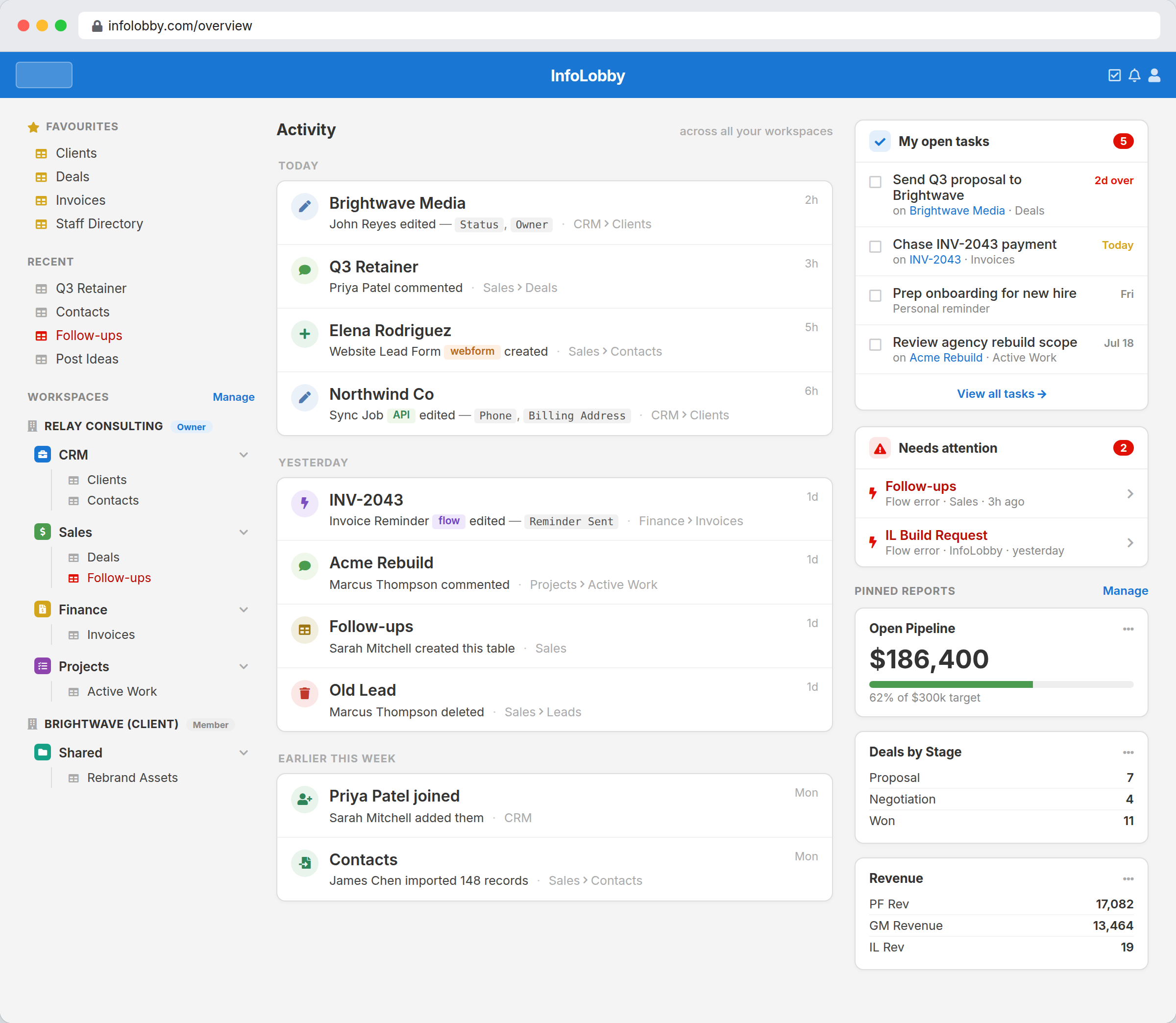
Catching up should take a minute, not a tour
Come back on Monday and the work has moved without you. A client record was edited, a form created two leads, an automation updated a batch of invoices, somebody imported a list, someone else joined the workspace. None of it is hidden, but finding it means opening every table and squinting at what looks new.
The overview is one stream with all of that in it, newest first, grouped into today, yesterday and earlier. Every row says who did it, which workspace and table it happened in, and which fields moved, and it links straight to the record. Beside the feed sit the tasks assigned to you and any automation that has started failing, so the catch-up and the to-do list are the same screen.
A feed is only worth reading if one busy afternoon cannot bury it.
An import of four hundred rows is one line that says four hundred rows were imported. Ten edits to the same record while somebody worked through it are one line with a count on it. What survives is the shape of the day rather than a transcript of it, which is the difference between a feed people read and a log they learn to ignore.
- Imports and mass changes collapse into a single row
- Repeat edits to one record roll up, newest first, with a count
- For the field-by-field history of one record, open its own activity trail
What the overview pulls together
- Read one feed spanning every workspace you are a member of, in the order things happened
- See which fields changed on an edit, and a snippet of a comment, without opening the record
- Tell a person's edit from a web form, an automation, an API key or an AI assistant at a glance
- Follow a row straight to the record, table or workspace it refers to
- Keep reading back through the week as the feed loads more on scroll
- Check the tasks assigned to you and jump into any of them from the same screen
- Spot a table whose automation has started failing before somebody reports it
- Hide a table or a workspace you do not need to watch, for yourself only
- Make the feed your home page, or keep the workspace grid and visit the feed when you want it
One workspace at a time, in more detail
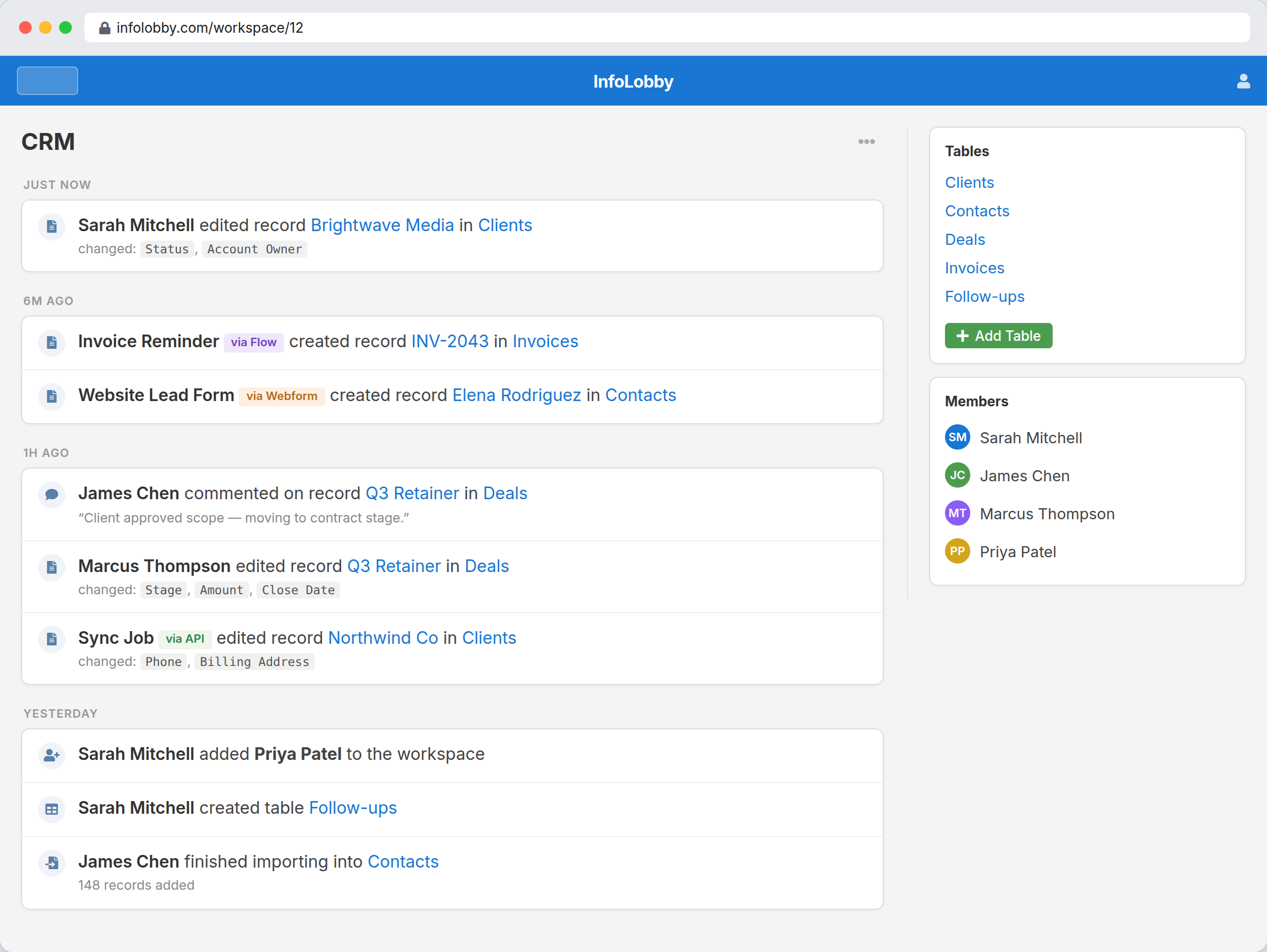
The same feed narrows to a single workspace, and there it keeps more of each change rather than summarising it. You get the fields that moved on each edit, the comment that was posted, the member who was added, and the import that finished, with the tables and members of that workspace beside it. It is the view to open when a specific project has gone sideways and the question is what happened in there this week.
Making it your morning page
- Open the overview from the header. It is already populated, because the history it reads has been recorded since your first record.
- Hide the tables or workspaces you do not need to watch. That only affects your own feed, and an admin can hide a noisy table from everyone's overview in its table settings.
- Set it as your home page if the feed suits how you start the day, or keep the workspace grid and drop into the feed when you have been away.
Where it fits
Use it for
- Anyone in several workspaces at once who needs one place to catch up
- Managers who want to see the week's movement without asking for a status update
- Teams where forms, automations and API integrations write records alongside people
Reach for something else when
- A permanent archive. On a managed database the feed reaches back a year
- Field-by-field forensics on one record. That lives on the record's own activity tab
- Alerting. Something addressed to you should reach you through follows and notifications, not a feed you have to read
Questions people ask
Which workspaces does the feed cover?
Every workspace you are a member of, in one stream, with the workspace and table named on each row. A workspace you were never added to does not appear, because the feed is built from the spaces you can already open.
How far back does it go?
On an InfoLobby managed database, activity is kept for a year. If the workspace runs on your own MySQL server, the history stays in your database until you remove it, so the feed reaches back as far as you keep it.
Will an import or a bulk update bury everything else?
No. A bulk change or an import collapses into a single row that says how many records it touched, and repeated edits to the same record roll up into one row with a count, so a busy afternoon does not push the rest of the week off the screen.
Can I keep a noisy table out of my feed?
Yes. Hide a table or a whole workspace and it drops out of your feed only, with no effect on anyone else. A table can also be hidden from the overview in its settings, which takes it out of everyone's feed.
Is this the same as a record's activity history?
No. The overview is for catching up: one row per thing that happened, across everything you can see. A record's own activity tab is the detailed history of that one record, with old and new values on every field that changed.
Does the feed replace notifications?
No, and it is not meant to. The feed is everything that happened, which you read when you choose to. Notifications are the things addressed to you, which find you in the bell, on your phone, or in an hourly email.
Try it on your own data
Start free and build one working process around this feature, then add the records, views, tasks and automations around it.