TL;DR
- Record email is off by default. A table admin has to allow one or more SMTP integrations on the table before the email button appears on its records. Sending uses your own SMTP server.
- Once it is on, you send from the record, the customer replies from their normal inbox, and the reply appears as a comment on the same record. No portal, no login, no copying emails across.
- Replies are routed by a unique reply address on every outgoing email (
reply-{token}@{catchDomain}), not by guessing from the sender or subject line. Bounces come back the same way. - The shared inbox is where small-business context goes to die. Keeping the conversation on the record means whoever picks up the request next can see everything that has already been said.
- This is part two of Build Your Own Helpdesk. That post builds the ticket table. This one follows a single request through the full email round trip.
A customer fills out a form on your website asking about a service.
Someone on your team receives the request, reviews it, and sends an email asking for more information.
The customer replies.
Now someone has to find that reply in their inbox, remember which request it belongs to, and update the customer record or ticket.
If another team member takes over, they may have to search through emails or ask a colleague what has already been discussed.
This is one of the problems with managing customer requests through a shared inbox. The conversation happens in one place, while the information needed to act on it lives somewhere else.
What if the email conversation happened directly inside the record?
In our earlier article, Build Your Own Helpdesk, we explored how to manage customer support requests using tables, forms, and workflows. This time, we're extending that idea by following one request through its email conversation.
The goal is simple: send an email from a record, let the customer reply normally, and have that response appear on the same record.
The example: A regulatory consultancy
For this demonstration, we're using Fousiya, a business management system built in InfoLobby for a UAE-based pharmaceutical and medical regulatory consultancy.
The system manages customers, quotations, projects, invoices, payments, and other business operations.
We've added an Intake table to handle incoming customer requests.
A prospective customer wants help registering a medical device in the UAE. They submit a request through a public web form.
The form collects their name, email address, phone number, service required, and a description of what they need.
In our example, the customer asks:
Hello, we are planning to import and distribute a Class II medical device in the UAE. We would like assistance with the registration process and regulatory requirements. Could you advise on the process, documentation and estimated cost?
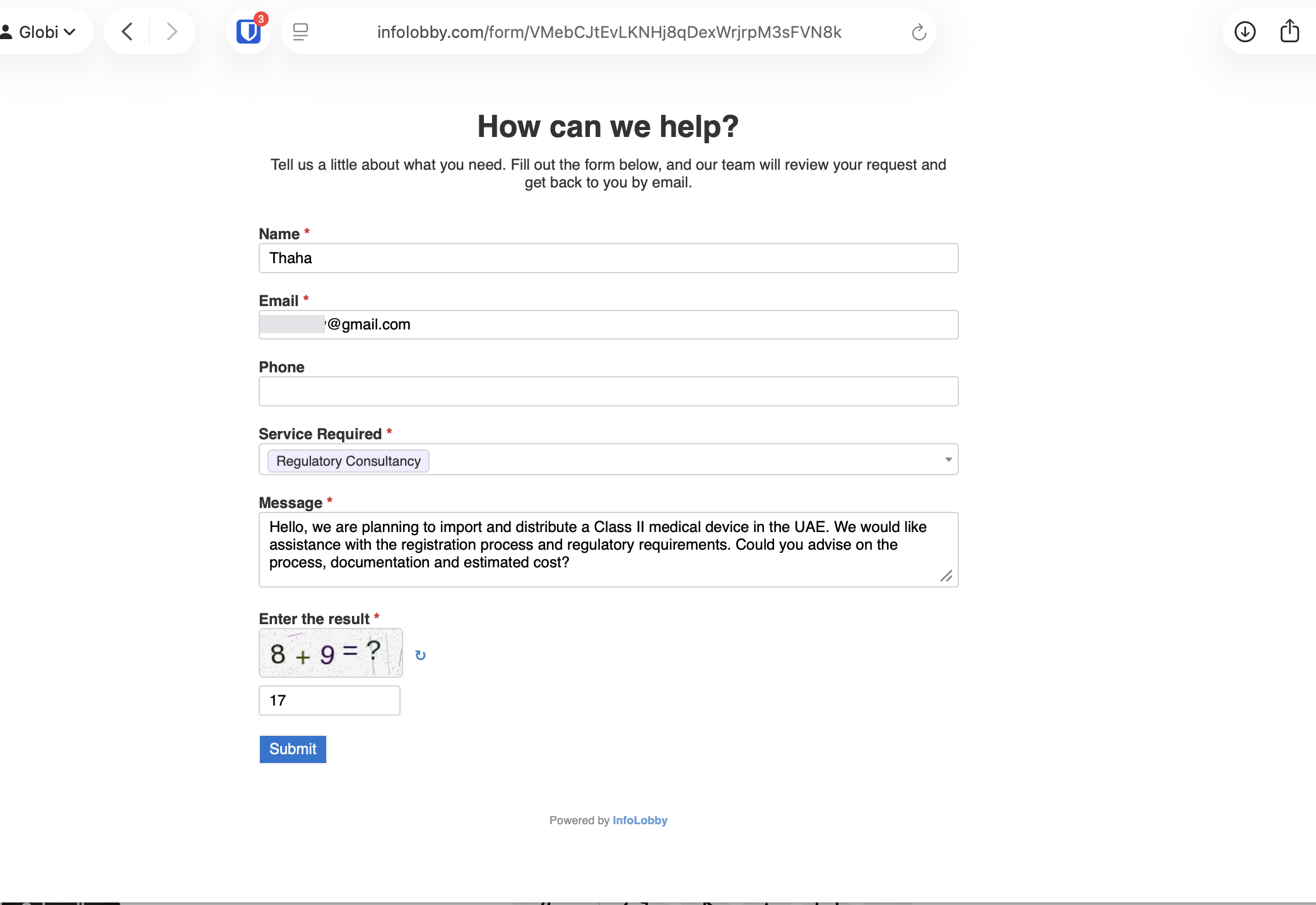
When the customer submits the form, InfoLobby creates a new record in the Intake table.
The record contains the information submitted through the form, along with internal fields such as Status, Assigned To, and Customer.
At this point, the request is available for the team to review and manage.
First, enable email on the table
Record email in InfoLobby is an opt-in feature. It is disabled by default.
A table administrator must explicitly allow one or more SMTP integrations before users can send emails from records in that table. InfoLobby does not provide the mail server: you connect your own SMTP account as an integration.
Under the table's General configuration, there is an Allow Email setting.
Here, the administrator selects which SMTP integrations are permitted and can configure default fields for the recipient, subject, and message.
For our Intake table, we selected an SMTP integration and mapped the Recipient field to the customer's Email field.
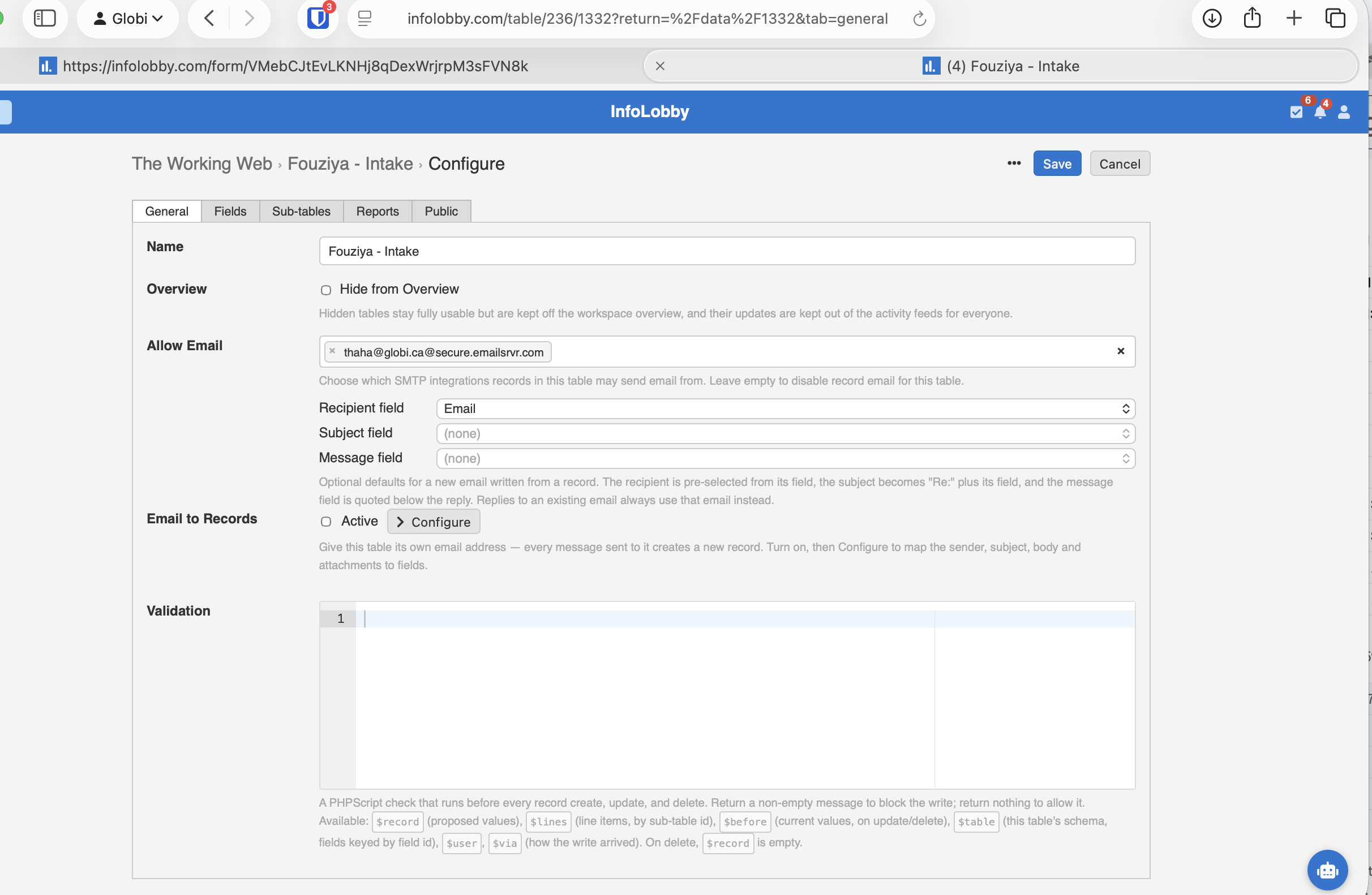
This means the email composer automatically selects the customer's email address when someone opens an Intake record.
The configuration is specific to the table. Enabling email for Intake does not enable it for every other table in the system.
Automatically acknowledge the request
The first email doesn't need to be written manually.
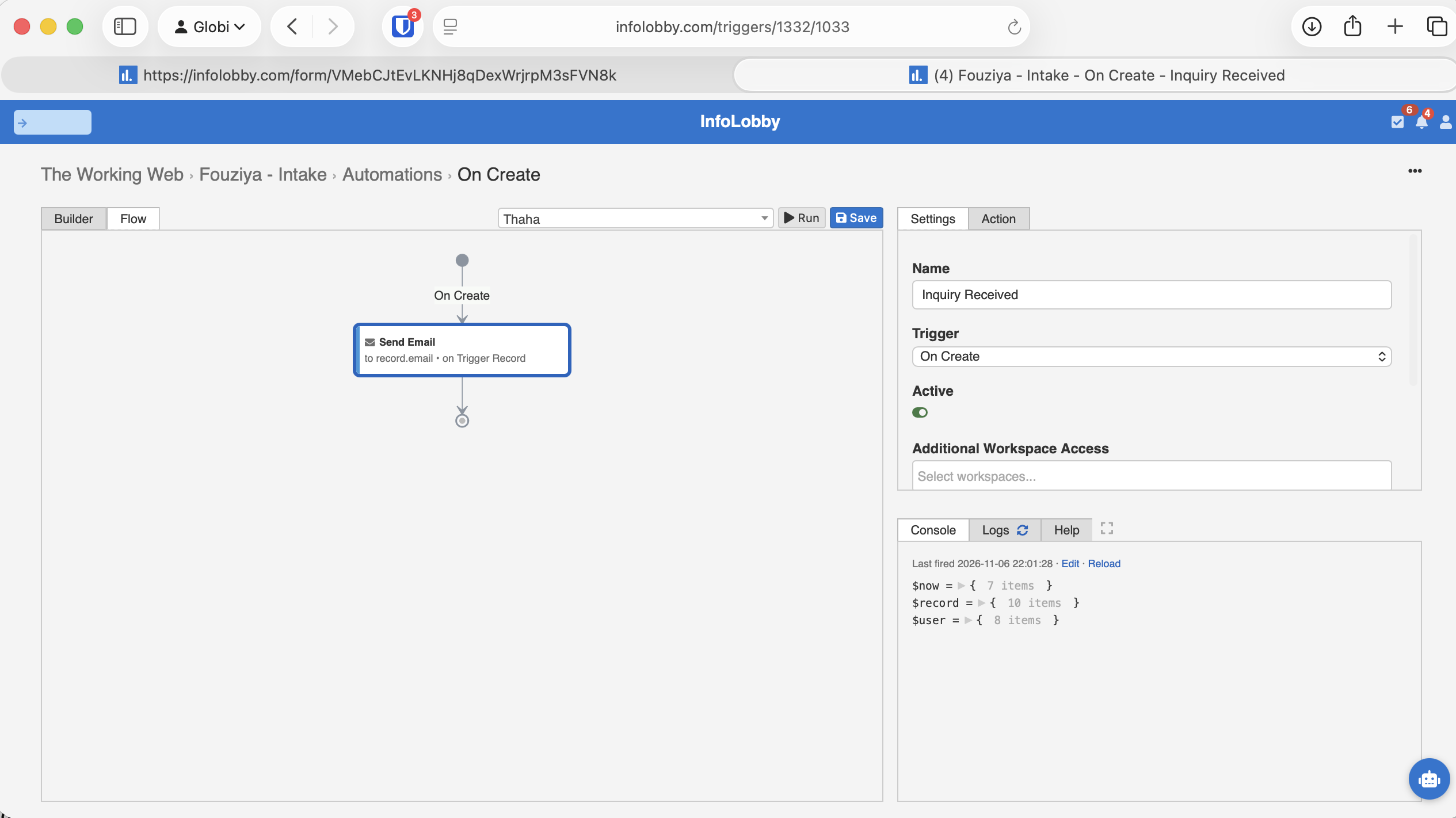
We created an automation called Inquiry Received, triggered whenever a new Intake record is created.
It contains a Send Email action that sends a welcome message to the email address submitted through the form.
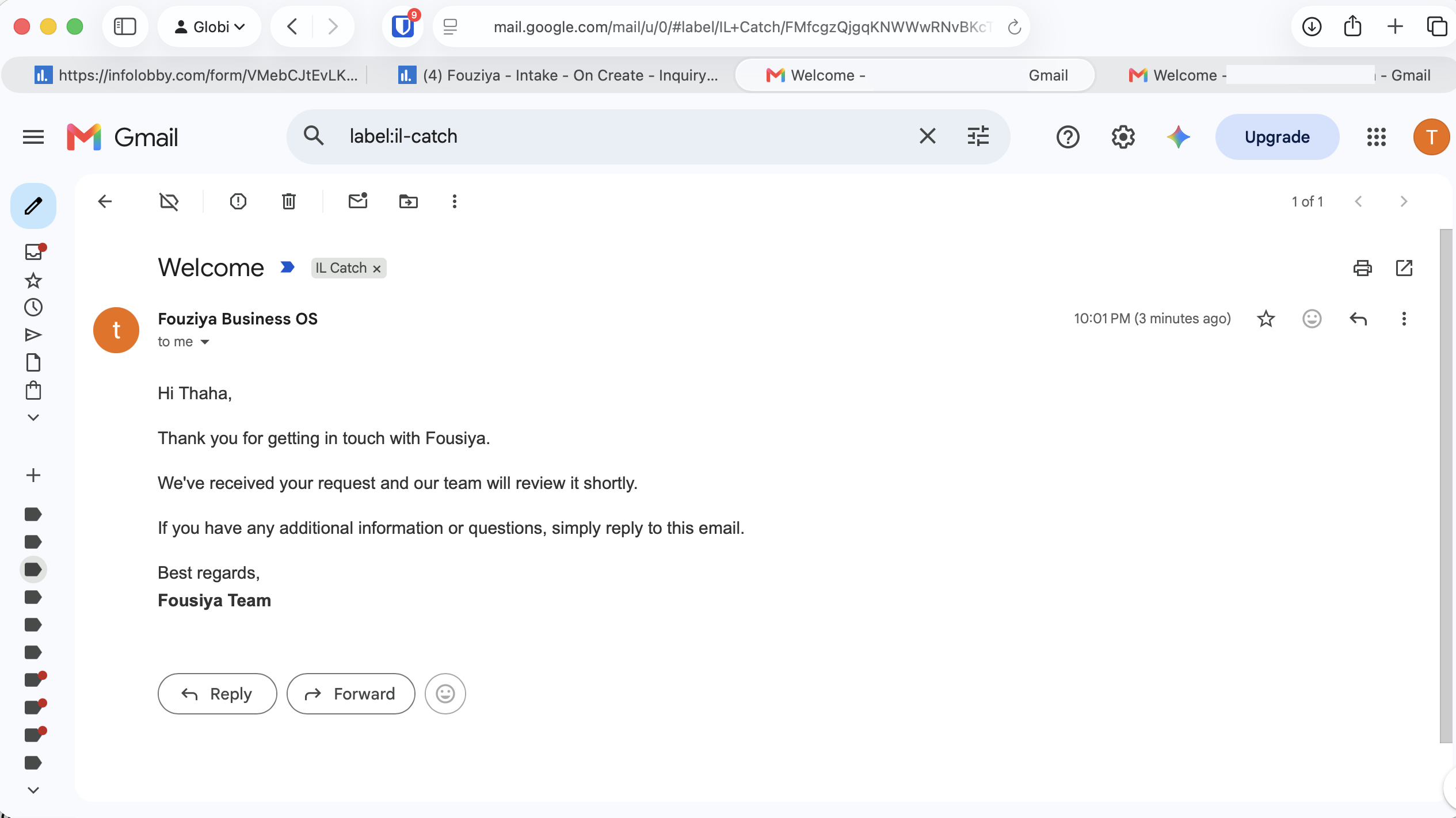
The message confirms that Fousiya has received the request and will review it. We also personalise the greeting using the name stored in the record. InfoLobby supports inserting record field values into email content using placeholders such as {{field:name}}.
In our test, the customer received the welcome email in Gmail.
The email is also visible in the Comments section of the originating Intake record, with a SENT indicator.
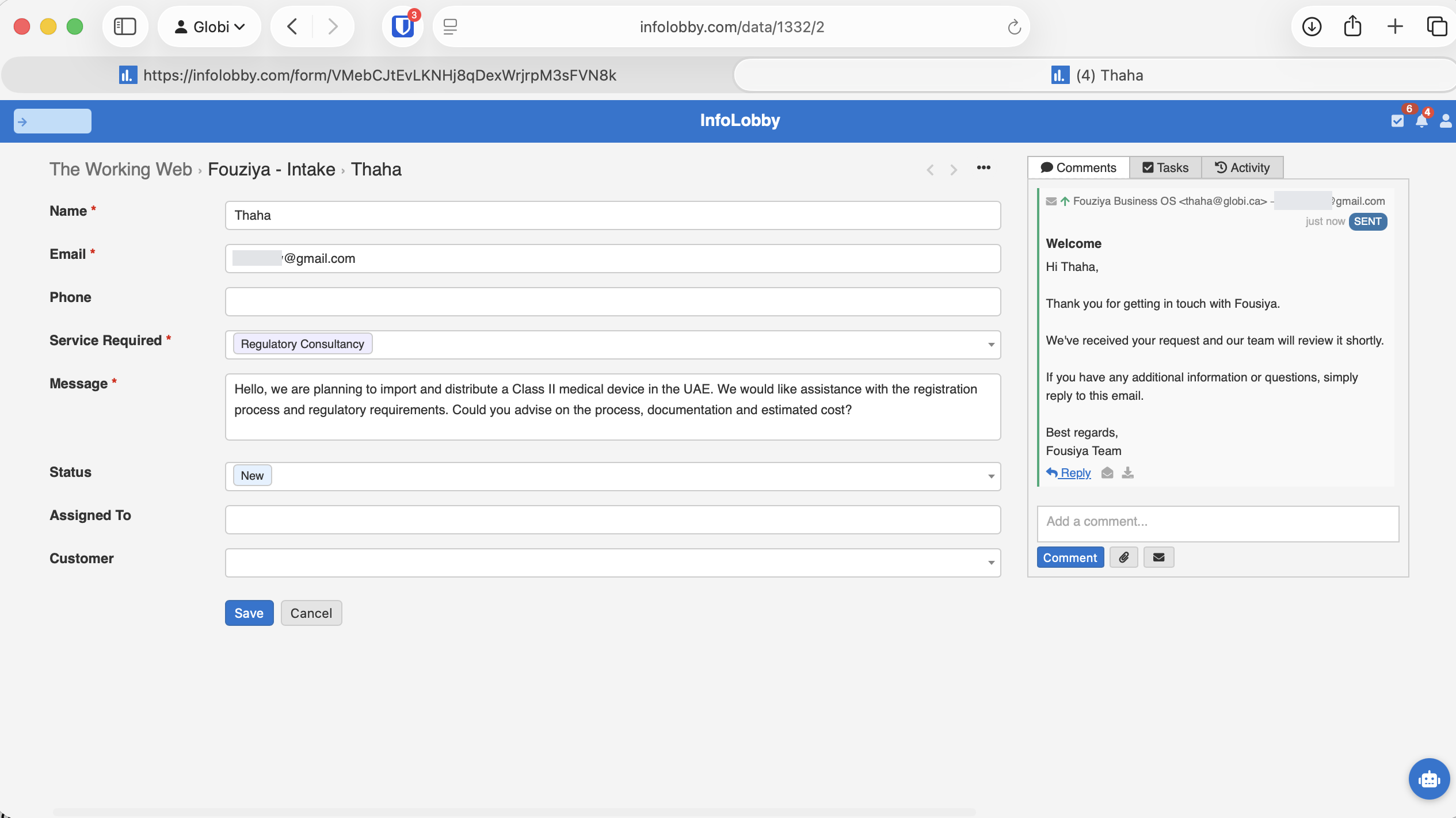
So the team can see that an acknowledgement was sent without opening an external email application.
Replying to the customer from the record
Next, someone at Fousiya reviews the request.
Before preparing a quotation, they need additional information about the medical device.
Instead of opening Gmail, they open the Intake record and click the email icon beside the comment box.
This opens InfoLobby's email composer. It shows the configured SMTP account, sender details, recipient, subject, message editor, and signature. It also supports CC and BCC recipients, formatting, and record field placeholders.
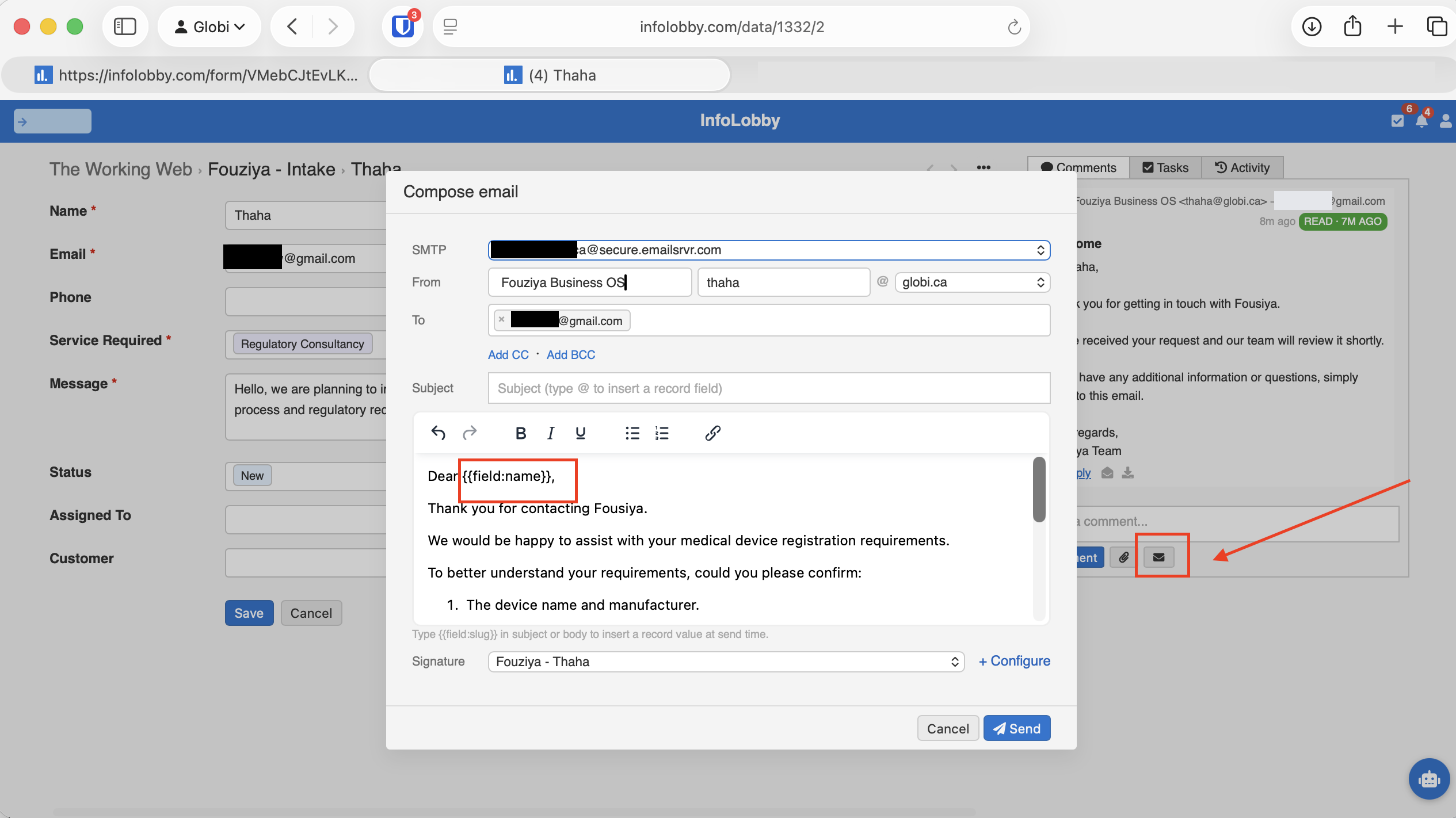
For our example, Fousiya asks the customer to confirm three things:
- The device name and manufacturer.
- Whether the manufacturer has an existing UAE registration.
- Whether the technical documentation and relevant certifications are available.
The email is sent directly from InfoLobby.
In Gmail, the customer receives it as an ordinary email from Fousiya. They don't need an InfoLobby account, a portal login, or access to the company's internal system.
They simply read the email and reply.
The important part: What happens when the customer replies?
Our customer responds with the requested information.
The device is a portable patient monitoring device manufactured in Germany. The manufacturer does not currently have a UAE registration, but the customer has CE certification and technical documentation available.
They send this reply directly from Gmail.
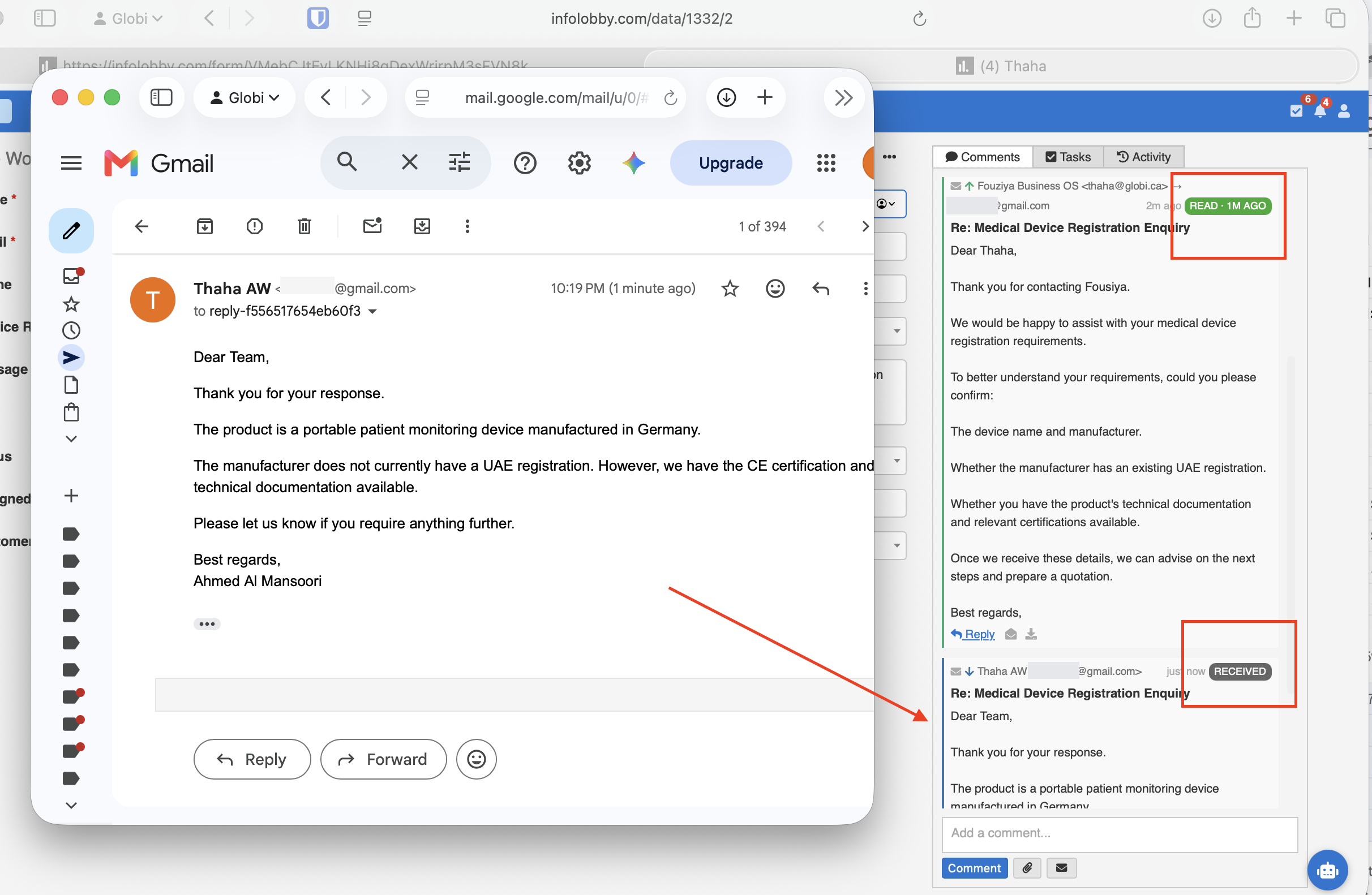
The customer didn't submit another form. They didn't log into a portal. Nobody on the Fousiya team copied the email into the system.
The incoming email was automatically added as a comment on the original Intake record.
The Comments section now contains both the outgoing email and the incoming reply. The outgoing message is marked SENT, and the customer's response appears with a RECEIVED indicator.
The outgoing message also shows READ once the customer opened it. That comes from a tracking image in the email, so it only appears when the customer's mail client loads images. Treat it as a hint, not proof.
The request and its correspondence are now in the same place.
How does InfoLobby know which record receives the reply?
When InfoLobby sends an email from a record, it sets a reply address containing a unique token. The address follows this pattern:
reply-{token}@{catchDomain}
You can see it in the Gmail screenshot above: the customer's reply is addressed to reply- followed by a string of letters and numbers.
When the customer replies, their email client sends the response to that address. InfoLobby uses the token to identify the originating record and adds the incoming email as a comment on that record.
The same mechanism also captures delivery failures. If an address bounces, the original email on the record is marked as bounced instead of silently disappearing.
This means incoming replies are never matched by guessing from the customer's email address or the subject line. The reply is routed back to the record associated with the original outgoing message.
Email conversations belong with your business records
Although we demonstrated this using a customer Intake table, record email is not limited to support tickets.
A sales team might need to ask a prospective customer for additional information before preparing a quotation. A project manager might request a document or clarification from a client. A finance team might follow up on an outstanding invoice.
In each case, the communication relates to a particular business record. Keeping the correspondence attached to that record makes it easier for other team members to understand what has already happened. They can review the original information, the emails exchanged, and any internal comments without searching through someone's inbox.
And because email is configured at the table level, you enable it where it makes sense rather than across the entire database.
From an incoming request to an ongoing relationship
Our Fousiya example begins with a public intake form, but it doesn't have to end there.
Once the team has gathered enough information, the request can move through the business process. The prospective customer can be added to the Contacts table, a quotation can be prepared, and an accepted quotation can become a project.
Those are separate workflow steps, but the initial conversation remains available on the Intake record.
The customer communication isn't happening in a disconnected inbox. It's part of the system where the business already manages its work.
Bringing email into the record
A web form is a useful way to collect customer requests, but the form is only the beginning of the conversation.
Customers will have questions. Your team will need clarifications. Documents and additional details will go back and forth.
If those conversations happen entirely in an external inbox, someone has to keep the business system updated.
With record email, the customer keeps using their normal email application while your team works from the relevant record. For the full setup, see the email help page, and if you want to start from a ready-made ticket table, Build Your Own Helpdesk walks through it in about five minutes.
The customer sends an email. The record receives the reply. The conversation stays with the work.
FAQ
Does the customer need an InfoLobby account to reply?
No. They receive an ordinary email and reply from whatever mail client they already use. The reply is routed back to the record by its reply address.
Why is there no email button on my records?
Record email is off by default for every table. A table admin has to open the table's configuration, go to the General tab, and select at least one SMTP integration under Allow Email. Until then, no compose button appears.
Does InfoLobby send the email for me?
It sends through your own SMTP server, connected as an integration. InfoLobby provides the database and file storage, but not outgoing mail.
Can an automation send the email instead of a person?
Yes. A Send Email action in an automation can send on any trigger, such as when a record is created. The acknowledgement in this post works that way. Automations are not limited by the table's Allow Email list; that setting only controls the compose button on records.
What happens if the email bounces?
The bounce comes back to the same reply address, and the original email on the record is marked as bounced, so you can see the address was bad.
Can I turn emails into new records, not just replies?
Yes. Email to Records gives a table its own address, and every message sent to it creates a new record. That is the right tool for a support inbox. Record email, covered here, is for the conversation on a record that already exists.