Comments
Comments keep record-specific discussion next to the data instead of buried in chat threads.
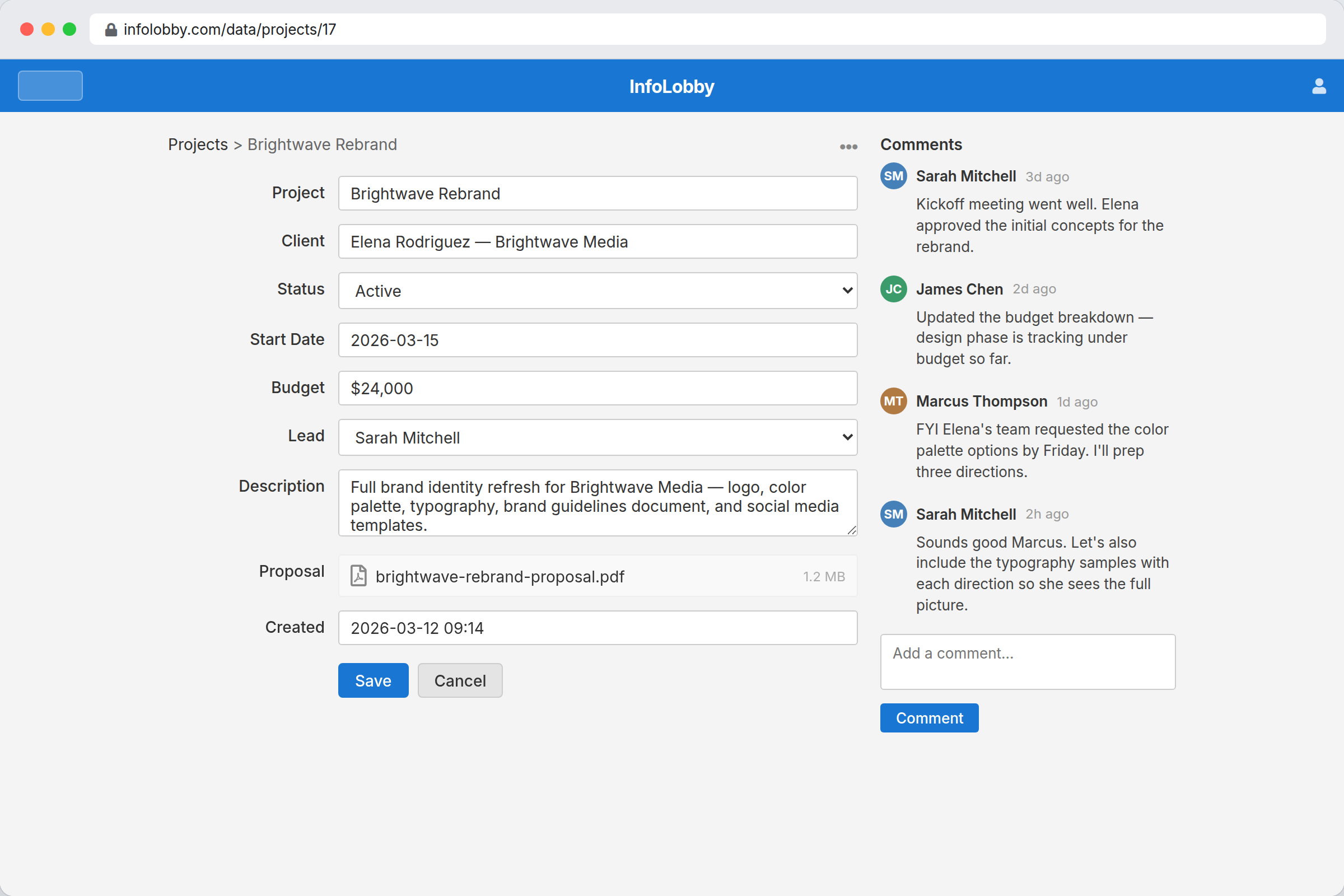
Use comments
Open a record and use the comments panel. Newer comments appear near the input. Long threads can be scrolled.
Links
Paste a web address or an email address and it becomes clickable once the comment is posted. Web links open in a new tab, so the record stays where it was. This works the same in task comments and in the community lobby.
Attach files
Click the paperclip next to the Comment button — or drag files onto the comment area — to attach files to a comment. Multiple files per comment are supported, up to 50 MB each. Files land in your workspace storage and appear under the comment, click to open.
If the workspace has no file storage configured, the paperclip is disabled.
When a record or comment is deleted, the attached files are scheduled for cleanup along with regular record attachments.
Mention people with @
Type @ in the comment box to pick a workspace member from a dropdown. Mentioned users:
- Get a notification (in the bell, and in the email digest) telling them they were named.
- Are automatically subscribed to the record so they see follow-up comments and edits.
Only members of the current workspace are listed. Mentions in task comments work the same way. Editing a comment to add a new mention sends a notification to the newly added person only — already-mentioned people are not pinged again.
Commenting follows the record
When you comment on a record, you start following it automatically. Replies and other changes to that record then show up in your bell and digest email, even if nobody @mentions you. You are never notified about your own comment.
To stop, open the record, click the ellipsis (...) in the top-right and pick Unfollow. See Notifications for the full list of automatic follows.
Permissions
| Action | Who can do it |
|---|---|
| Read comments | Anyone with table access |
| Add comments | Read & Write or Admin |
| Edit comments | Comment author |
| Delete comments | Comment author or workspace Admin |
Comments posted through the public API are labelled with the API key name.