TL;DR
- "Just import your CSV" is where most guides stop, and it is where the actual work starts. Importing inconsistent data faithfully only gives you an inconsistent database.
- The real job is deciding what each row represents. One maintenance job sheet turned out to hold four kinds of record: Customers, Sites, Engineers and Jobs.
- Clean before you import: duplicate customers under slightly different names, phone numbers in several formats, and one status written as
Done,Finished,Completedand more. - Import the parent tables first, then the 108 historical jobs, linked to their customer, site and engineer.
- Expect the first import to expose a wrong assumption. Mine did.
Spreadsheets usually do not become a problem overnight.
A business starts with a simple list. Then more people use it. More columns get added. Customer information gets repeated. Statuses are typed slightly differently. Dates use different formats. Colours start meaning things. Before long, the spreadsheet is doing the job of a database without actually being one.
I wanted to show what moving from a spreadsheet to a database actually involves, so I took a maintenance job spreadsheet based on a real-world example and migrated it from beginning to end.
Not just:
Export CSV → Import CSV → Done
The interesting part is deciding what the rows actually represent, cleaning the existing data and turning one flat spreadsheet into properly related records.
Here is the complete video walkthrough:
The spreadsheet we started with
The original spreadsheet was being used to manage maintenance jobs.
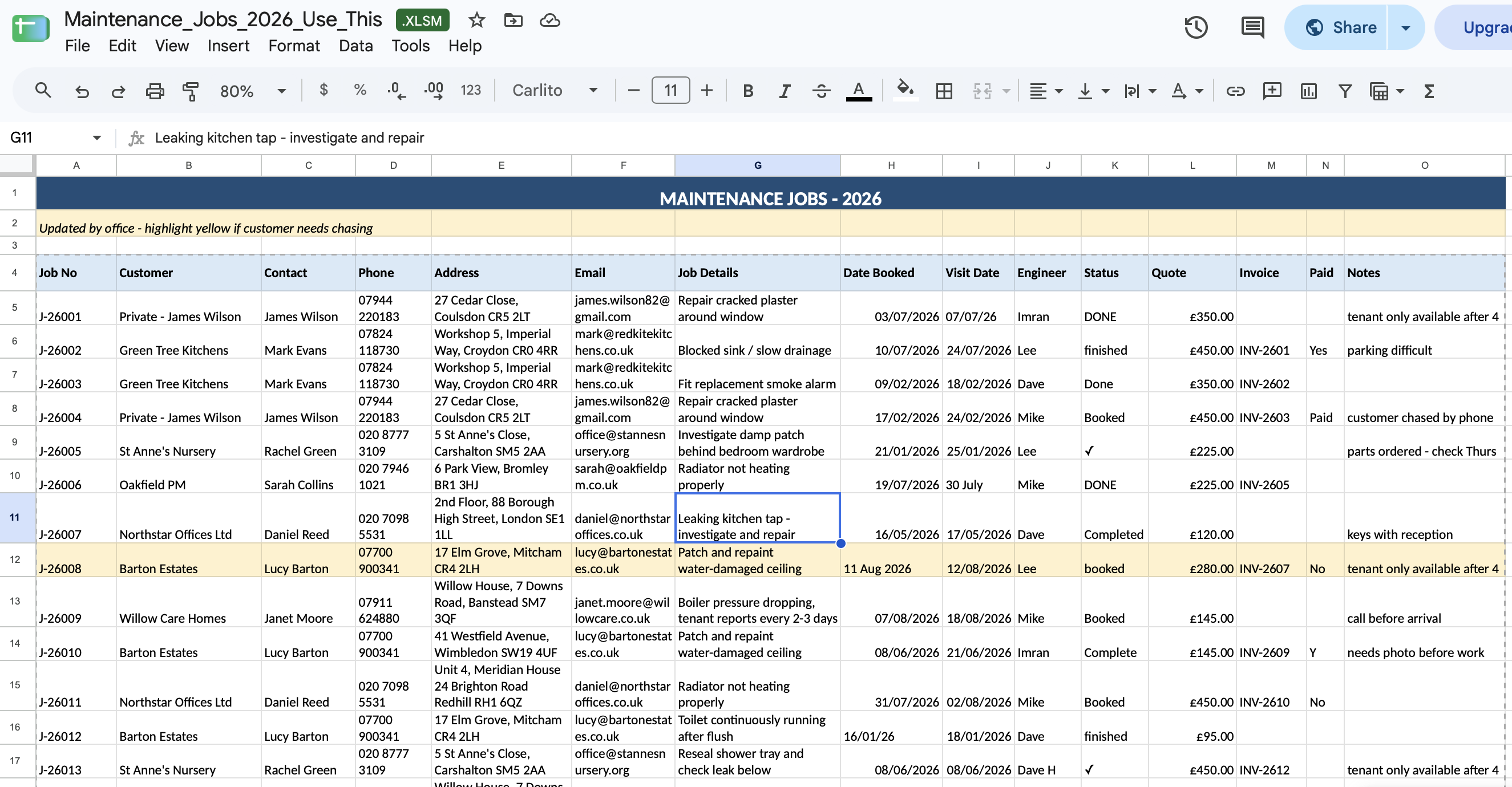
Each row contained information about several different things at once:
- Customer and contact information
- Site address
- Job details
- Date booked and visit date
- Engineer
- Job status
- Quote amount
- Invoice reference
- Payment status
- Notes
That is perfectly normal when a spreadsheet starts small.
The problem becomes obvious once you look across enough rows.
The same customer appears repeatedly. A customer can have multiple sites. Engineers appear on many different jobs. Customer names are entered differently. Phone numbers use different formats. The same completed status appears as things like Done, Finished, Completed and other variations.
Those are not really 15 independent columns of information.
They are several different types of records squeezed into one sheet.
Step 1: Identify the actual entities
Before importing anything, I separated the information conceptually.
For this particular spreadsheet, four entities emerged:
Customers
Who is requesting or paying for the work?
Sites
Where is the work being carried out?
One customer may have multiple sites.
Engineers
Who is carrying out the work?
Jobs
What work actually needs to be done?
That gives us a much more useful structure:
Customer → Site → Job
with each Job also connected to an Engineer.
This is the important part of moving from a spreadsheet to a database.
The goal isn't to recreate every spreadsheet column in another tool. It is to identify the relationships hidden inside the spreadsheet.
Step 2: Clean the customer data
I started with the customer information.
Copying the customer columns and removing duplicate rows helped, but it didn't solve everything.
There were records where the email address was the same but the customer name had been entered slightly differently.
For example, something equivalent to:
Northstar Offices
and:
Northstar Offices Ltd
A spreadsheet sees those as different values.
We have to decide whether they represent the same real customer.
I sorted and reviewed the records, removed the remaining duplicates and also distinguished between organisations and individual customers.
Phone numbers were another cleanup job. They had been entered in several different formats, so I standardised them before migration.
Only then did I have a customer dataset I was comfortable importing.
Step 3: Create the Customers table
In InfoLobby I created the first proper database table.
The Customers table included fields such as:
- Customer Name
- Company Name
- Phone
- Type
- Status
Type distinguishes an Individual from an Organization, while Status lets us maintain active and inactive customers.
I also added a validation rule to the table that checks the email and phone values.
This is a small difference that becomes important over time.
A spreadsheet will happily let someone type almost anything into a phone-number column. A database can enforce what valid data should look like before accepting it.
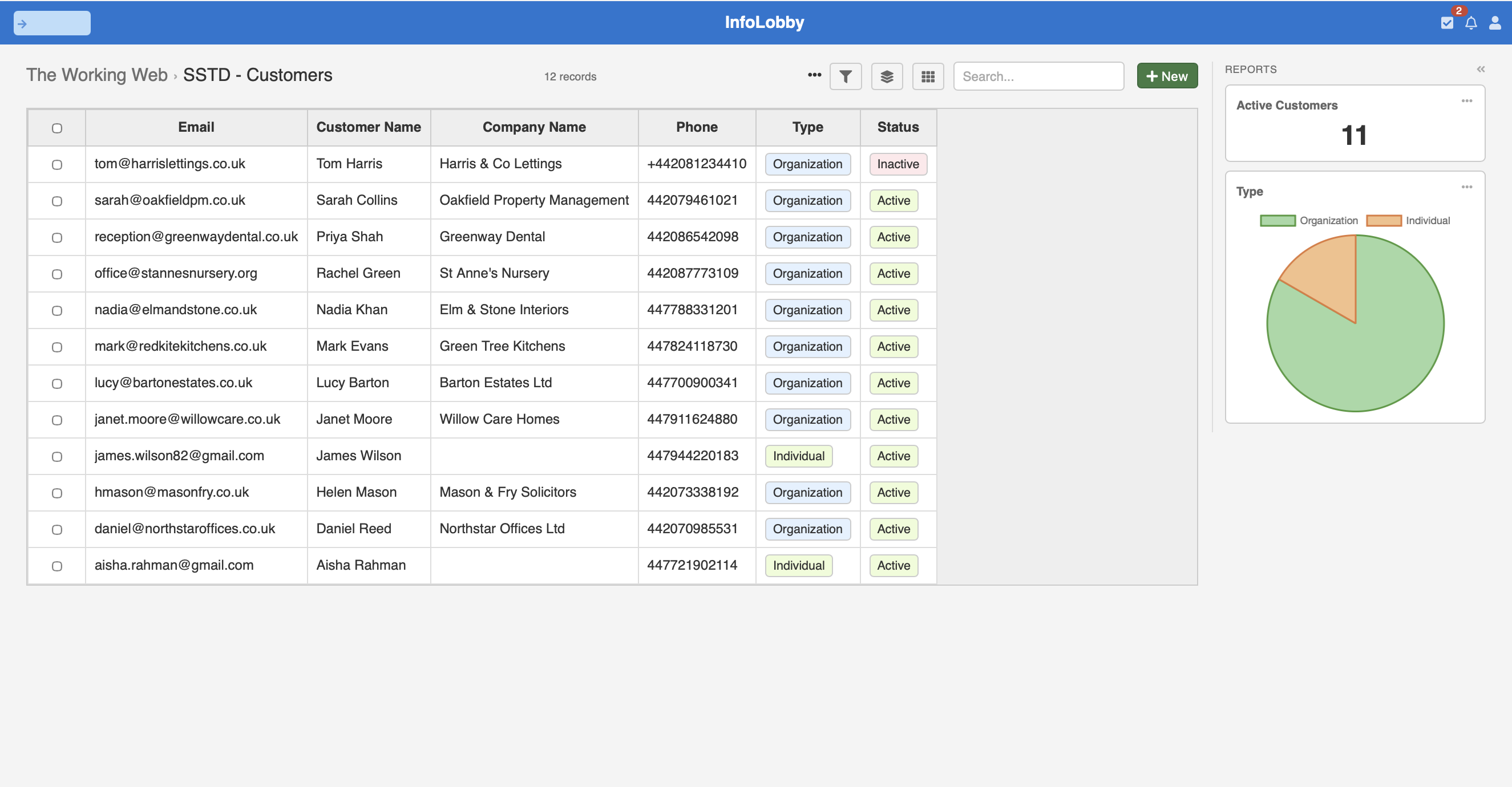
After importing the cleaned customers, I had 12 customer records rather than customer information repeated throughout more than 100 job rows.
Step 4: Separate customer sites
The next problem was addresses.
An address is not simply another attribute of a customer in this example because the same customer can have multiple locations.
So Sites became another table.
I extracted the unique site addresses from the spreadsheet and associated each one with the correct customer.
The resulting structure became:
Customer → Site 1, Site 2, Site 3
Instead of typing the customer's details again whenever another location is added, the Site record simply references the existing Customer.
In InfoLobby, opening a customer can then show all of its related sites automatically.
This is where the advantages of relational data start becoming much more visible.
Step 5: Extract the engineers
Engineers had the same problem.
Their names were repeatedly typed into individual job rows.
So I created an Engineers table with fields for the engineer's name, email and status.
Now a job doesn't contain an arbitrary piece of text saying who the engineer is.
It points to an actual Engineer record.
That also gives us somewhere to maintain engineer information independently of individual jobs.
Step 6: Build the Jobs table
With Customers, Sites and Engineers established, I could finally create Jobs.
The Jobs table contains the information that genuinely belongs to a job, including:
- Job Number
- Customer
- Site
- Job Details
- Date Booked
- Visit Date
- Engineer
- Status
- Quote Amount
- Invoice Reference
- Payment Status
- Notes
Three of those fields are particularly important:
Customer, Site and Engineer are relationships.
We are no longer copying their information into every job.
A Job references the appropriate records.
Step 7: Clean the statuses before importing
The existing spreadsheet had accumulated several ways of describing essentially the same thing.
Completed work might be recorded as Done, Finished, Completed or another variation.
That might seem harmless when someone is reading a spreadsheet.
It becomes a problem as soon as you want to filter, report or automate against the data.
So I reduced the existing values into a controlled set of job statuses, including:
Booked → Scheduled → Waiting Parts → In Progress → Completed
with additional statuses such as Cancelled and Quote Sent where required.
Payment values received similar cleanup so they could become a consistent Paid/Unpaid field.
This is another reason why "just import the CSV" isn't really a migration strategy.
Importing inconsistent data faithfully only gives you an inconsistent database.
Step 8: Prepare the relationships for import
Now came the slightly less glamorous part.
The existing 108 jobs still needed to be connected to the Customers, Sites and Engineers we had already created.
When a CSV column is mapped to a relationship field, the import matches each value against the title field of the related table. So the identifier you put in the CSV has to be whatever that table uses as its title.
For Customers, I used email as the identifier.
For Sites, I used postcode in this example.
The spreadsheet data was rearranged into the structure expected by the Jobs table, and lookups were used to obtain the identifiers needed for those relationships.
Dates also had to be converted into a consistent database-friendly format. The original sheet mixed 03/07/2026, 07/07/26, 11 Aug 2026 and even 30 July in the same column.
Once everything was cleaned and mapped, the final CSV was ready.
Step 9: Import the 108 jobs
The first import exposed a mistake.
The Jobs came in, but the Site relationship didn't.
The reason was simple: I hadn't set postcode as the identifying field on the Sites table before importing, so the postcodes in the CSV had nothing to match against.
I corrected that configuration and repeated the import.
This time the relationships were created correctly.
We now had all 108 historical jobs in the database, connected to their Customers, Sites and Engineers.
That's a useful part of showing a real migration rather than an idealised demo.
Migration work often involves importing, checking the result, finding an assumption that was wrong, correcting it and trying again.
Step 10: Give people a better way to interact with the database
Once the data is in a proper database, not everyone needs to work directly inside the database tables.
For simple data entry, you can use web forms. An engineer working remotely could open a form on their phone to submit job information, update a status or add notes without needing to navigate the underlying database.
For people who need more ongoing access, InfoLobby also supports portals. A portal can give customers, engineers or other external users their own interface for interacting with the information and processes relevant to them, without giving them access to the main database.
This is an important difference from the original spreadsheet.
With a shared spreadsheet, the spreadsheet is often both the database and the interface. Everyone works in the same rows and columns.
With a system like this, those responsibilities can be separated:
Database → stores and relates the information
Forms → collect information
Portals → give users an interface to interact with relevant information
The database remains the source of truth, while different people can interact with it in a way that makes sense for their role.
You can also add automations around the database. For example, when a new job is created, automatically email the assigned engineer or office team. When a job is marked as completed, automatically send the invoice to the customer. Instead of relying on someone to remember the next step, the system can trigger it based on what happens to the job.
What we ended up with
We started with one long spreadsheet where customer, site, engineer and job information were repeated across rows.
We finished with four related tables:
Customers → Sites → Jobs
Engineers → Jobs
Now I can open a customer and see their sites and historical jobs.
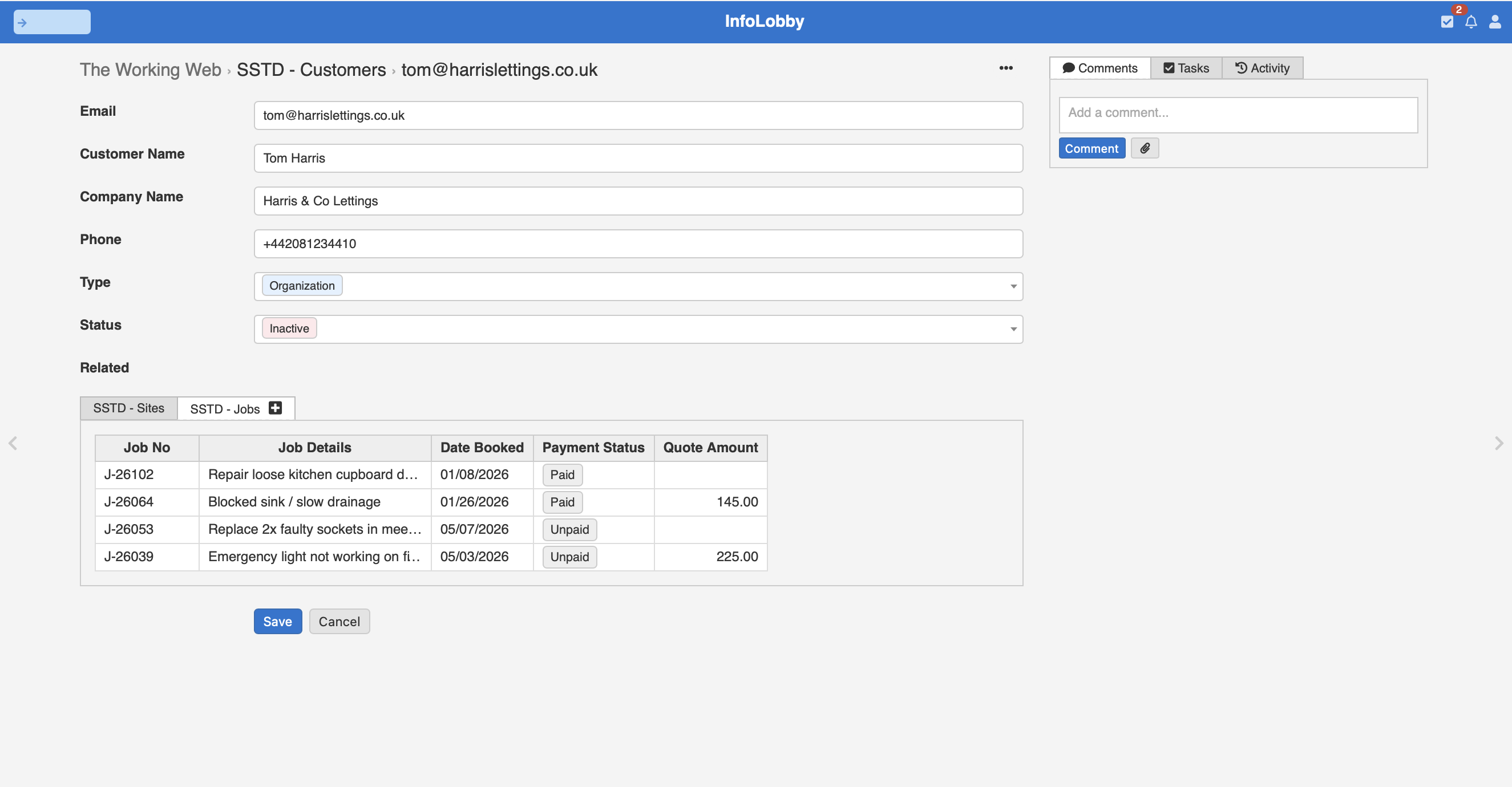
I can open a job and move back to its customer.
Statuses are controlled instead of being entered however someone happens to spell them.
Customer data can be validated.
Reports can count active customers or break them down by type.
And the same Jobs data can be displayed as a Kanban board showing work that is booked, scheduled, waiting for parts, in progress or completed.
The data hasn't simply moved somewhere else.
Its structure has changed.
Importing a spreadsheet is not the same as migrating it
This is probably the main lesson from the exercise.
If you have a 1,000-row spreadsheet and import those 1,000 rows into a database as one giant table, technically you have moved the data.
But you may still have the same underlying problem.
A proper spreadsheet-to-database migration requires asking:
What does each piece of data represent?
Which information is being repeated?
What should become its own record?
How are those records related?
Which existing values need to be cleaned before they become controlled database fields?
Those decisions are where most of the work is.
The CSV import is the easy part.
If your business has reached the point where a spreadsheet is becoming difficult to maintain, the first question shouldn't necessarily be "What database should we import this into?"
Start with:
"What is this spreadsheet actually modelling?"
Once you understand that, building the database becomes considerably easier.
Related reading: if you are still deciding whether it is time to move at all, see when to move from Google Sheets to a database. For how InfoLobby compares as a Google Sheets alternative, and what a typical spreadsheet replacement looks like, those pages cover the wider picture.