Working with Records
Records are rows in your table. The grid helps you find records quickly; the record screen helps you view, edit, discuss, and connect them.
Grid view
Open a table to see records in a grid. Click a row to open the record. To open it in a new browser tab, hold Ctrl (Cmd on Mac) while clicking; to open it in a pop-up window without leaving the table, hold Shift while clicking. These shortcuts work in the Kanban, Gallery, and Calendar layouts too.
Quick-edit a cell
With write access, double-click a cell to edit its value right in the grid — no need to open the record. Type your change and press Enter to save (for dropdown, link-to-record, and people fields, just pick a value). Press Esc or click away to cancel. Long-form, file, and link fields open the full record instead, where they have more room. Cells you can't change — such as ID and calculated fields — don't open an editor.
Search
Type in the search box to filter rows across all fields. The search matches any word in any visible column.
Filters
Click the filter icon next to the search box to open the filter panel. Filters let you narrow records by specific field conditions.
Each filter row has three parts: the field, a comparison (equals, contains, greater than, is empty, etc.), and a value. The available comparisons depend on the field type — for example, text fields offer "contains" and "starts with", while number fields offer numeric comparisons.
- Select fields show a dropdown of the field's options.
- Lookup and user fields provide a searchable dropdown.
- Date fields offer presets (Today, Yesterday, Start of this month, etc.), relative options (7 days ago, 1 year ago), custom relative (N days/weeks/months/years ago), or a specific date picker. These are worked out fresh each time the table loads, in your timezone: a saved view filtered on "Today" shows each teammate their own day. "Start of this week" means Monday.
Add multiple filters to combine conditions. From the second filter row on, a small AND/OR dropdown controls how that row joins the ones above it: AND narrows the results (a record must match this condition too), while OR widens them (a record matching either side is included). For example, Status = Open OR Status = Sent returns records in either status. Click Apply to update the grid. Click Clear all to remove all filters.
Active filters are shown as a badge count on the filter icon. Filters persist in the URL and in your browser, so refreshing or revisiting the table restores them. Share the URL to give others the same filtered view.
When you open a record from a filtered table or saved view, saving, cancelling, or deleting that record returns you to the same table URL so the active view, filters, search, sort, and layout state are restored.
Admins can use the table menu for configuration, web forms, import, and export options.
Excel & CSV import
The table menu's Import reads any .xlsx, .xls, or .csv file. After
upload, a mapping screen lets you match each column in your file to a field
in the table; a sample value from the first row previews each choice.
Columns whose names match a field are pre-mapped automatically.
Mapping the ID field turns rows with a matching ID into updates of the existing records instead of new ones; leave it unmapped to only create.
A Trigger Flows checkbox controls whether the import fires automations. By default it's off, so bulk imports stay silent. Turn it on and every row runs the table's On Create flows (or On Update flows, for rows matched by ID) — the same as if each record were entered by hand. Leave it off for large one-off loads where you don't want thousands of flow runs.
Excel export
The table menu's Excel Export downloads the table as an .xlsx file. If
you're on a saved view, or have applied filters, a search, sorting, or a
custom column layout, you'll be asked whether to export the current view
(only the visible columns, in their on-screen order, with your filters,
search, and sort applied) or all records & fields in the table.
With no view or filters active, the whole table exports right away.
Layouts
The layout icon next to the views icon switches the table between four layouts:
- Table — the default grid.
- Calendar — month or week view of records by a date field. Optionally pick a select field whose option colors paint each event, and an end-date field to span events across days.
- Gallery — a tile grid keyed off a file field. The first image in the field becomes the tile; an optional secondary line shows below the title.
- Kanban — one column per option of a single-value select field. Drag cards between columns to update the record. Records with no category appear in an "(uncategorised)" lane at the end (only when at least one card has no category).
Saving a view also saves its chosen layout, so applying the view later restores the same calendar/gallery/kanban configuration. The Default view always uses the table layout.
Read-only members don't see the layout picker. They still see the layout that an admin saved on a view when they apply that view through the views picker — they just can't switch to a different layout themselves.
If a layout would render more than 1000 records the page falls back to the table view with a banner — narrow the result set with filters, or save a view with stricter filters before switching layout.
Record form
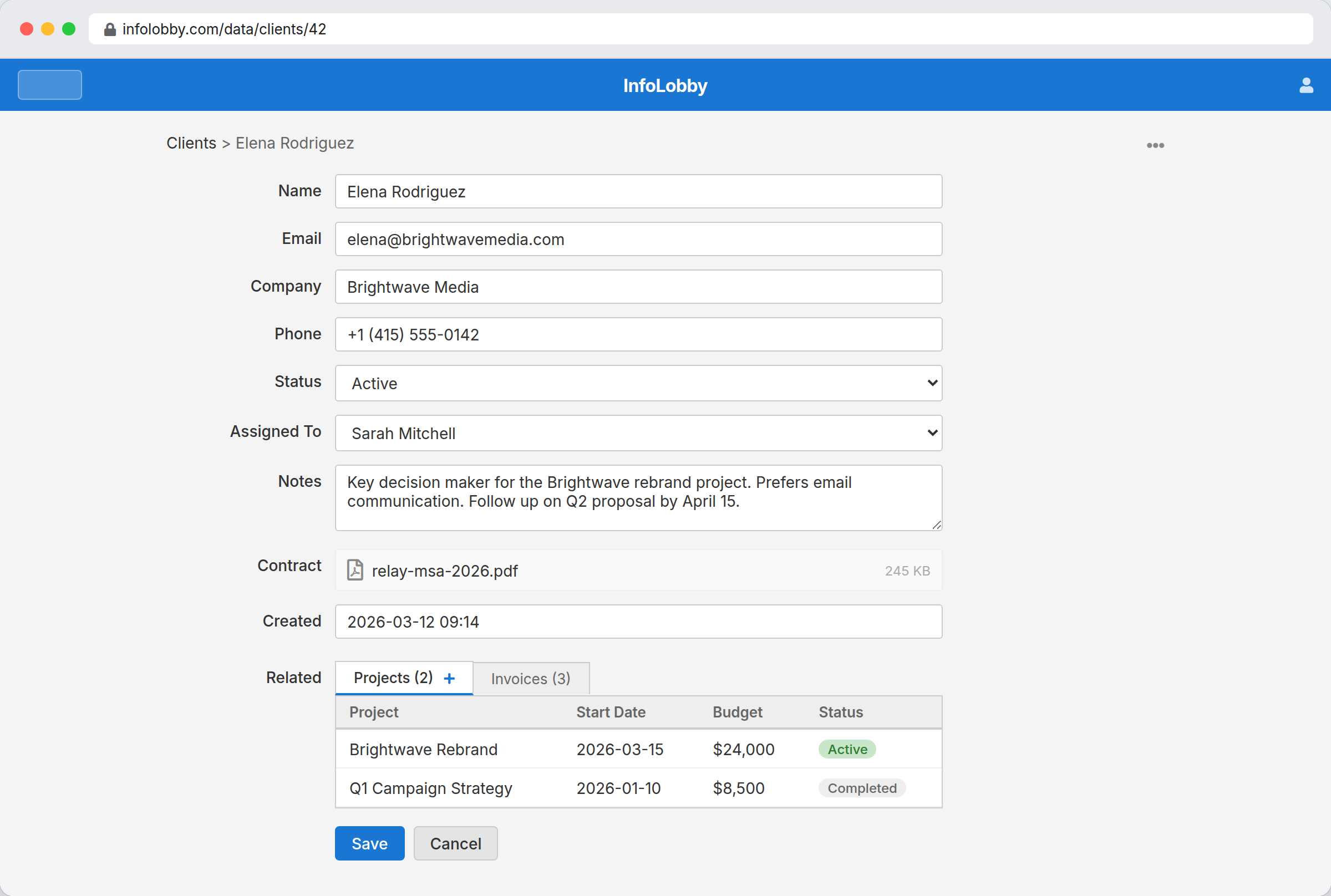
The record screen shows fields, file attachments, related records, and comments. Users with write access can edit and save. Read-only users can view records but cannot change them.
A red * beside a field label means the field is Required: fill it in or the record won't save. If you do try to save with one empty, the field turns red and tells you what to fix.
Linked records (both lookup field values and related sub-records) open the same way as grid rows: plain click opens the record, Ctrl/Cmd+click opens it in a new tab, and Shift+click opens it in a pop-up window without leaving the current record. When you open a related sub-record full page, saving or cancelling brings you back to the record you came from.
Moving between records
Once a record is open you can step straight to the next or previous one without going back to the list:
- Click the ‹ › arrows beside the record menu. On a wide screen they move out to the left and right edges of the window.
- Press Ctrl+← or Ctrl+→ (on a Mac, Cmd+← / Cmd+→). This works whenever you are not typing in a field.
- On a phone or tablet, swipe left for the next record and right for the previous one.
The order follows the list you came from: the same view, filters, search and sort you had on the table screen. Change the sort and the arrows follow the new order. If you opened the record from a link, a notification, or a bookmark rather than from the table, there is no list to follow and the arrows do not appear.
Editing a record out of the list you are working through does not strand you. If you are filtering on a status and you change that status, the record no longer belongs in the list, but the arrows still step to the records either side of where it sat, so you can keep working down the list.
The arrows are greyed out while you have unsaved changes. Save or cancel first, and they come back.
Lookup fields
A lookup field links a record to a record in another table. Click the field and start typing to search the target table.
If the record you need does not exist yet, type its name and pick the Create "…" option at the top of the list. This opens a record form for the target table — with the name you typed already filled into its title — so you can add the new record without leaving the one you are editing. When you save it, the lookup field is set to the record you just created.
The Create option only appears once you have typed a search term (so you check for an existing record first), and only if you have permission to add records to the target table.
Record history
Every record also has an Activity tab next to Comments. It shows the full history for that record: who changed it, when, and what changed.
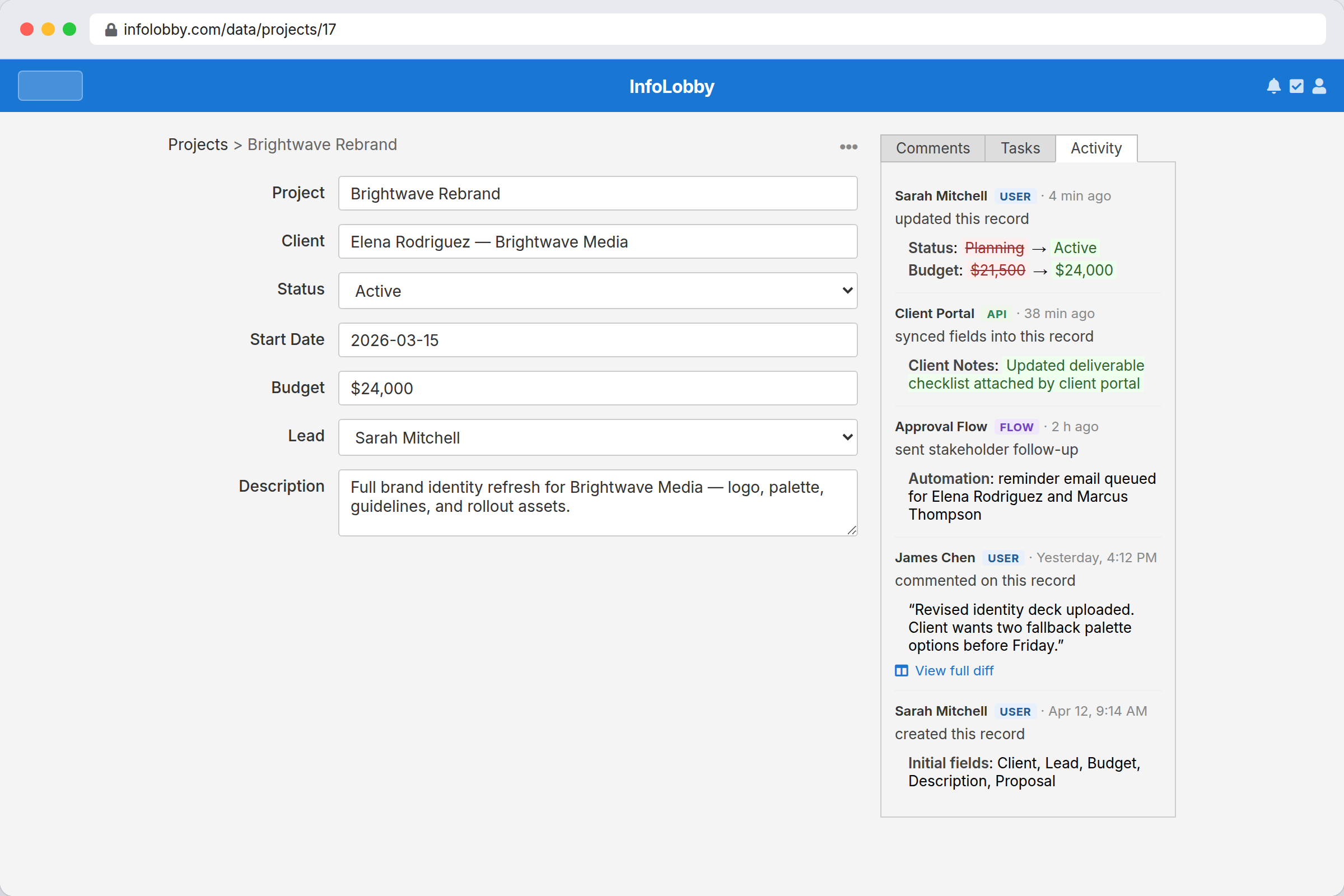
Use this when you need to audit edits, confirm who changed a field, or review before/after values.
Related records
When tables are connected with lookup fields, related records appear in tabs below the form. Open a related row to navigate to it, or use the add button to create a related record.
Admins can tailor each of these tabs from the table's Configure → Fields screen — reorder the tabs, set a default sort, apply a filter so only matching records show, or hide a tab entirely. See Tables & Fields.
Some records also have line-item grids — repeating detail rows (invoice lines, order items) entered right on the form and saved with the record. See Sub-tables (line items).
Record menu
Depending on your role, the record menu can include clone and delete options.
Clone opens a new-record form pre-filled from the current record, so you can tweak a copy instead of retyping. It behaves like a fresh create, not a byte-for-byte duplicate:
- Fields set to Hide on Create are left out.
- File attachments are dropped, except image-only file fields (logos, avatars), which carry over.
- Fields with a default value reset to their default — for example a date that defaults to "now" becomes the current date rather than the original record's date.
Formula, button, and other computed fields are always recalculated on the new record.
Bulk actions
In the grid view, tick the checkboxes on the rows you want (or the header checkbox to select the whole page), then open the table's ⋯ menu:
- Edit Selected — set one field to one value on every selected record at once. Pick the field, enter the value using its normal editor (date picker, dropdown, person picker, and so on), and apply. A progress window shows each record by title as it updates. Each record runs its On Update automations, just like editing it by hand. Button, formula, long-text, and file fields can't be bulk edited.
- Run Flow on Selected — pick one of the table's On Demand automations and run it on every selected record, one after another. A progress window shows each record by title as it runs, along with any errors. If a record's automation hits an error, the batch stops there so you can fix it. Close the window to stop a run in progress.
- Delete Selected — permanently delete the selected records. A progress window shows each record by title as it's removed.
The progress windows for these actions update record-by-record; close the window to stop a run partway through (records already processed stay done).
These bulk actions need Read & Write access to the table. For Run Flow, only active On Demand automations appear in the picker. See Automations.