Integrations
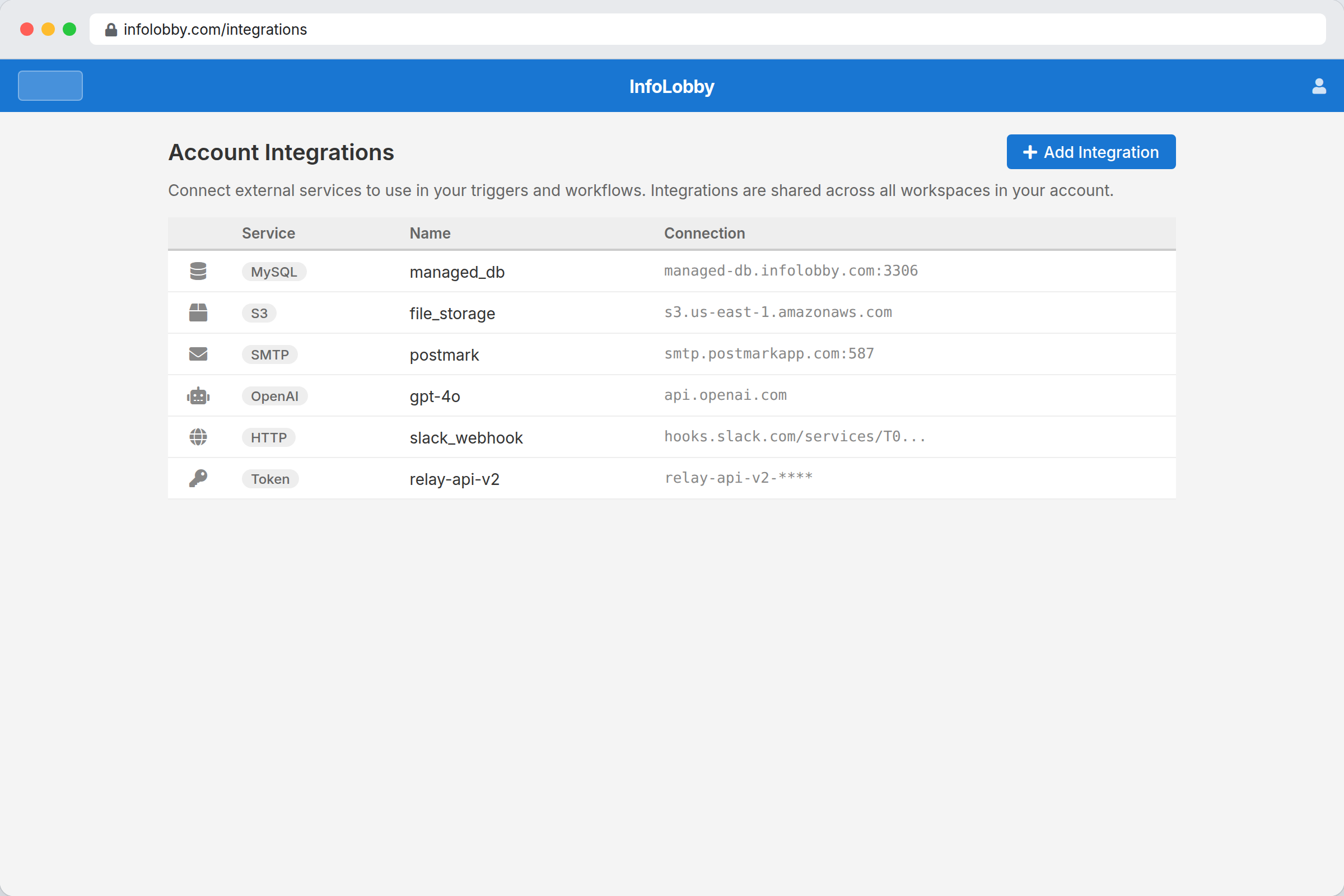
Integrations store connection settings for services you use in workspaces and automations.
Quick-add popular integrations
The fastest way to connect a common service is the quick-add gallery. Open Integrations → Add Integration and pick a provider tile — OpenAI, Podio, Google Drive, Slack, Stripe, Notion, Airtable, HubSpot, SendGrid, Asana, Monday.com, GitHub, Calendly, Twilio, Mailchimp, Brave Search, Zendesk, Xero, QuickBooks, Gmail, and Microsoft 365.
Picking a tile opens the connection form already filled in with the right base URLs, headers, ports, and OAuth endpoints, plus a short 3-step guide and a button to open the provider's key/token page. You only enter the one secret (API key, token, or password) and click Test, then Save.
For anything not in the gallery, choose Custom / Advanced connection to configure a raw API key, OAuth2, SMTP, or database connection.
For services that use OAuth (Google Drive, Podio, Xero, QuickBooks), you still register your own app with the provider to get a Client ID and Secret — the guide walks you through it and shows the exact redirect URI to paste.
Get help from the AI assistant
The built-in AI assistant can help you add an integration. Ask it something like "help me connect my Gmail SMTP" or "set up a Xero OAuth integration" and it will look up the right server addresses, ports, OAuth authorize/token URLs, scopes, and where to get an API key, then pre-fill the non-secret settings on the form for you to review.
For your security, the assistant never asks for or fills in secrets — you type passwords, API keys, client secrets, and tokens yourself, and complete OAuth by clicking Authenticate.
Available integrations
| Integration | Used for |
|---|---|
| MySQL | Bring your own database |
| S3 | Bring your own object storage |
| FTP | Store files on an FTP server |
| SMTP | Send email from automations |
| OpenAI | Use GPT and assistants in automations |
| HTTP Basic | Call APIs with basic auth |
| Bearer Token | Call APIs with token auth |
| OAuth2 | Call APIs with OAuth |
Connect a token API
A Bearer Token connection calls any API that authenticates with a single key. Fill in the base URL, paste the key into Token, and set a Test URL so the Test button can prove the connection works.
Two optional fields cover APIs that do not use the usual bearer scheme:
- Auth Header: the header the key is sent in. Most APIs use
Authorization. Some use their own, such asX-Subscription-Token(Brave Search) orX-Api-Key. - Auth Prefix: what goes in front of the key, so the header reads
Bearer abc123. Leave it empty when the header carries the bare key.
Leave both at their defaults (Authorization and Bearer) for the common case.
If a provider answers your Test with an authentication error even though the key
is correct, check its documentation for which header it expects.
Additional Headers takes any other headers the API needs, separated by commas,
for example Accept: application/json, Notion-Version: 2022-06-28.
Connect MySQL
Every account comes with a managed database, so this is only for teams who want to keep their data on a MySQL server they run themselves.
- Open integrations or database settings.
- Choose Add Server or Connect Database.
- Enter host, port, username, and password.
- Use Test before saving.
If the test fails, check firewall rules, remote MySQL access, host, port, and credentials.
Your server needs a few things first: MySQL 8.0 or newer, a firewall that allows our IP addresses, an empty database, and a user with the right privileges. Connect Your Own MySQL Server has the full requirements, the exact SQL to run, and a troubleshooting table.
Who can use an integration
Integrations belong to the workspace owner's account, and automations always run as the owner. When you build an automation, the connection pickers (SMTP, OpenAI, API) list the owner's integrations — so a workspace Admin can wire a flow to them even if they didn't create them.
Creating and editing integrations (credentials, from-domains) stays with the workspace owner. If you're an Admin and need a new connection, ask the owner to add it; it will then appear in your automation pickers.