Account & Billing
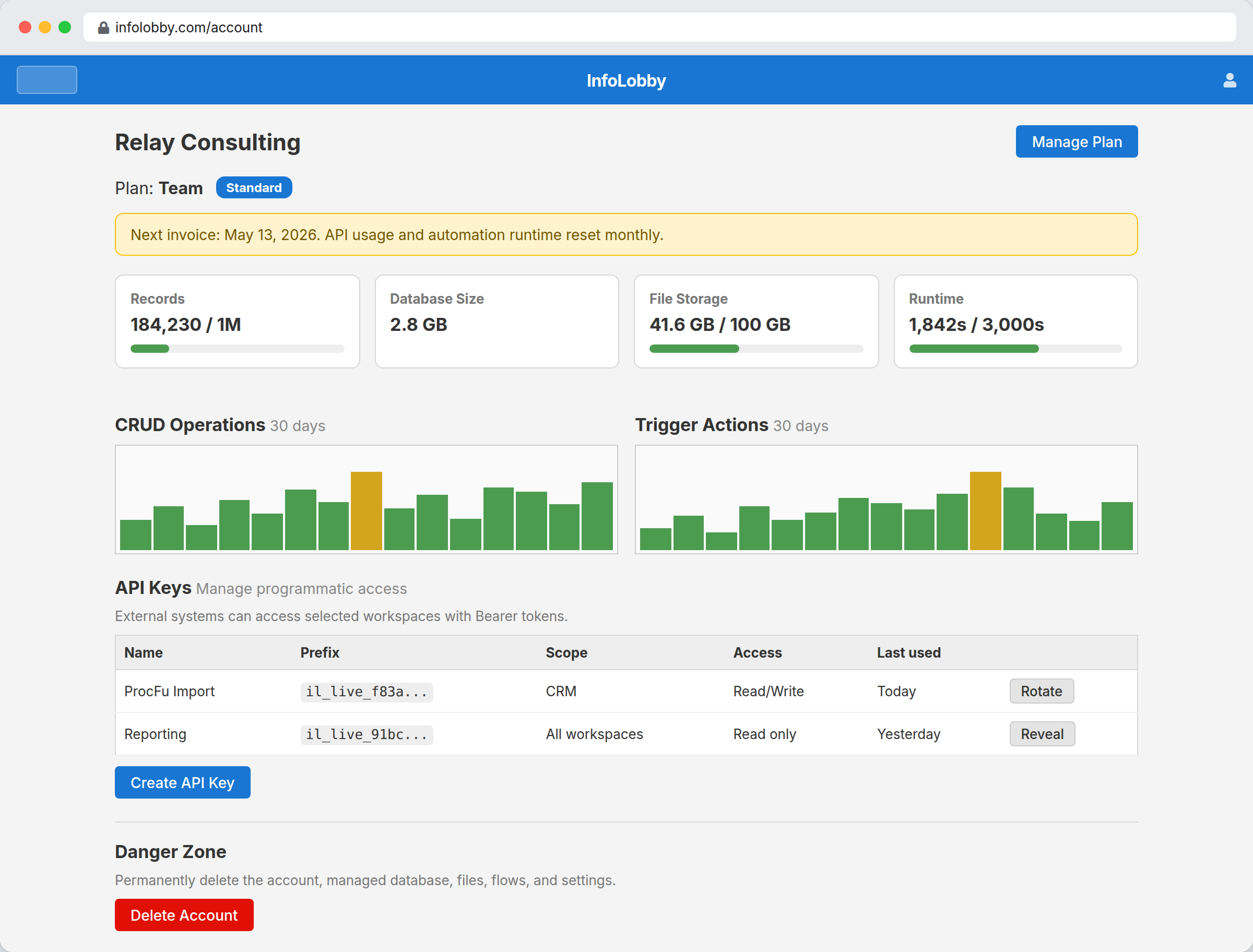
The account screen shows plan, usage, billing, integrations, API keys, and account-level settings.
Trial
New standard accounts start with a 14-day trial. During the trial, you can use the Starter-level limits.
When the trial expires, the account becomes read-only until upgraded. Trial data is kept for 30 days after locking. You will receive an email 3 days before deletion. After 31 days locked, unpaid trial account data is permanently deleted. Guest access to other workspaces is preserved.
Plans
Plans set limits for records, storage, workspaces, automation runtime, web forms, and API calls.
Upgrade from the account screen. Payments are handled by Stripe Checkout.
Usage limits
Your account page shows current usage against your plan limits. Storage usage includes both database size and uploaded files. InfoLobby checks usage hourly and will notify you when you reach 80% of a limit.
Activity history does not count toward your record or storage limits. It is written by the system rather than by you, so you are not billed for it.
The account page also shows three 30-day activity charts (CRUD operations, trigger actions, and automation runtime) so you can spot daily trends at a glance.
Automation runtime counts the time your automations spend working, in full. Time spent waiting on other services (AI models, web requests, sending email) counts at a tenth, because that is somebody else's server being slow rather than your automation doing work. A three-minute AI call costs about eighteen seconds of your allowance. See Automations for how to find your most expensive automations.
If your records or storage exceed 100% of your plan limit, your account will be locked (read-only) until you upgrade or reduce usage. If your automation runtime is exhausted, automations will be paused until the next billing period, and your account stays unlocked.
Workspace and web form limits are enforced immediately when you try to create a new one.
Your account will automatically unlock when usage drops back below your plan limits, or when you upgrade to a higher plan.
Payment-overdue accounts are suspended when payment is more than 5 days overdue. Suspended data is kept for 30 days after locking, with an email warning 3 days before deletion. After 31 days suspended for non-payment, owned account data is permanently deleted. Guest access to other workspaces is preserved.
Guest accounts
Guests are created when someone is invited to a workspace before they have their own InfoLobby account. Guests can work in invited workspaces, but they do not get their own managed database. Guests can attach files to their own tasks, with a 250 MB limit, and get full storage by creating their own account.
Partner access
If you work with an InfoLobby partner (a consultant or agency who builds and supports your setup), you can let them work inside your account instead of screen sharing or handing over your password.
They ask for access from their own account. You will get an email with an approval link, and the request also appears under Partner Access on your account screen. Nothing happens until you approve it.
Once approved, the partner signs in as themselves, not as you. While they are in your account they are an admin in every workspace and can create new ones. Everything they do is recorded in your activity feed under their own name, marked as partner access.
They cannot change your plan, view your billing details, transfer ownership, or delete your account. Those stay with you.
To withdraw access, open your account screen, find the partner under Partner Access, and revoke it. This takes effect immediately, including for any session the partner has open at that moment.
If you signed up through a partner's referral link, you may have already approved access at signup. It is listed in the same place and revoked the same way.