AI Assistant
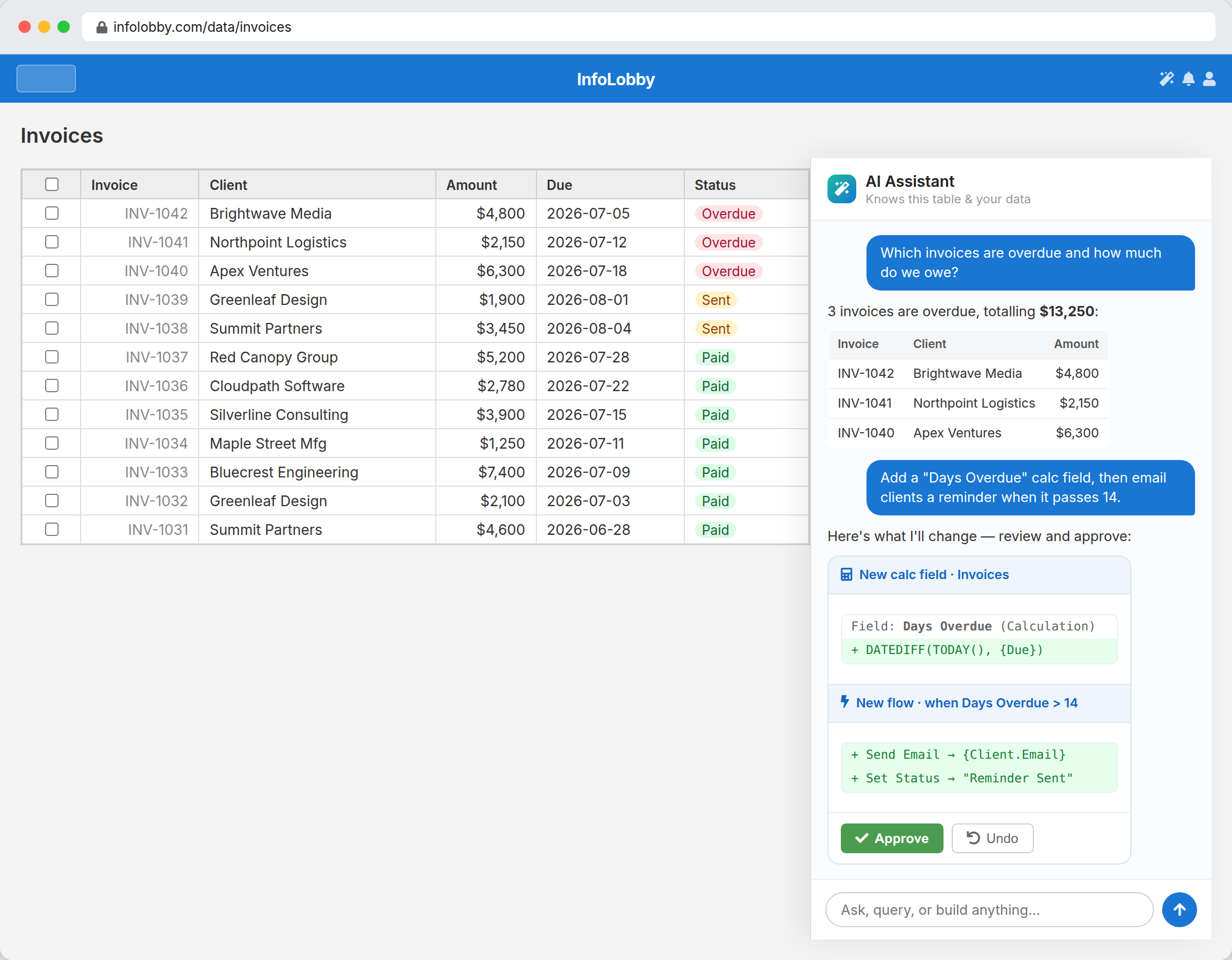
The AI assistant is a chat panel built into InfoLobby. It knows which page you are on, and it can build things for you: fields, tables, automations and integration settings. You describe what you want, it shows you the change, and nothing happens until you approve it.
Opening it
Click the robot button in the bottom right corner of any page. The panel opens beside your work, so you can keep the table or flow you are editing in view.
Inside the panel:
- + starts a new conversation. Useful when you switch to a different task.
- Talk to a human hands you over to support if the assistant is not getting there.
A conversation picks up where you left off when you come back to it, including after a page reload, and is kept for a day after your last message. After that the assistant starts a fresh one and tells you it has.
If you do not see the button, it is either switched off for you or your account has not enabled it yet. See Do I need an OpenAI key? and Turning it off.
What it can do for you
Build and configure:
- Add, rename, reorder and remove fields on the table you are viewing
- Create a new table, or change the one you are on
- Create an automation for the current table, and edit an existing one in either the visual builder or in PHPScript
- Fill in the settings for an integration you are connecting
- Look up the field names and types in any table you have access to
- Answer questions about how InfoLobby works
- Take you to the right screen when you are on the wrong one
Read and change your records (this part needs your own OpenAI key, see below):
- Answer questions about your actual data, like which invoices are overdue and what they add up to
- Create a record, update one, add a comment, or delete one
Do I need an OpenAI key?
Not to build. The assistant designs tables, fields and automations on our key, from your first day, with nothing to set up.
You connect your own OpenAI key when you want the assistant working with the records themselves.
| Included, no setup | With your own OpenAI key | |
|---|---|---|
| Who gets it | Workspace admins and the account owner | Everyone in the account |
| Build fields, tables and automations | Yes | Yes |
| Help with integrations and setup | Yes | Yes |
| Read and search your records | No | Yes |
| Create, update, comment on or delete records | No | Yes |
| Who pays for the AI usage | We do | You do, billed by OpenAI at cost |
If you ask for something in the second group without a key connected, the assistant says so plainly and points you at the setting rather than failing quietly.
Turning on data access
An account owner or admin connects the key once, for everybody:
- Go to Integrations and add the OpenAI integration.
- Paste your OpenAI API Key.
- Tick Allow all users in this account to use AI Assistant with data access.
- Save.
Two things change at that point. The assistant can read and write records, and it becomes available to everyone in the account rather than admins only.
The usage is billed to your own OpenAI account at their rates. Nothing is marked up, and your data goes to an OpenAI account you control.
Nothing changes without your approval
The assistant does not act on its own. It writes out the change it wants to make, shows you exactly what it is, and waits.
- Changes arrive as a diff: the field it is adding, the automation steps it is writing, the value it wants to set.
- Approve accepts it. For table and automation edits, approving stages the change into the editor so you can look it over and click Save yourself. For records and comments, approving applies it.
- Undo reverses what was just applied.
- Deleting anything asks for a stronger confirmation than a normal change.
If a proposal is not quite right, say what is wrong instead of starting over. It keeps the context.
It cannot do more than you can
The assistant acts as you. It sees the workspaces you can see, and it can only change what your role already lets you change. A Read Only member does not get write access by asking the assistant nicely.
The same goes for secrets. When it helps you set up an integration it fills in the ordinary settings (server addresses, ports, OAuth URLs) and never asks for or fills in a password, API key or token. You type those yourself.
Getting better answers
Be on the right page. Many of the build tools only appear when you are somewhere they make sense: field changes on the table's configure screen, automation edits in the flow editor, record changes on a record. If you are somewhere else, ask it to take you there first.
Describe the outcome, not the steps. "Email the client a reminder when an invoice is more than 14 days overdue" works better than a list of instructions about triggers and conditions.
Mention the exceptions. The one client who gets different treatment, the status that means something unusual in your business. It builds what you describe.
Some things worth asking:
- "Add a Days Overdue calculation field to this table"
- "When Status changes to Won, create a task for the owner due in two days"
- "Help me connect my Gmail SMTP"
- "Why is this automation not firing?"
- With data access on: "Which projects have no activity in the last 30 days?"
Turning it off
For yourself: go to Settings → Profile and tick Turn off the AI assistant for me. The button disappears for you and stays available to everyone else.
For the whole account: the account owner can go to Account and tick Turn off the AI assistant for everyone in this account. This overrides everything, including admins.
Related
- Getting started walks you through your first workspace with the assistant doing the work.
- Integrations covers connecting OpenAI and every other service.
- Automations explains the flows the assistant writes for you.
- Tables and fields covers the structure it is editing.